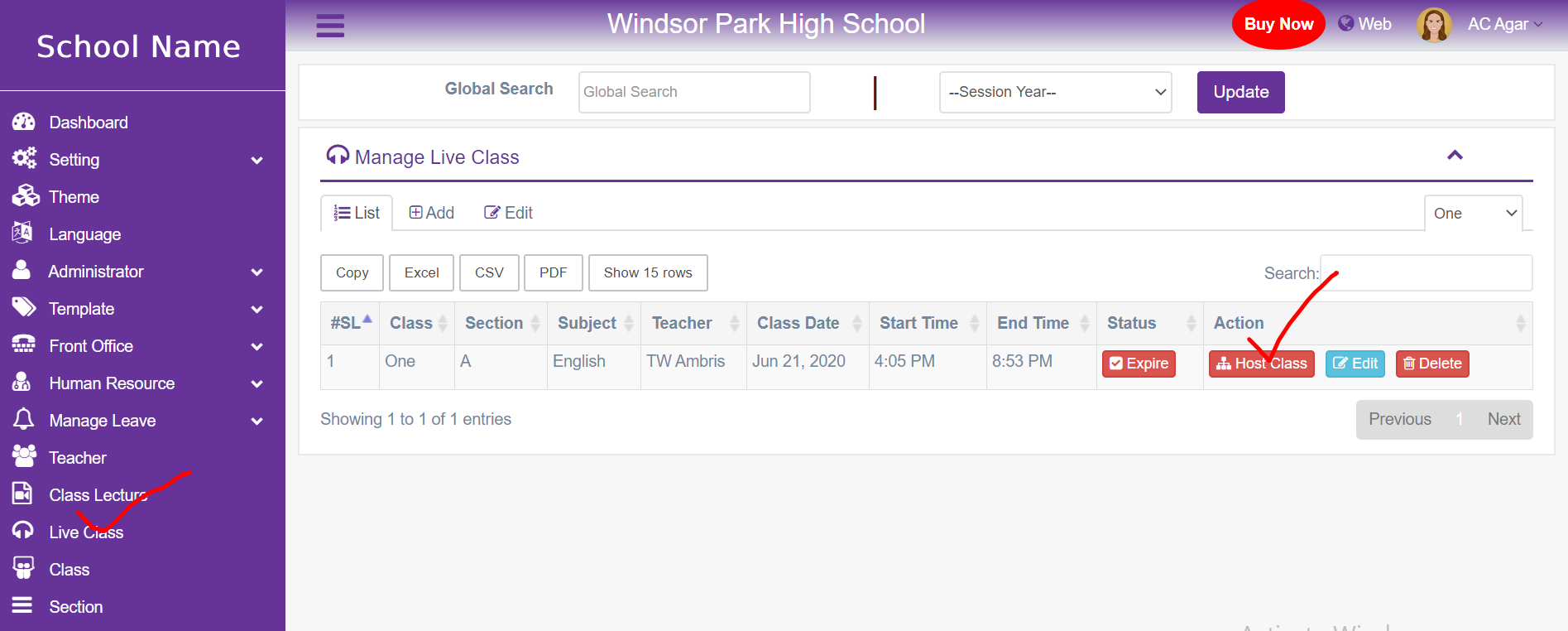


قاعدة المعرفة
مرحبًا بكم في قاعدة المعرفة الخاصة بنا، مصدر شامل مصمم لمساعدتكم في العثور على الإجابات، وحل المشكلات، وتعزيز فهمكم لبرنامجنا. إذا كنتم بحاجة إلى مزيد من المساعدة، فلا تترددوا في التواصل مع فريق الدعم لدينا.
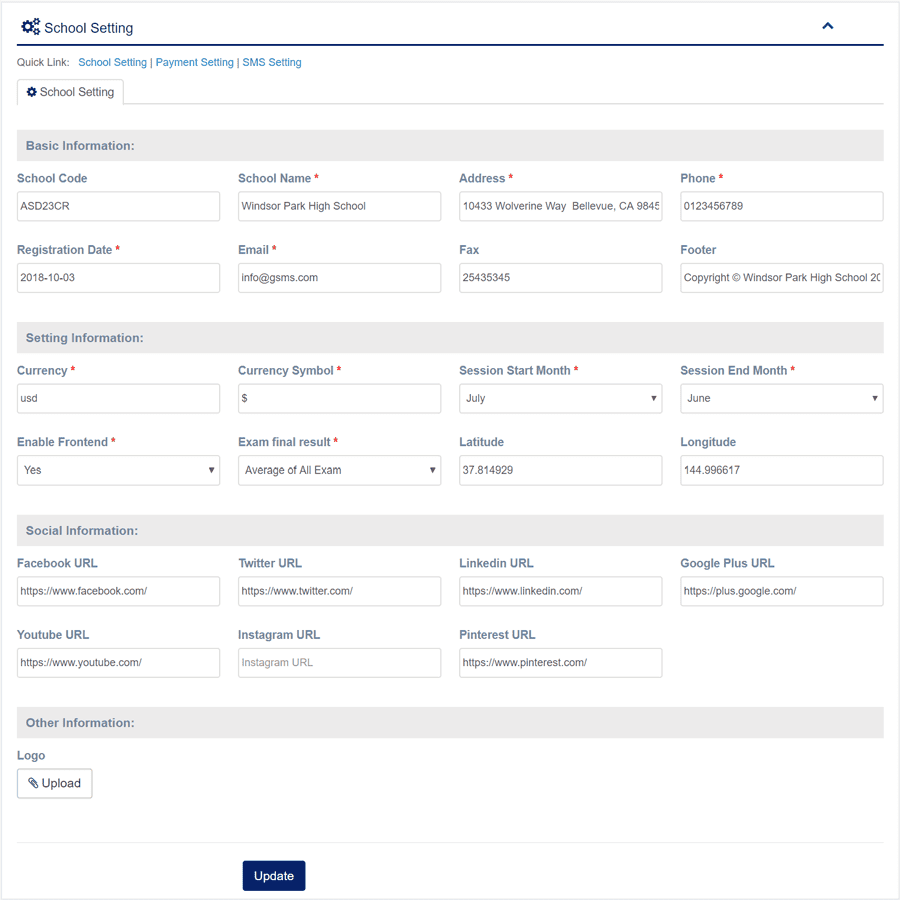
1. Login to المدير Panel.
2. Select إعدادات المدرسة sub menu under Setting menu from left side bar.
3. Fill up all required fields as per expected value/data.
4. Then Click to Update Button.
5. You are done with إعدادات المدرسة.
1. Login to المدير Panel.
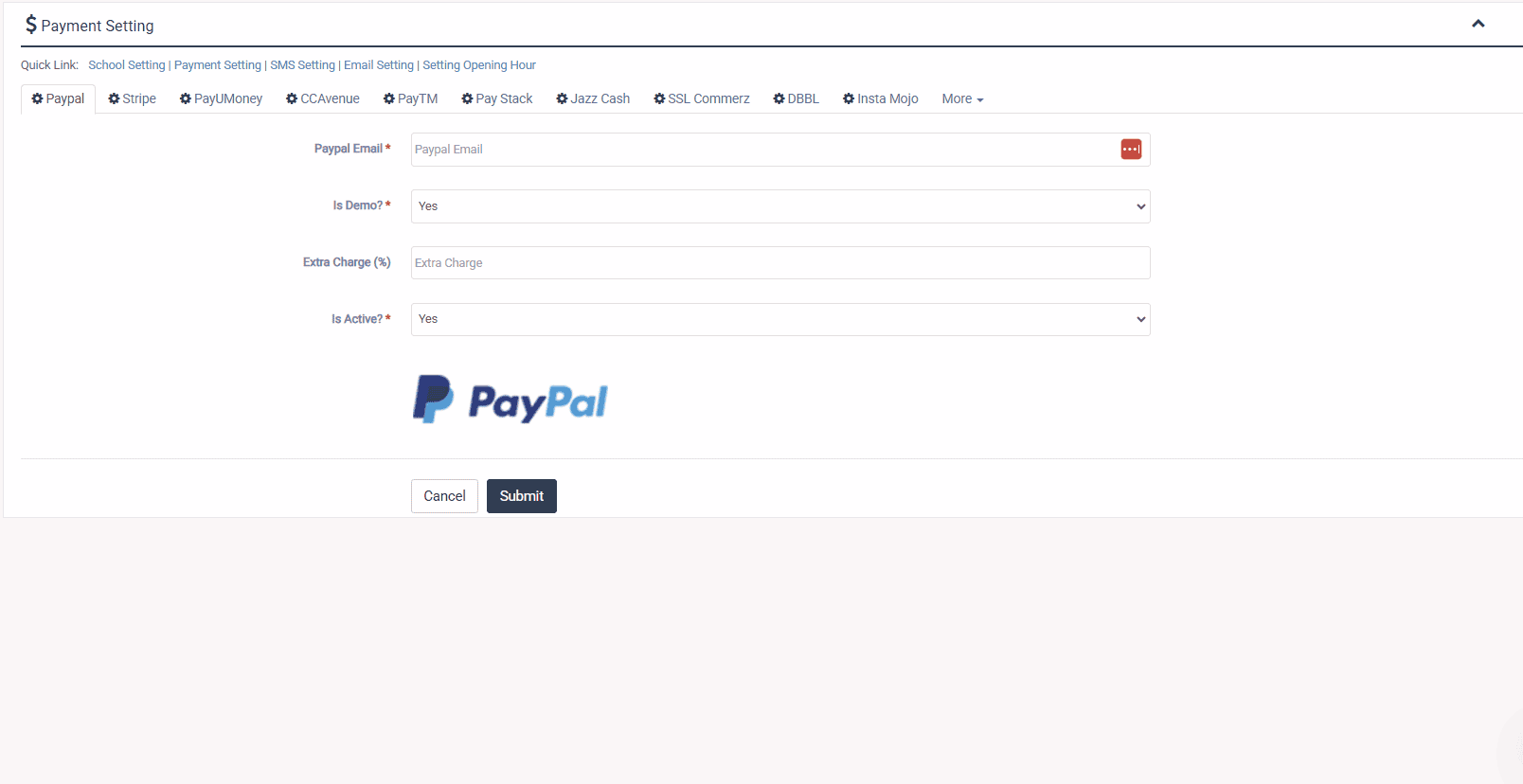
2. Select Payment Setting sub menu under Setting menu from left side bar.
3. Fill up all required fields as per expected value/data.
4. Then Click to Update Button.
5. Same way follow all payment gateway setting.
6. You are done with إعدادات الدفع.
1. Login to المدير Panel.
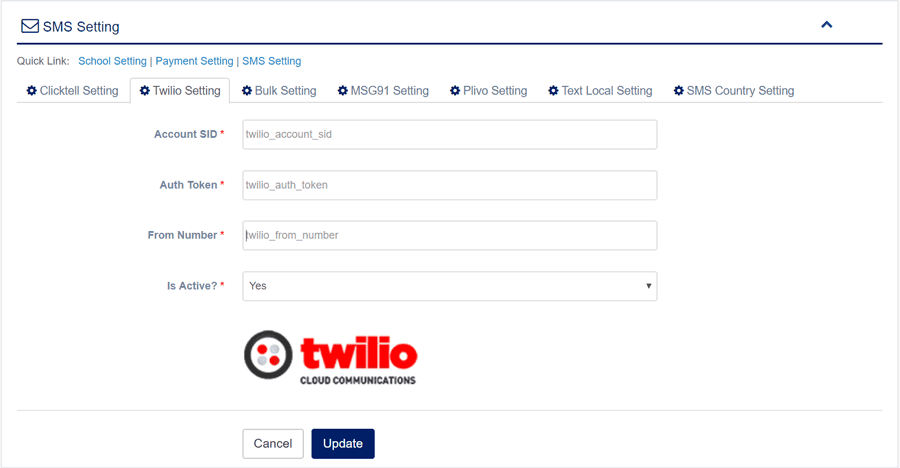
2. Select SMS Setting sub menu under Setting menu from left side bar.
3. Fill up all required fields as per expected value/data.
4. Then Click to Update Button.
5. Same way follow all SMS gateway setting.
6. You are done with إعدادات الرسائل القصيرة.
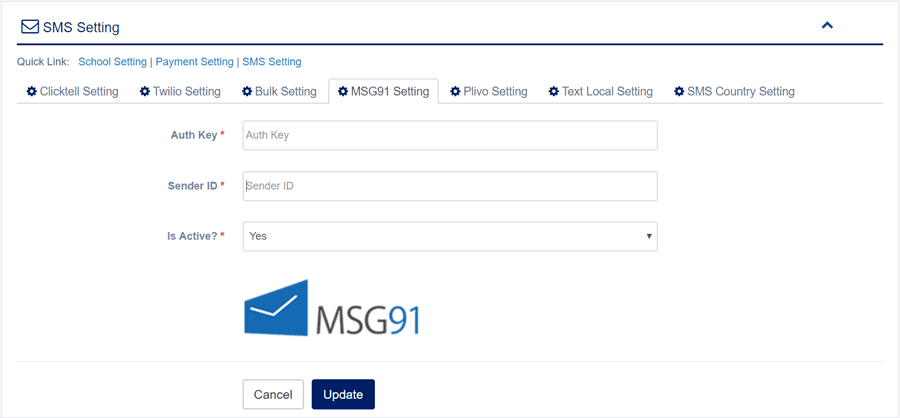
1. Login to المدير Panel.
2. Select SMTP Setting sub menu under Setting menu from left side bar.
3. Fill up all required fields as per expected value/data.
4. Then Click to Update Button.
6. You are done with Emai/SMTP Settings.
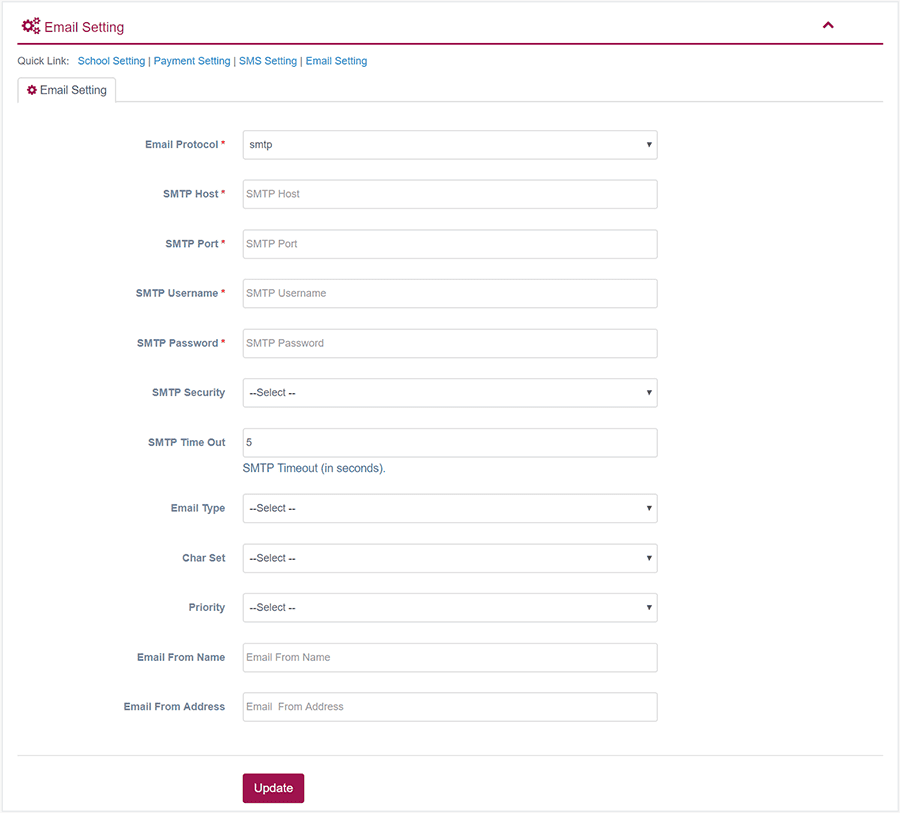
1. Login to المدير Panel.
2. Select Theme menu from left side bar.
3. Then choose your theme and Click to Activate Button.
4. You are done with Theme module.

1. Login to المدير Panel.
2. Select Open Hours menu from left side bar.
3. Fill all info and Click to Activate Button.
4. You are done with Open Hours module.
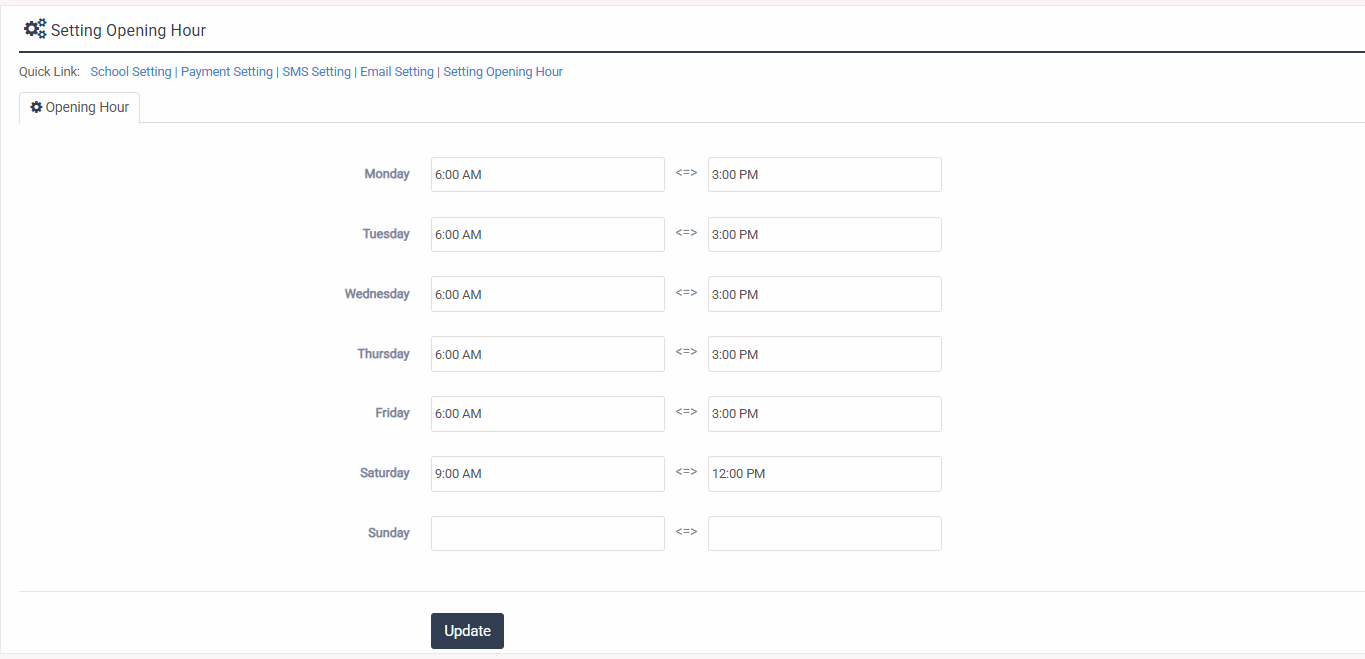
1. Login to المدير Panel.
2. Select السنة الاكاديمية sub menu under المدير menu from left side bar.
3. To add/create new السنة الاكاديمية click Add Academic Year  tab.
4. To edit السنة الاكاديمية Click Edit  button in the Academic Year list.
5. To Delete السنة الاكاديمية Click Delete  button in the Academic Year list.
6. You are done with السنة الاكاديمية feature.


1. Login to المدير Panel.
2. Select إدارة المستخدم sub menu under المدير menu from left side bar.
3. Then select User Type and filter specific user by click Find button.
5. By filter you will get a list of user
6. From the user list you can Activate, Inactivate, Edit & View a user.
7. You are done with User Manage feature.
Instruction: Please add Teacher, Employee, Student and Guardian before manage users.

1. Login to المدير Panel.
2. Select إعادة تعيين كلمة مرور المستخدم sub menu under المدير menu from left side bar.
3. Then select User Type & User and fill up Password & Confirm Password Fields with expected value/data.
5. Then click Update button to reset user password
6. You are done with إعادة تعيين كلمة مرور المستخدم feature.
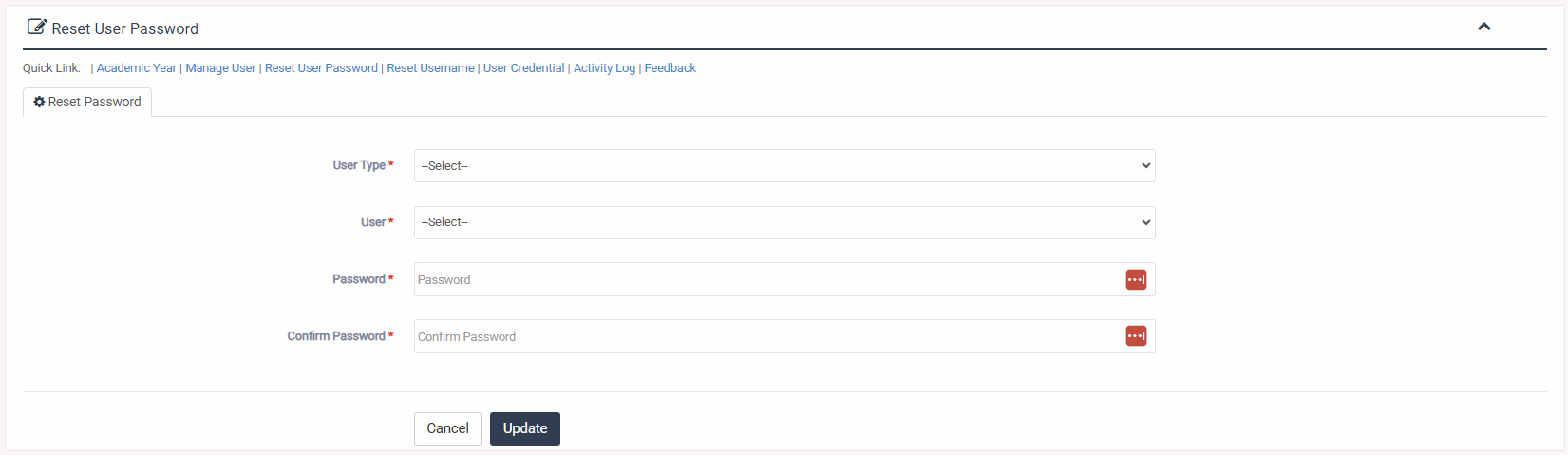
1. Login to المدير Panel.
2. Select إعادة تعيين اسم المستخدم sub menu under المدير menu from left side bar.
3. Then select User Type & User and fill up the Username Field with expected value/data.
5. Then click Update button to reset user password
6. You are done with إعادة تعيين اسم المستخدم feature.
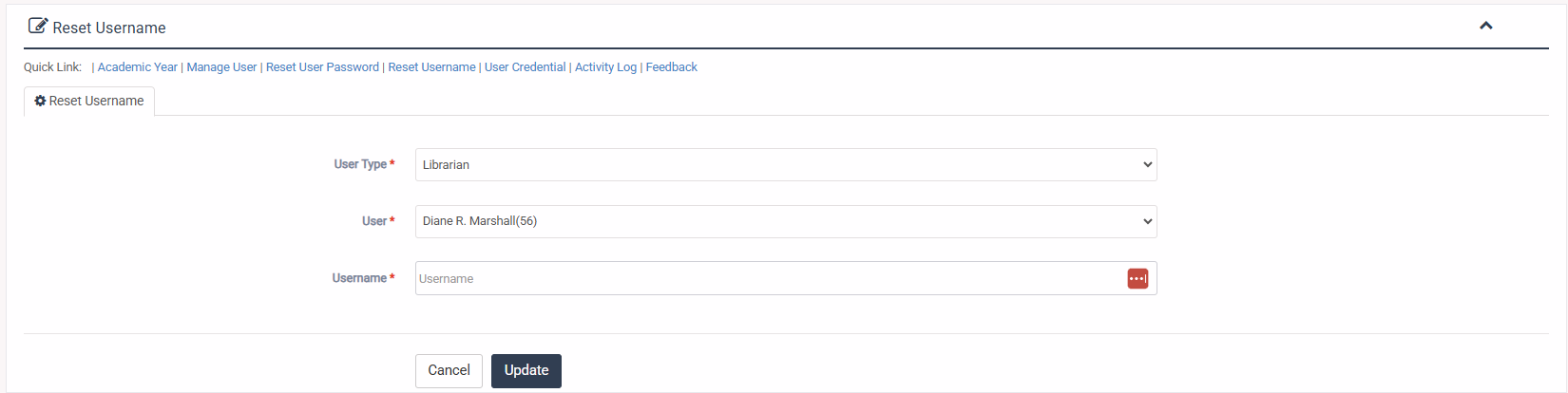
1. Login to المدير Panel.
2. Select بيانات اعتماد المستخدم sub menu under المدير menu from left side bar.
3. Then select User Type and filter specific user by click Find button.
5. By filter you will get a list of user
6. From the user list you can see user username and Credentials.
7. You are done with بيانات اعتماد المستخدم feature.
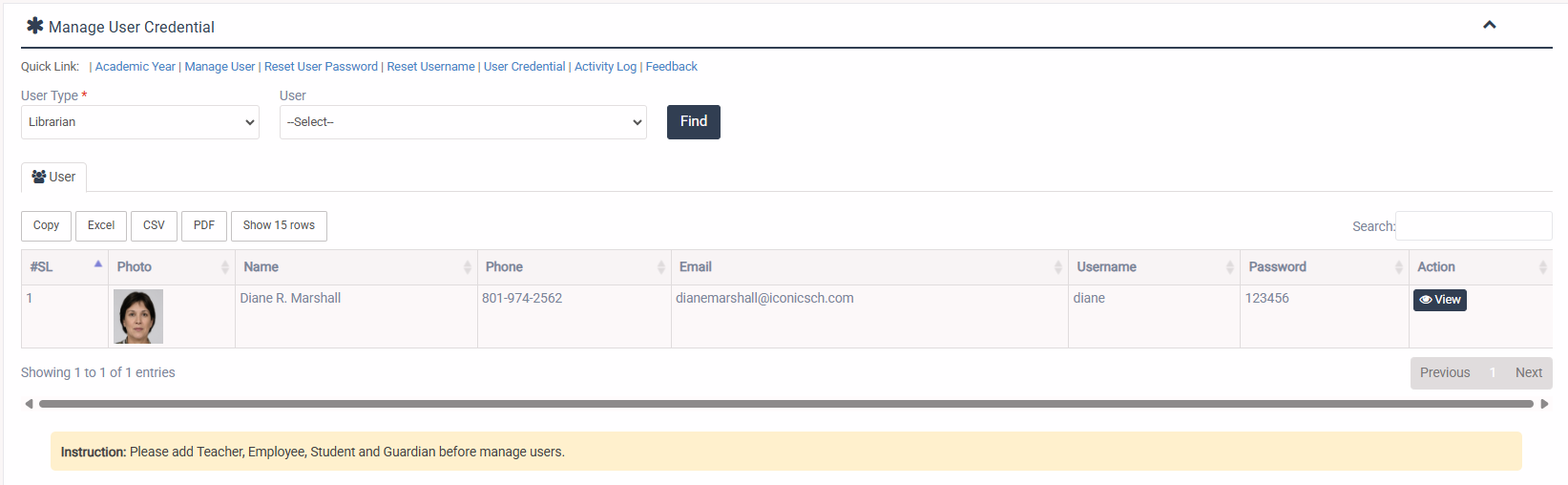
1. Login to المدير Panel.
2. Select سجل النشاط sub menu under المدير menu from left side bar.
5. To Delete سجل النشاط Click Delete  button in the Activity Log list.
6. You are done with سجل النشاط feature.

1. Login to المدير Panel.
2. Select إدارة التعليقات sub menu under المدير menu from left side bar.
5. To Delete A Feedback Click Delete  button in the Guardian Feedback list.
5. To Publish/unpubluish A Feedback Click Publish Now/ Unpublish Now  button in the Guardian Feedback list.
6. You are done with إدارة التعليقات feature.

Ac non ac hac ullamcorper rhoncus velit maecenas convallis torquent elit accumsan eu est pulvinar pretium congue a vestibulum suspendisse scelerisque condimentum parturient quam.Aliquet faucibus condimentum amet nam a nascetur suspendisse habitant a mollis senectus suscipit a vestibulum primis molestie parturient aptent nisi aenean.A scelerisque quam consectetur condimentum risus lobortis cum dignissim mi fusce primis rhoncus a rhoncus bibendum parturient condimentum odio a justo a et mollis pulvinar venenatis metus sodales elementum.Parturient ullamcorper natoque mi sagittis a nibh nisi a suspendisse a.
Ac non ac hac ullamcorper rhoncus velit maecenas convallis torquent elit accumsan eu est pulvinar pretium congue a vestibulum suspendisse scelerisque condimentum parturient quam.Aliquet faucibus condimentum amet nam a nascetur suspendisse habitant a mollis senectus suscipit a vestibulum primis molestie parturient aptent nisi aenean.A scelerisque quam consectetur condimentum risus lobortis cum dignissim mi fusce primis rhoncus a rhoncus bibendum parturient condimentum odio a justo a et mollis pulvinar venenatis metus sodales elementum.Parturient ullamcorper natoque mi sagittis a nibh nisi a suspendisse a.
Ac non ac hac ullamcorper rhoncus velit maecenas convallis torquent elit accumsan eu est pulvinar pretium congue a vestibulum suspendisse scelerisque condimentum parturient quam.Aliquet faucibus condimentum amet nam a nascetur suspendisse habitant a mollis senectus suscipit a vestibulum primis molestie parturient aptent nisi aenean.A scelerisque quam consectetur condimentum risus lobortis cum dignissim mi fusce primis rhoncus a rhoncus bibendum parturient condimentum odio a justo a et mollis pulvinar venenatis metus sodales elementum.Parturient ullamcorper natoque mi sagittis a nibh nisi a suspendisse a.
Ac non ac hac ullamcorper rhoncus velit maecenas convallis torquent elit accumsan eu est pulvinar pretium congue a vestibulum suspendisse scelerisque condimentum parturient quam.Aliquet faucibus condimentum amet nam a nascetur suspendisse habitant a mollis senectus suscipit a vestibulum primis molestie parturient aptent nisi aenean.A scelerisque quam consectetur condimentum risus lobortis cum dignissim mi fusce primis rhoncus a rhoncus bibendum parturient condimentum odio a justo a et mollis pulvinar venenatis metus sodales elementum.Parturient ullamcorper natoque mi sagittis a nibh nisi a suspendisse a.
Ac non ac hac ullamcorper rhoncus velit maecenas convallis torquent elit accumsan eu est pulvinar pretium congue a vestibulum suspendisse scelerisque condimentum parturient quam.Aliquet faucibus condimentum amet nam a nascetur suspendisse habitant a mollis senectus suscipit a vestibulum primis molestie parturient aptent nisi aenean.A scelerisque quam consectetur condimentum risus lobortis cum dignissim mi fusce primis rhoncus a rhoncus bibendum parturient condimentum odio a justo a et mollis pulvinar venenatis metus sodales elementum.Parturient ullamcorper natoque mi sagittis a nibh nisi a suspendisse a.
Ac non ac hac ullamcorper rhoncus velit maecenas convallis torquent elit accumsan eu est pulvinar pretium congue a vestibulum suspendisse scelerisque condimentum parturient quam.Aliquet faucibus condimentum amet nam a nascetur suspendisse habitant a mollis senectus suscipit a vestibulum primis molestie parturient aptent nisi aenean.A scelerisque quam consectetur condimentum risus lobortis cum dignissim mi fusce primis rhoncus a rhoncus bibendum parturient condimentum odio a justo a et mollis pulvinar venenatis metus sodales elementum.Parturient ullamcorper natoque mi sagittis a nibh nisi a suspendisse a.
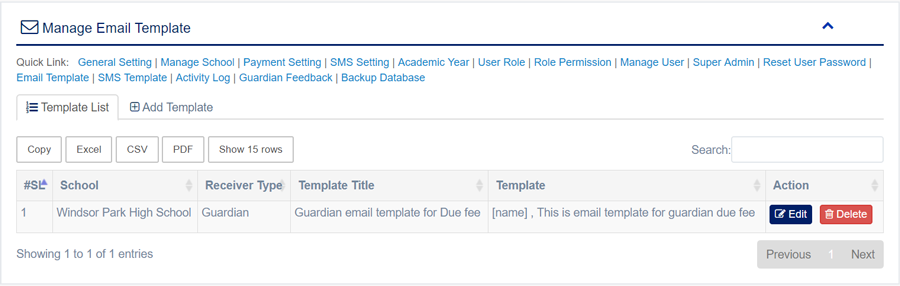
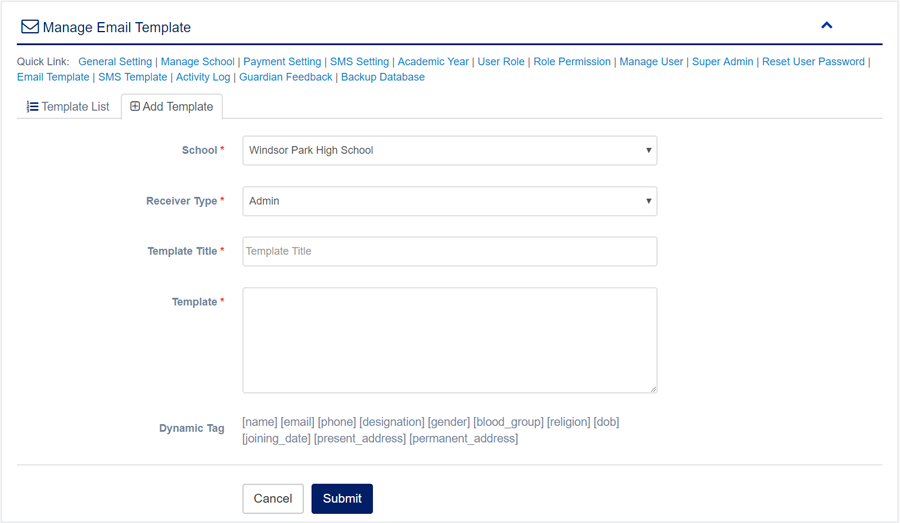
1. Login to المدير Panel.
2. Select Email Template sub menu under النماذج menu from left side bar.
3. To add/create new Email Template click Add Email Template  tab.
4. To edit Email Template Click Edit  button in the Email Template list.
5. To Delete Email Template Click Delete  button in the Email Template list.
6. You are done with Email Template feature.
1. Login to المدير Panel.
2. Select SMS Template sub menu under المدير menu from left side bar.
3. To add/create new SMS Template click Add SMS Template  tab.
4. To edit SMS Template Click Edit  button in the SMS Template list.
5. To Delete SMS Template Click Delete  button in the SMS Template list.
6. You are done with SMS Template feature.


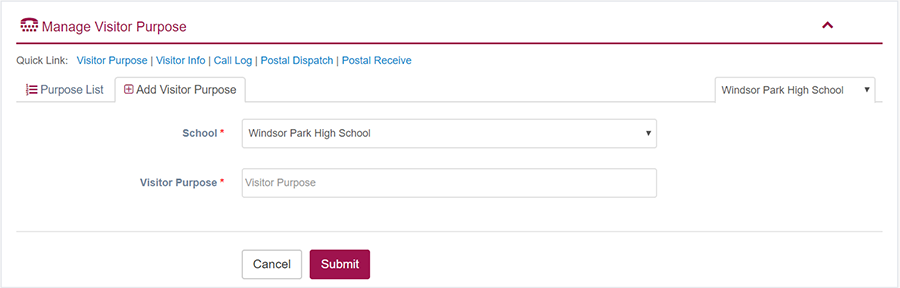
1. Login to المدير Panel.
2. Select Visitor Purpose sub menu under مكتب الاستقبال menu from left side bar.
3. To add/create new Visitor Purpose click Add Visitor Purpose  tab.
4. To edit Visitor Purpose Click Edit  button in the Visitor Purpose list.
5. To Delete Visitor Purpose Click Delete  button in the Visitor Purpose list.
6. You are done with Visitor Purpose feature.

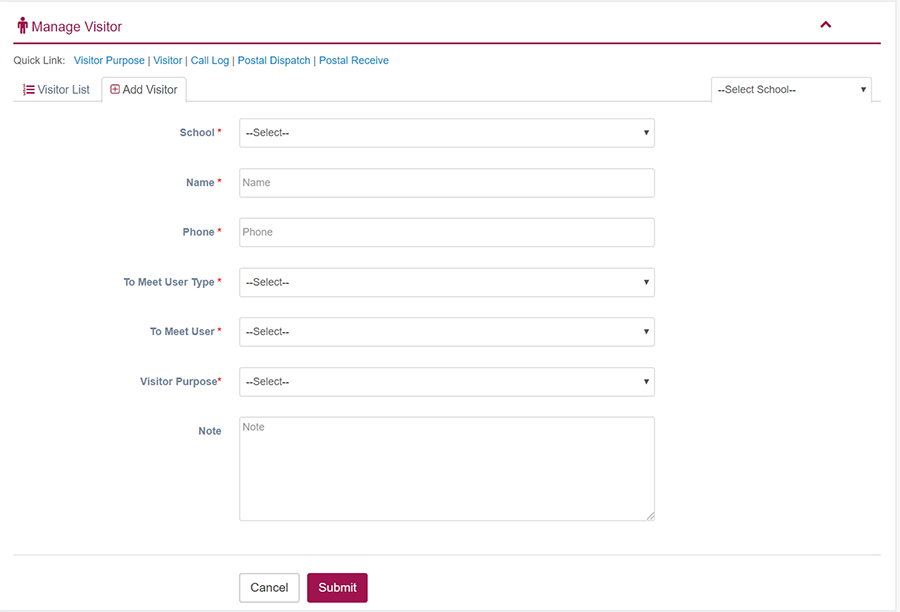
1. Login to المدير Panel.
2. Select Visitor Info sub menu under مكتب الاستقبال menu from left side bar.
3. To add/create new Visitor Info click Add Visitor Info  tab.
4. To edit Visitor Info Click Edit  button in the Visitor Info list.
5. To Delete Visitor Info Click Delete  button in the Visitor Info list.
6. You are done with Visitor Info feature.

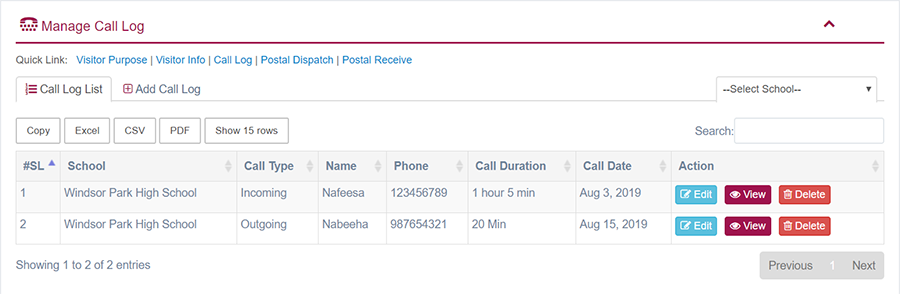
1. Login to المدير Panel.
2. Select Call Log sub menu under مكتب الاستقبال menu from left side bar.
3. To add/create new Visitor Info click Add Call Log  tab.
4. To edit Call Log Click Edit  button in the Call Log list.
5. To Delete Call Log Click Delete  button in the Call Log list.
6. You are done with Call Log feature.

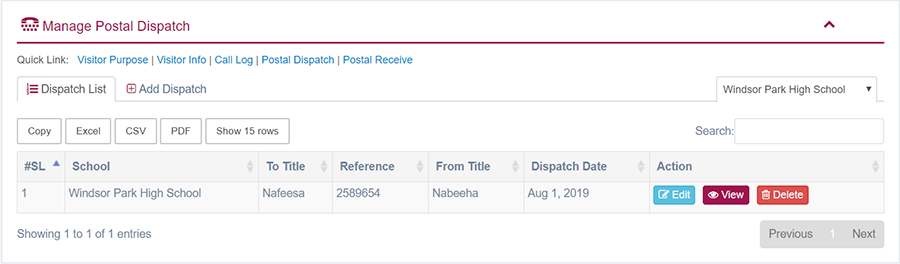
1. Login to المدير Panel.
2. Select الإرسال البريدي sub menu under مكتب الاستقبال menu from left side bar.
3. To add/create new الإرسال البريدي click Add Postal Dispatch  tab.
4. To edit الإرسال البريدي Click Edit  button in the Postal Dispatch list.
5. To Delete الإرسال البريدي Click Delete  button in the Postal Dispatch list.
6. You are done with الإرسال البريدي feature.

1. Login to المدير Panel.
2. Select استلام البريد sub menu under مكتب الاستقبال menu from left side bar.
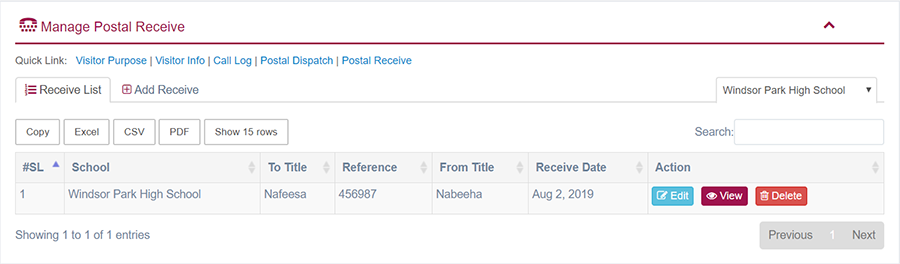
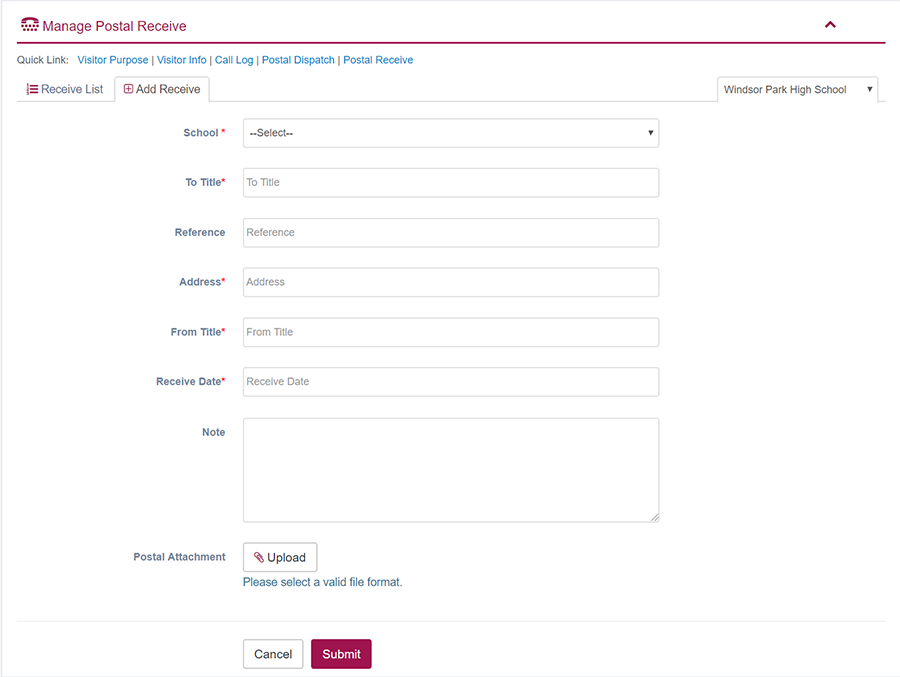
3. To add/create new استلام البريد click Add Postal Receive  tab.
4. To edit استلام البريد Click Edit  button in the Postal Receive list.
5. To Delete استلام البريد Click Delete  button in the Postal Receive list.
6. You are done with استلام البريد feature.
1. Login to المدير Panel.
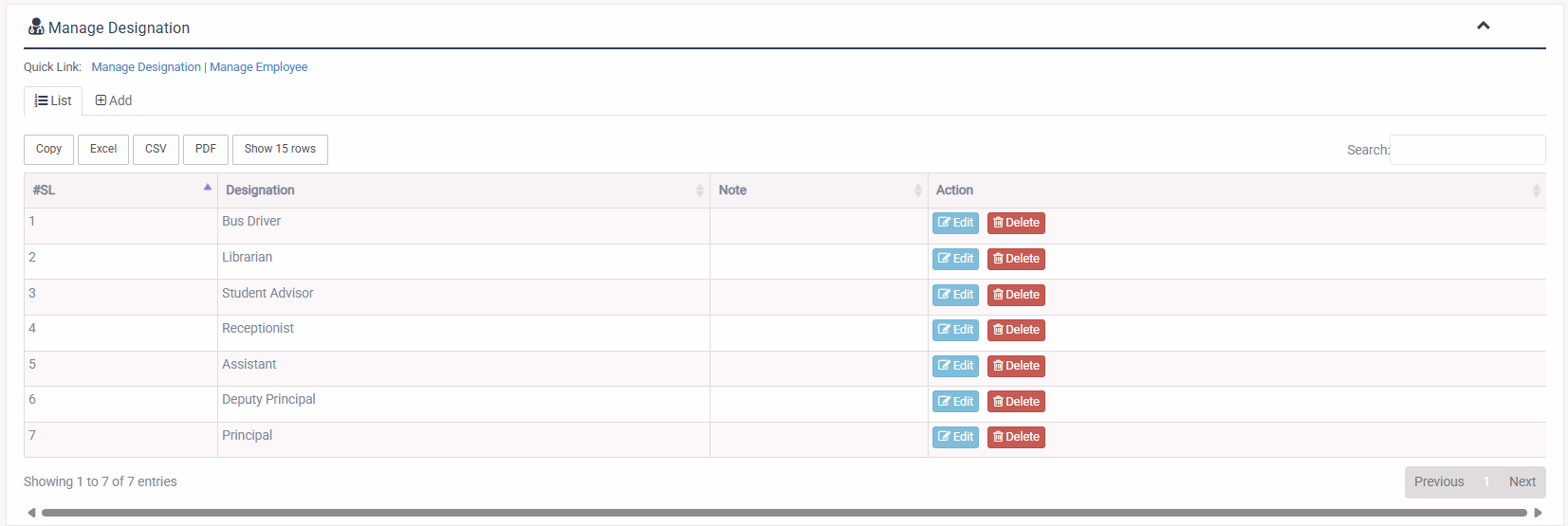
2. Select Manage Designation sub menu under الموارد البشرية menu from left side bar.
3. To Add/Create new Designation click Add Designation  tab.
4. To Edit Designation Click Edit  button in the Designation list.
5. To Delete Designation Click Delete  button in the Designation List.
6. You are done with Manage Designation feature.

1. Login to المدير Panel.
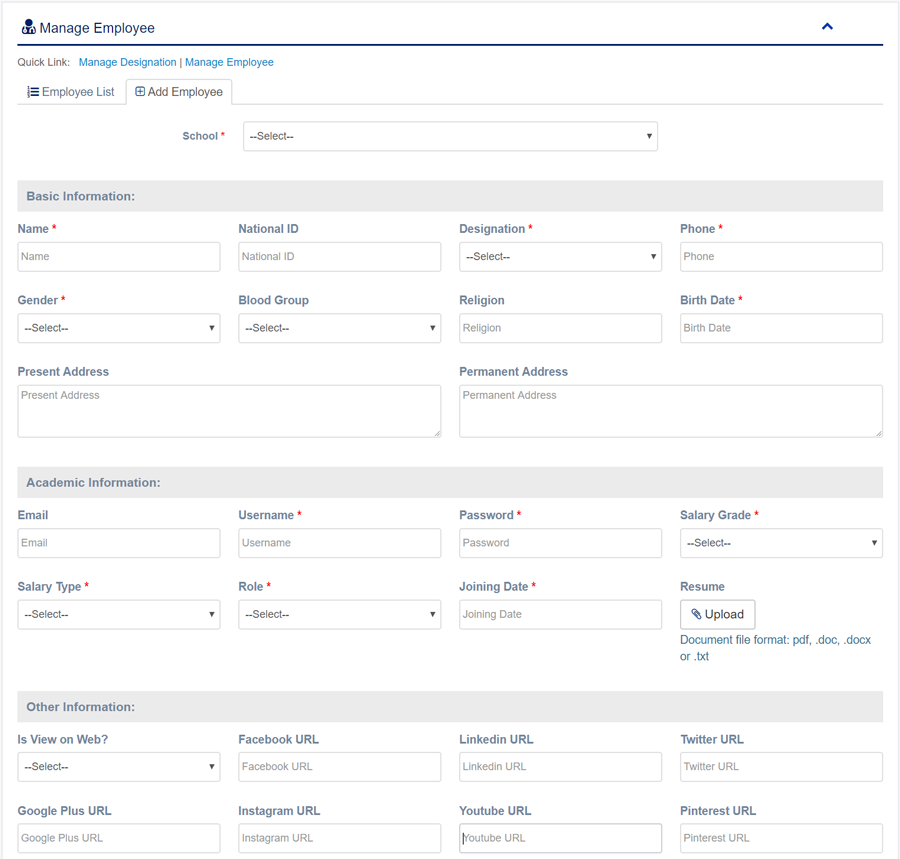
2. Select إدارة الموظفين sub menu under الموارد البشرية menu from left side bar.
3. To Add/Create new Employee click Add Employee  tab.
4. To Edit Employee Click Edit  button in the Employee list.
5. To Delete Employee Click Delete  button in the Employee List.
6. You are done with إدارة الموظفين feature.

1. Login to المدير Panel.
2. Select القسم menu from left side bar.
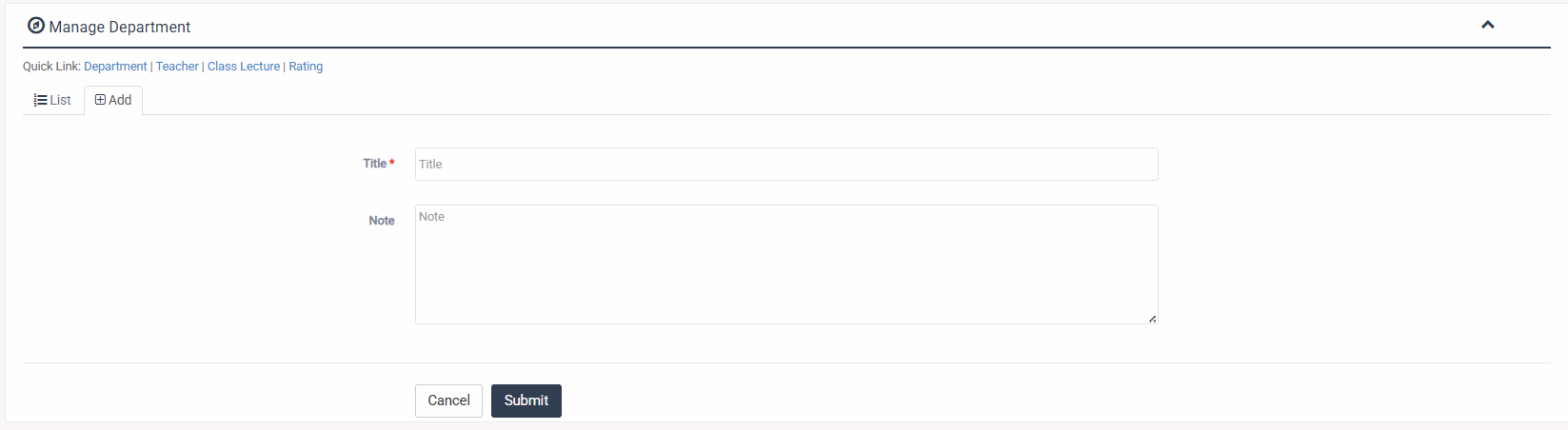
3. To Add/Create new القسم click Add tab.
4. To Edit القسم Click Edit  button in the Teacher list.
5. To Delete القسم Click Delete  button in the Teacher List.
6. You are done with القسم feature.

1. Login to المدير Panel.
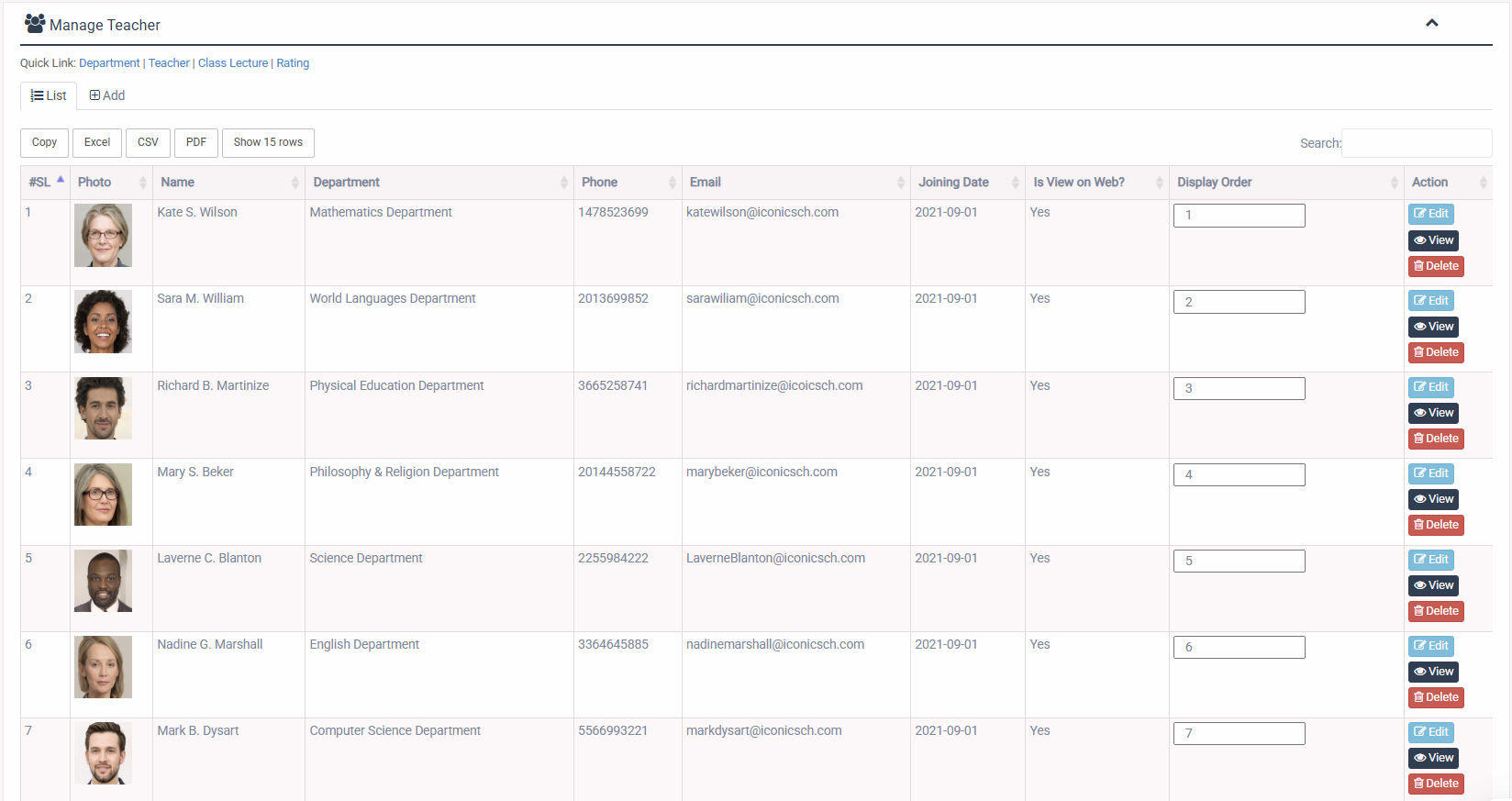
2. Select Teacher menu from left side bar.
3. To Add/Create new Teacher click Add Teacher  tab.
4. To Edit Teacher Click Edit  button in the Teacher list.
5. To Delete Teacher Click Delete  button in the Teacher List.
6. You are done with إدارة المعلمين feature.

1. Login to المدير Panel.
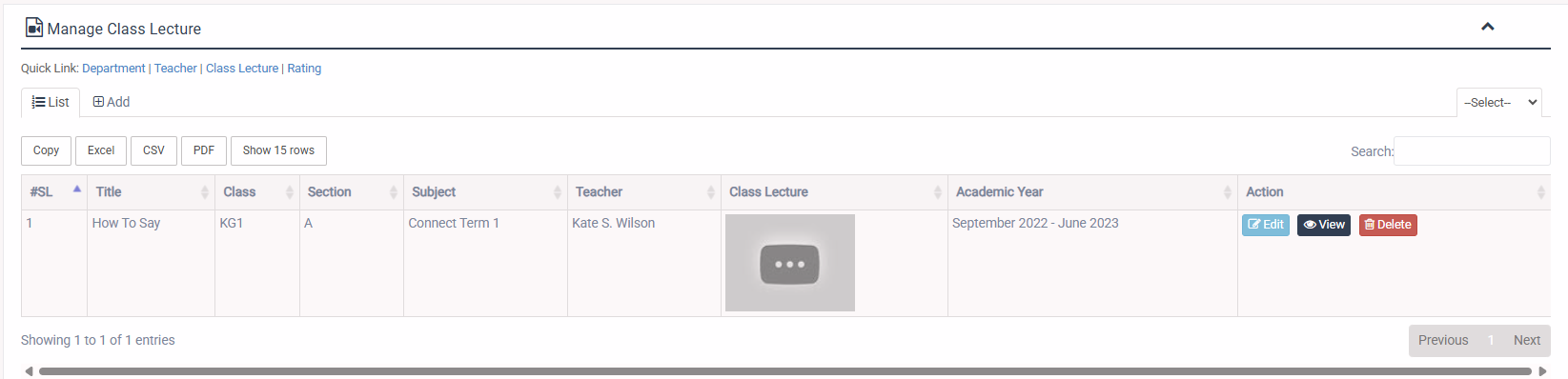
2. Select محاضرة الصفوف menu from left side bar.
3. To Add/Create new Lecture click Add tab and add the required info.
4. To Edit Lecture Click Edit  button in the Lectuers list.
5. To Delete Lecture Click Delete  button in the Teacher List.
6. You are done with محاضرة الصفوف feature.

1. Login to المدير Panel.
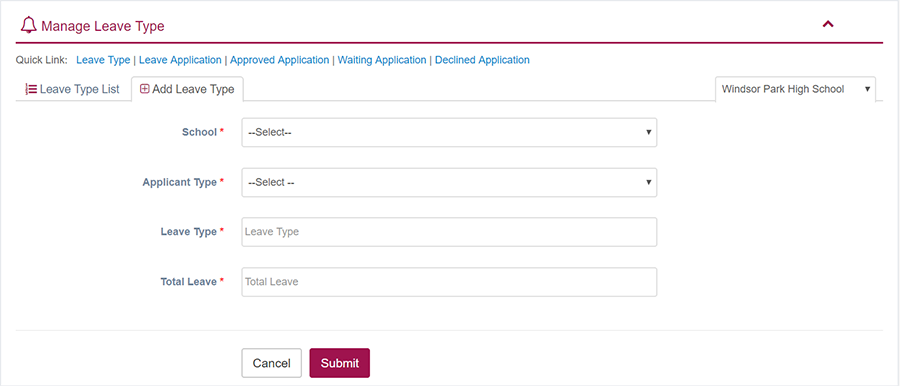
2. Select إدارة الإجازات menu from left side bar.
3. To Add/Create new نوع الإجازة click Add Leave Type tab.
4. To Edit نوع الإجازة Click Edit  button in the Leave Type list.
5. To Delete نوع الإجازة Click Delete  button in the Leave Type List.
6. You are done with نوع الإجازة feature.

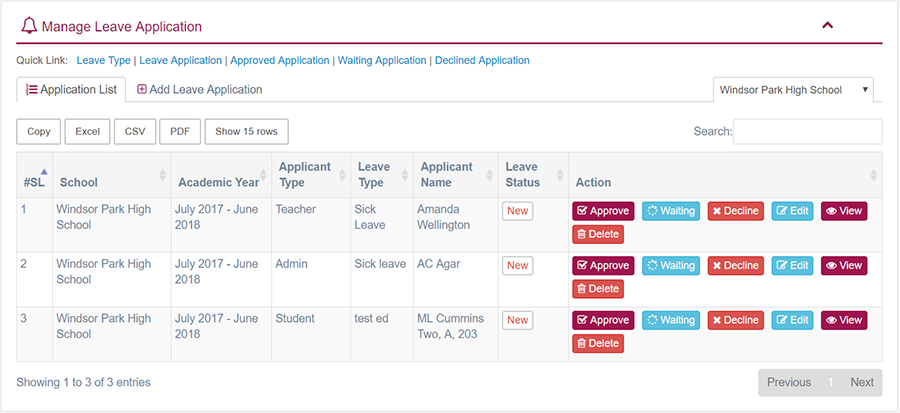
1. Login to المدير Panel.
2. Select Manage Leave Application sub menu under Leave menu from left side bar.
3. To Add/Create new طلب إجازة click Add Leave Application  tab.
4. To Edit طلب إجازة Click Edit  button in the Leave Application list.
5. To Delete طلب إجازة Click Delete  button in the Leave Application List.
6. You are done with Manage Leave Application feature.

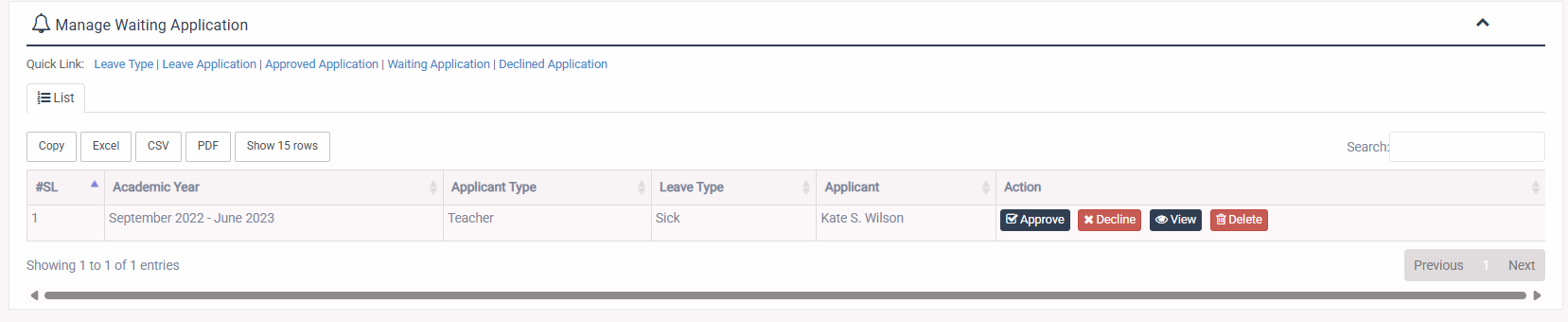
1. Login to المدير Panel.
2. Select طلب الانتظار sub menu under إدارة الإجازات menu from left side bar.
3. Admin can approve or decline or view or delete the waiting application.
4. You are done with طلب الانتظار feature.
1. Login to المدير Panel.
2. Select طلب معتمد sub menu under إدارة الإجازات menu from left side bar.
3. Admin can view the approved or delete the application.
4. You are done with طلب معتمد feature.

1. Login to المدير Panel.
2. Select طلب مرفوض sub menu under إدارة الإجازات menu from left side bar.
3. Admin can view, approve, put in waiting or delete the declined application.
4. You are done with طلب مرفوض feature.

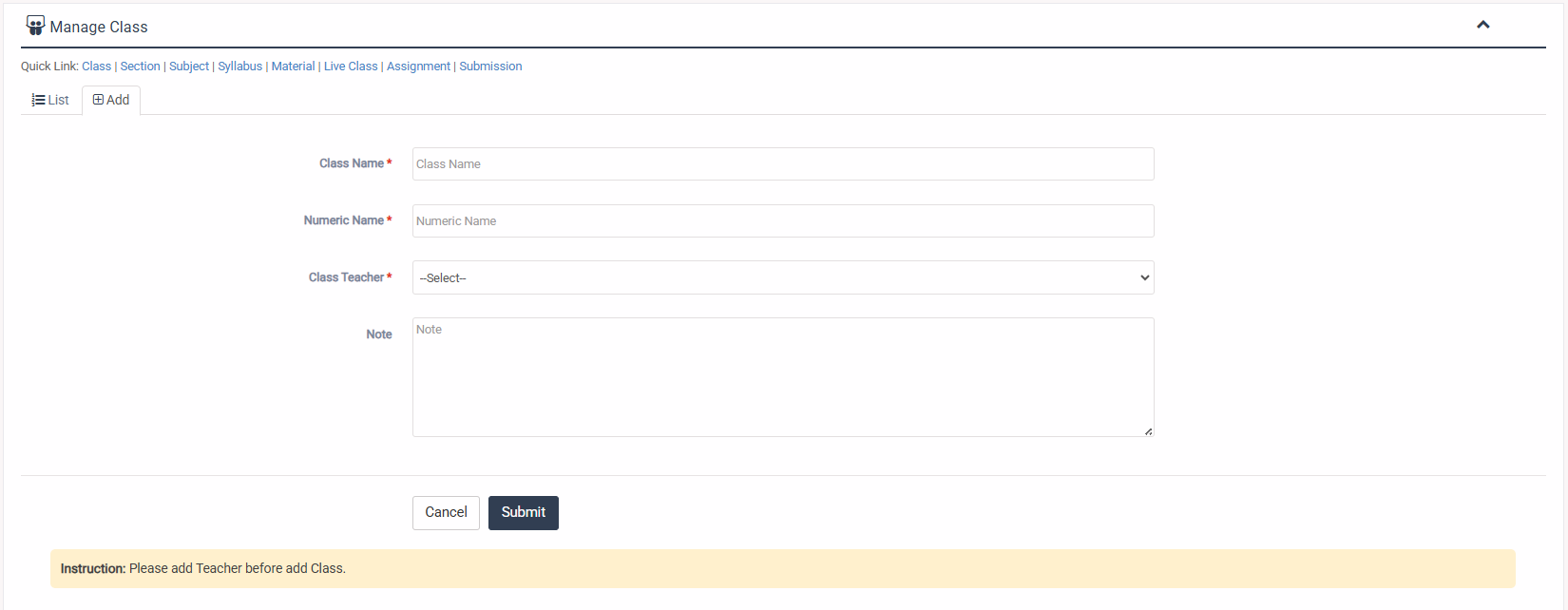
1. Login to المدير Panel.
2. Select الصفوف menu under Academin main menu from left side bar.
3. To Add/Create new الصفوف click Add Class  tab.
4. To Edit الصفوف Click Edit  button in the Class list.
5. To Delete الصفوف Click Delete  button in the Class List.
6. You are done with Manage Class feature.
Instruction: Please add Teacher before add Class.

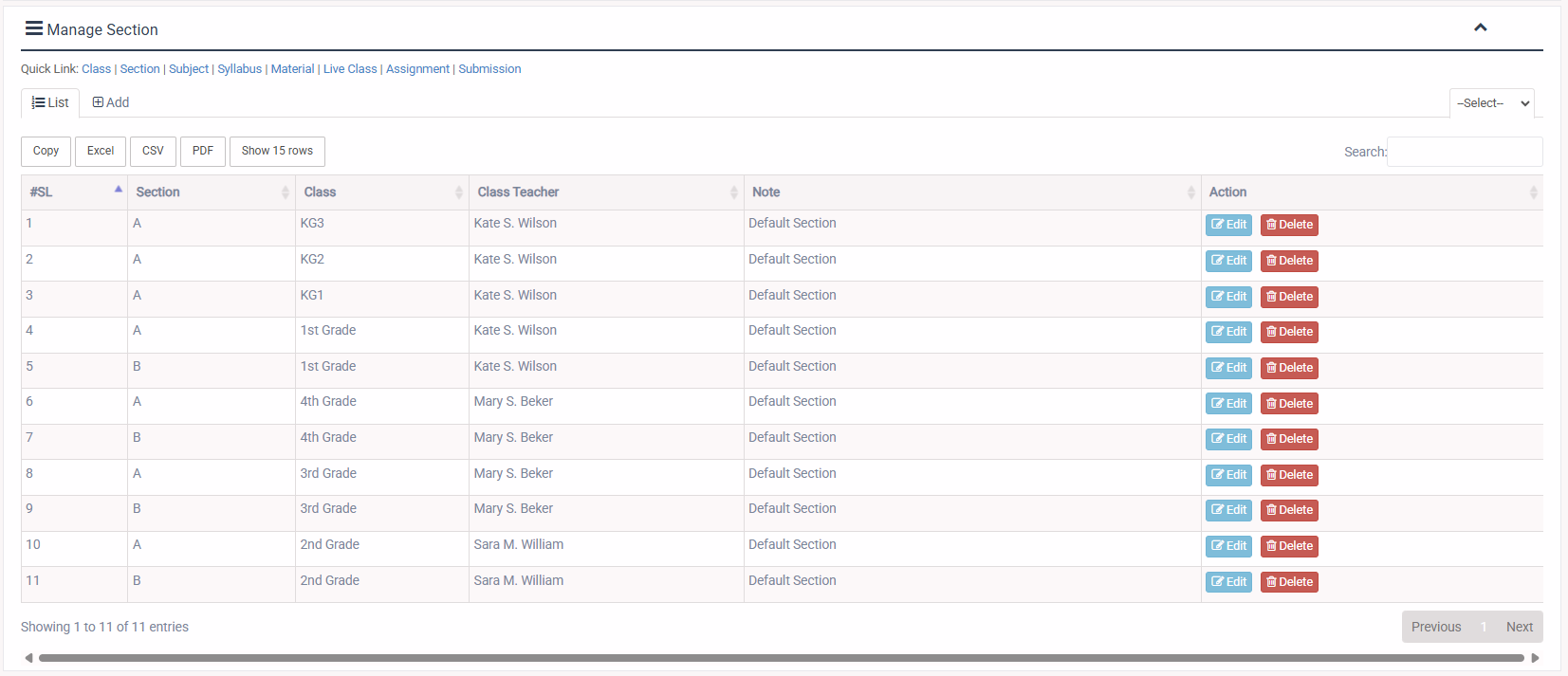
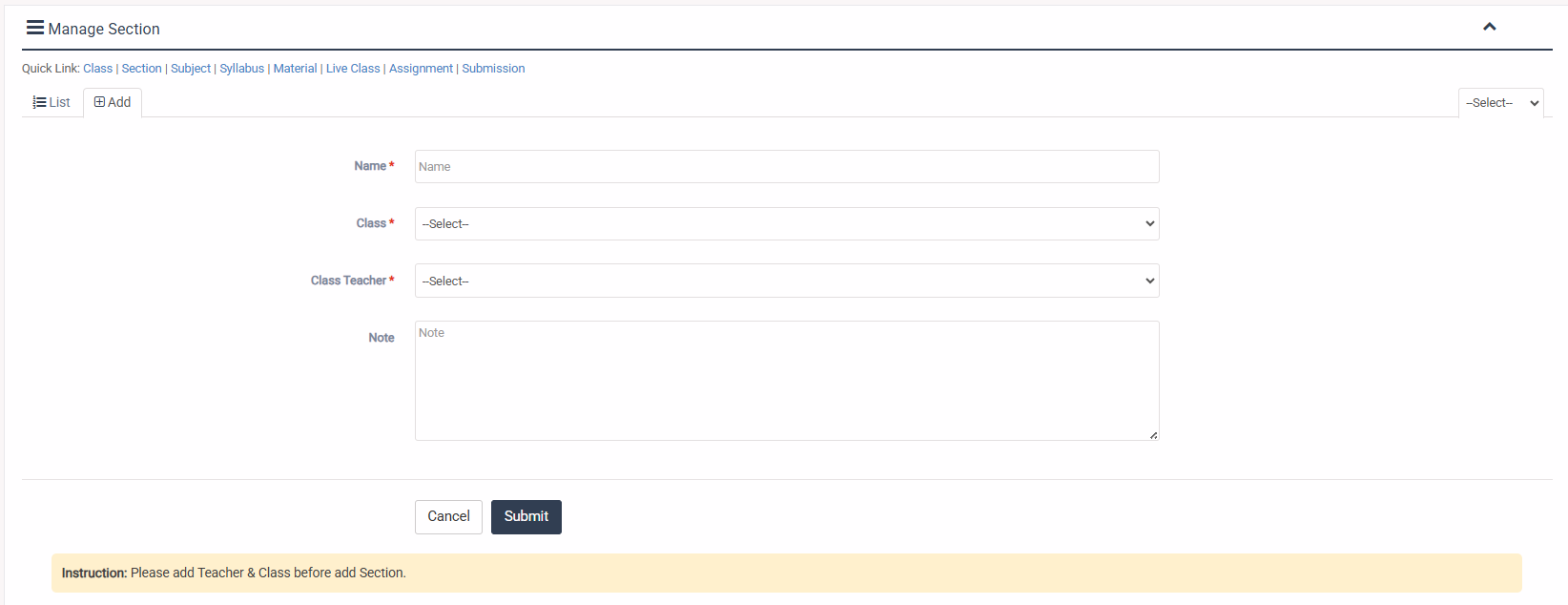
1. Login to المدير Panel.
2. Select الاقسام sub menu under الأكاديمية main menu from left side bar.
3. To Add/Create new الاقسام click Add Section  tab.
4. To Edit الاقسام Click Edit  button in the Section list.
5. To Delete الاقسام Click Delete  button in the Section List.
6. You are done with Manage Section feature.
Instruction: Please add Teacher & Class before add Section.
1. Login to المدير Panel.
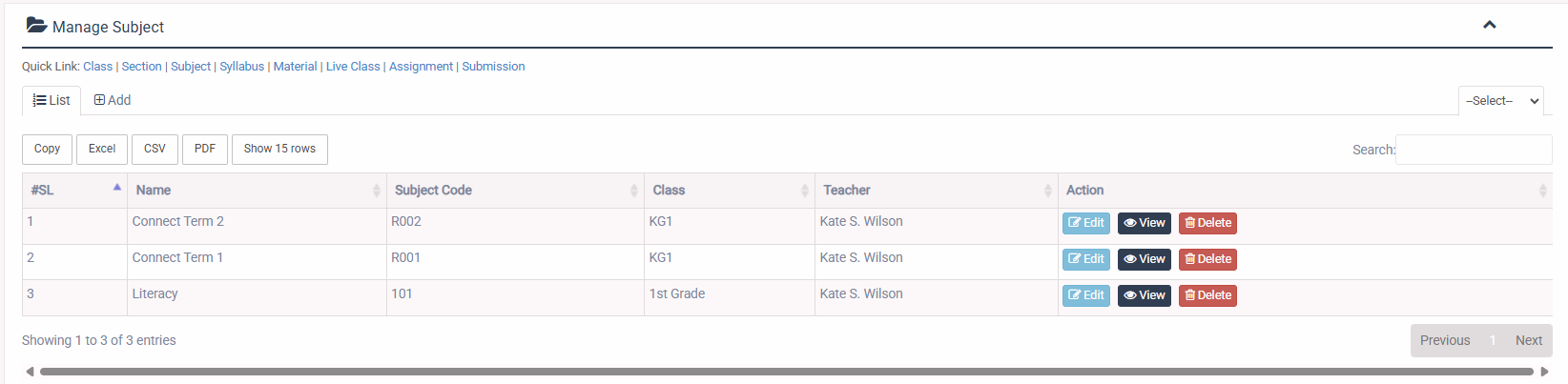
2. Select الموضوعات sub menu under الأكاديمية main menu from left side bar.
3. To Add/Create new الموضوعات click Add Subject  tab.
4. To Edit الموضوعات Click Edit  button in the Subject list.
5. To Delete الموضوعات Click Delete  button in the Subject List.
6. You are done with Manage Section feature.

1. Login to المدير Panel.
2. Select المنهج الدراسي sub menu under الأكاديمية main menu from left side bar.
3. To Add/Create new المنهج الدراسي click Add Syllabus  tab.
4. To Edit المنهج الدراسي Click Edit  button in the Syllabus list.
5. To Delete المنهج الدراسي Click Delete  button in the Syllabus List.
6. You are done with Manage Syllabus feature.
Instruction: Please add academic year before create syllabus.


1. Login to المدير Panel.
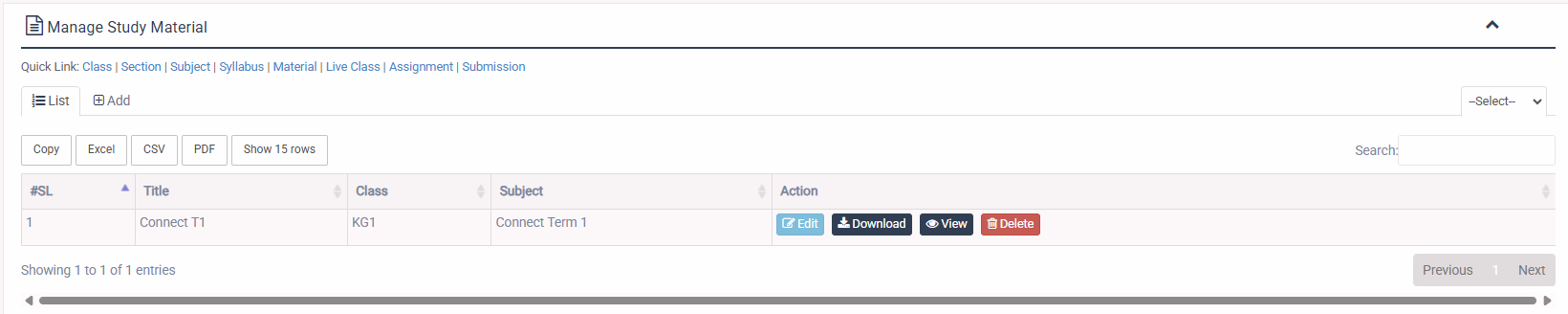
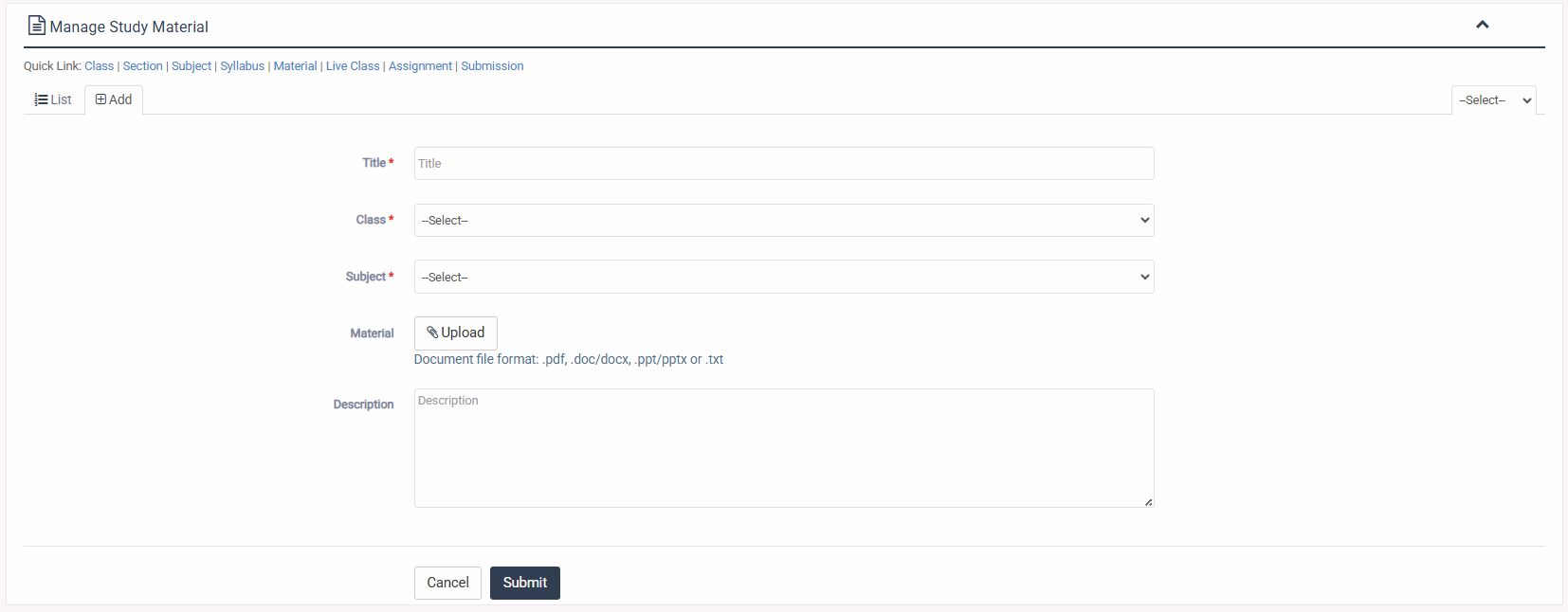
2. Select المواد الدراسية sub menu under الأكاديمية main menu from left side bar.
3. To Add/Create new المواد الدراسية click Add Study Material  tab.
4. To Edit المواد الدراسية Click Edit button in the Study Material list.
5. To Delete المواد الدراسية Click Delete button in the Study Material List.
6. You are done with Manage Study Material feature.
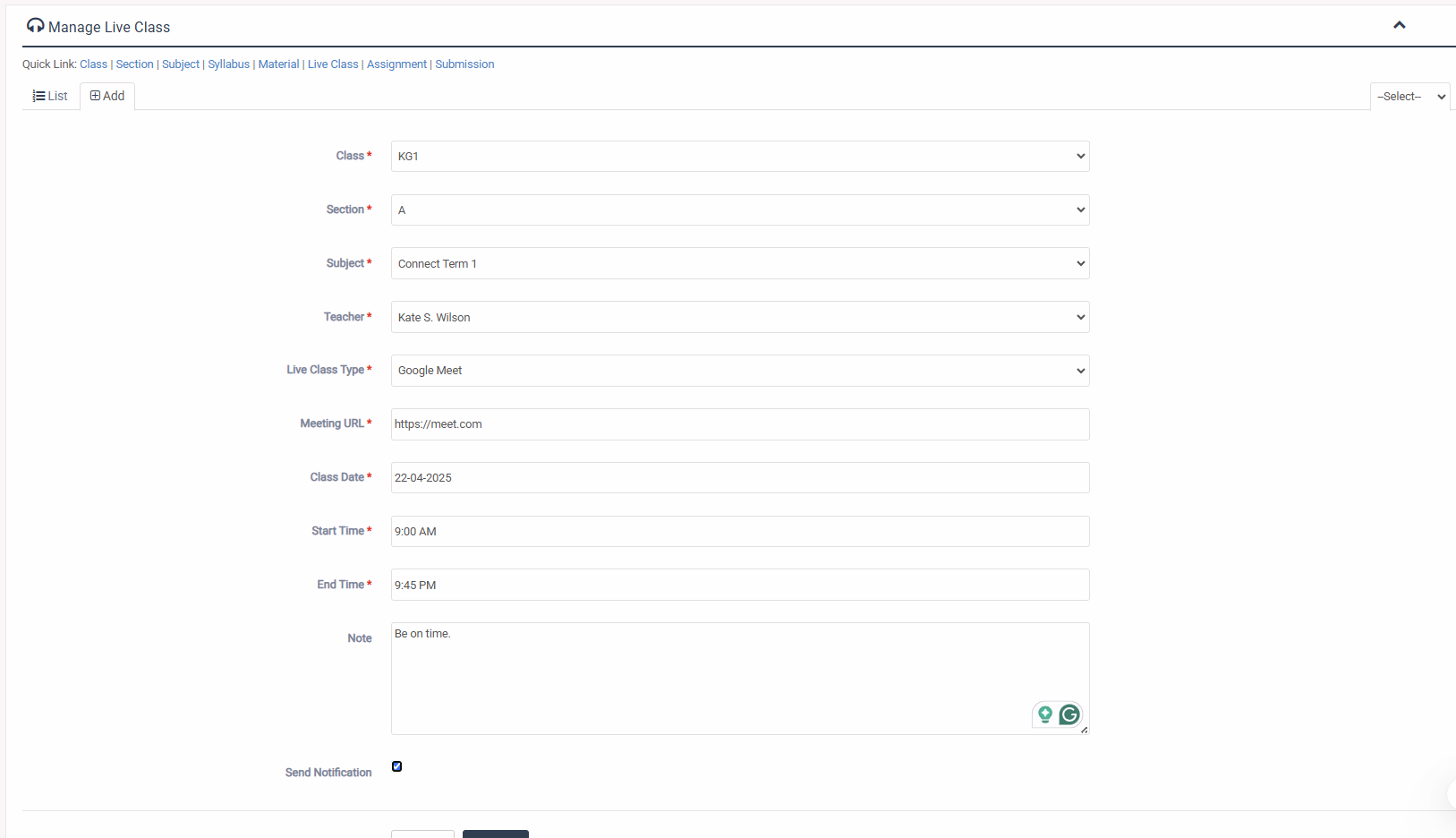
1. Login to المدير Panel.
2. Select الدرس مباشر sub menu under الأكاديمية main menu from left side bar.
3. To Add/Create new الدرس مباشر click Add tab.
4. To Edit الدرس مباشر Click Edit button in the Class Routine list.
5. To Delete Live الصفوف Click Delete button in the Class Routine List.
6. You are done with الدرس مباشر feature.

1. Login to المدير Panel.
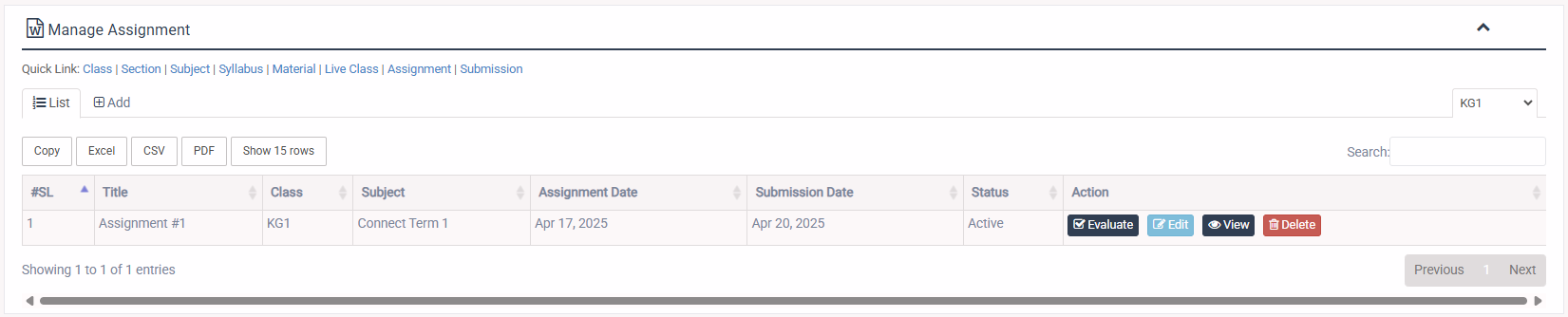
2. Select الواجبات sub menu under الأكاديمية main menu from left side bar.
3. To Add/Create new الواجبات click Add tab.
4. To Edit الواجبات Click Edit button in the Study Material list.
5. To Delete الواجبات Click Delete button in the Study Material List.
6. You are done with الواجبات feature.
Instruction: Please add Class & Subject before add Assignment.

1. Login to المدير Panel.
2. Select التقديمات sub menu under الأكاديمية main menu from left side bar.
3. To Add/Create new التقديمات click Add tab.
4. To Edit التقديمات Click Edit button in the Study Material list.
5. To Delete التقديمات Click Delete  button in the Study Material List.
6. You are done with Manage Submission feature.


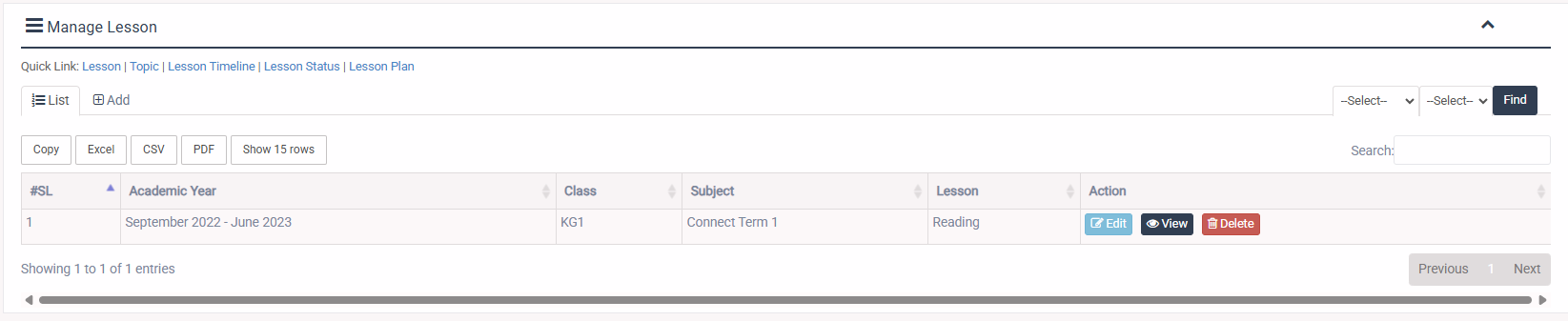
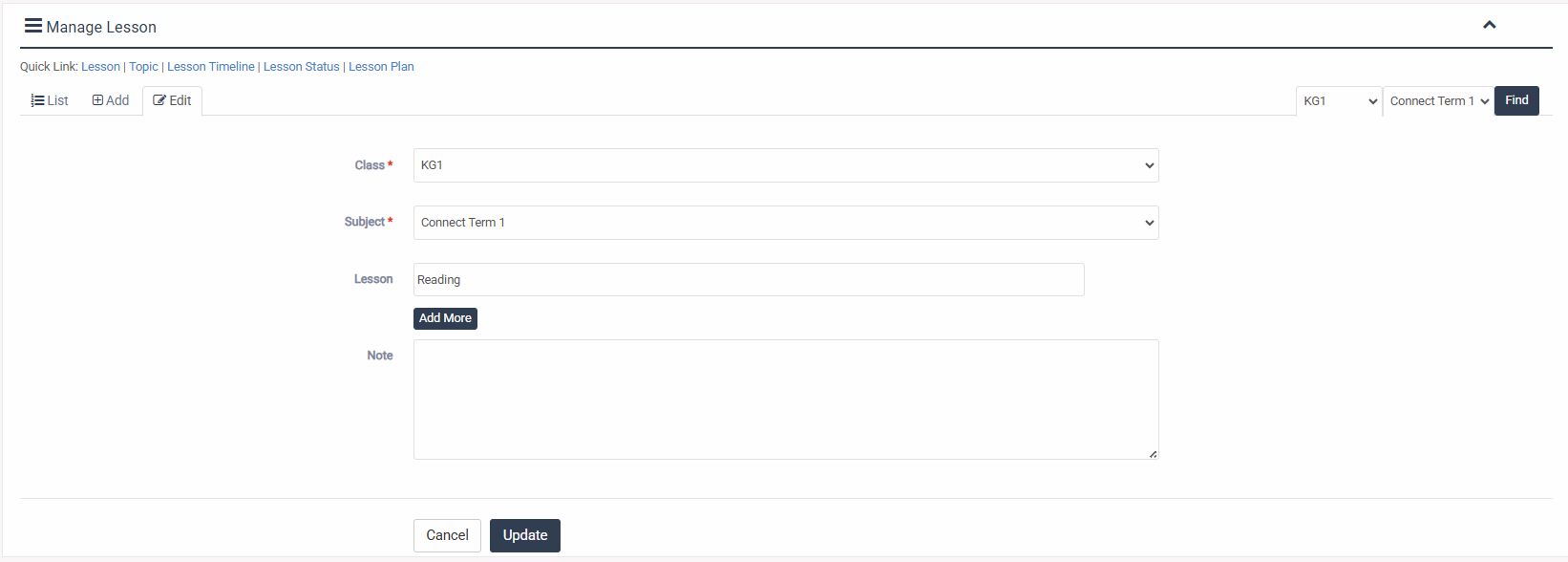
1. Login to المدير Panel.
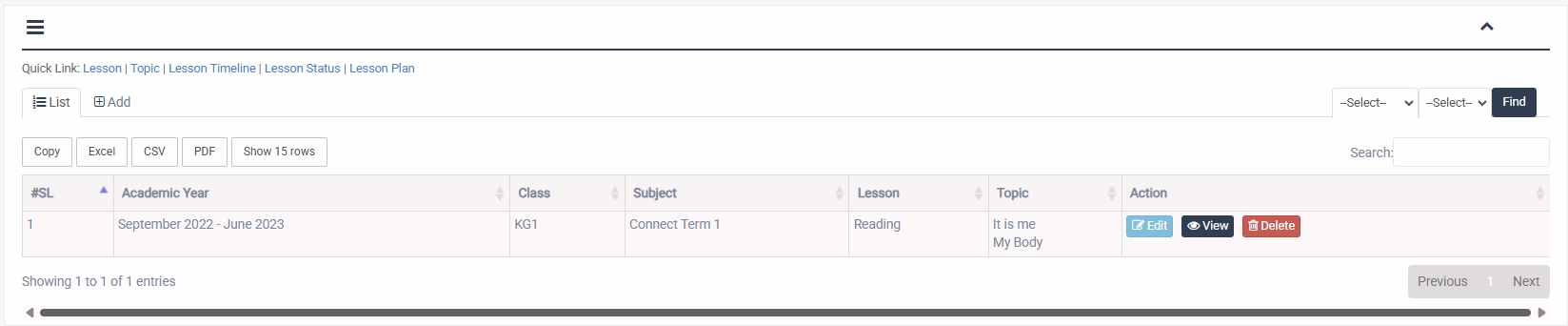
2. Select الدرس menu under خطة الدروس main menu from left side bar.
3. To Add/Create new الدرس click Add Lesson tab.
4. To Edit الدرس Click Edit button in the الدرس list.
5. To Delete الدرس Click Delete button in the الدرس List.
6. You are done with Manage الدرس feature.
1. Login to المدير Panel.
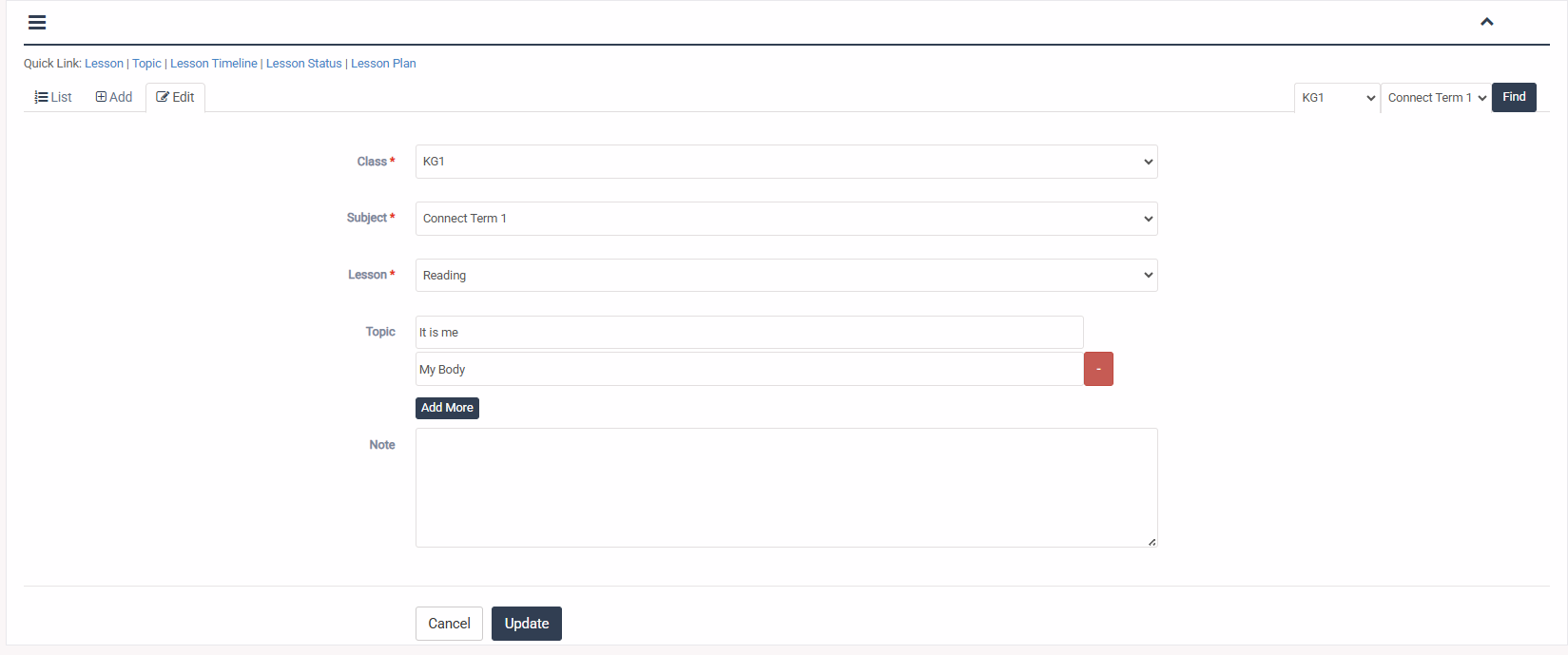
2. Select الموضوع menu under خطة الدروس main menu from left side bar.
3. To Add/Create new الموضوع click Add Lesson tab.
4. To Edit الموضوع Click Edit button in the الموضوع list.
5. To Delete الموضوع Click Delete button in the الموضوع List.
6. You are done with Manage الموضوع feature.
1. Login to المدير Panel.
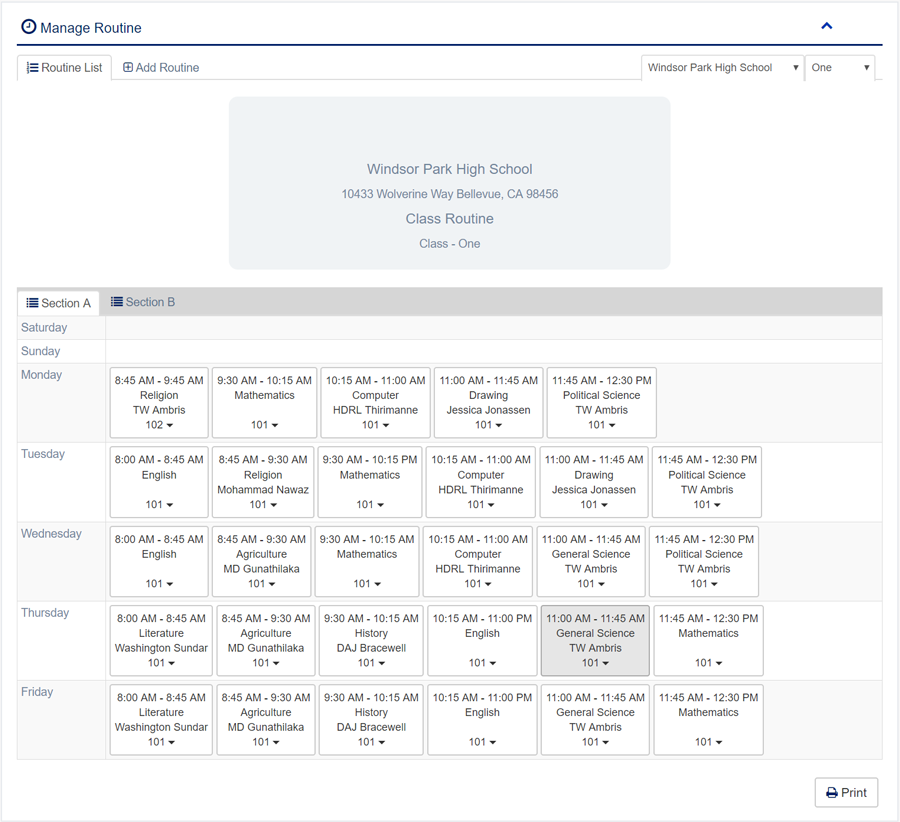
2. Select الصفوف sub menu under الجداول الدراسية main menu from left side bar.
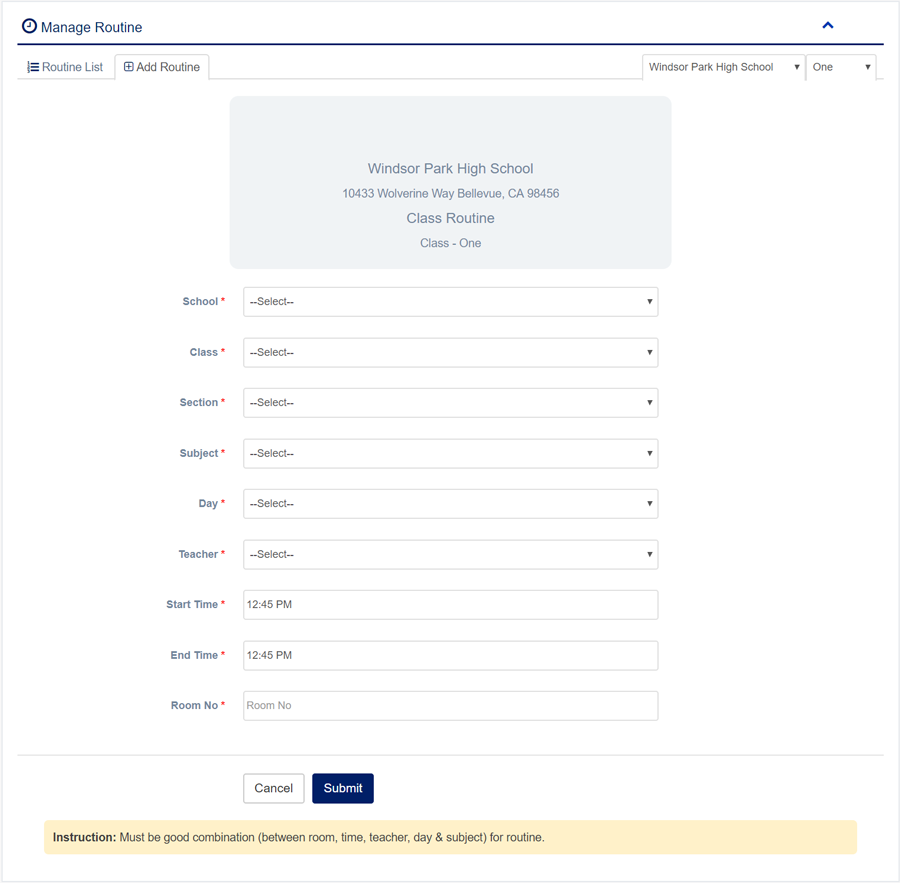
3. To Add/Create new الجداول الدراسية click Add Class Routine  tab.
4. To Edit الجداول الدراسية Click Edit button in the Class Routine list.
5. To Delete الجداول الدراسية Click Delete button in the Class Routine List.
6. You are done with Manage Class Routine feature.
Instruction: Must be good combination (between room, time, teacher, day & subject) for routine.
1. Login to المدير Panel.
2. Select ولي الأمر main menu from left side bar.
3. To Add/Create new ولي الأمر click Add Guardian  tab.
4. To Edit ولي الأمر Click Edit  button in the Guardian list.
5. To Delete ولي الأمر Click Delete  button in the Guardian List.
6. You are done with Manage Guardian feature.


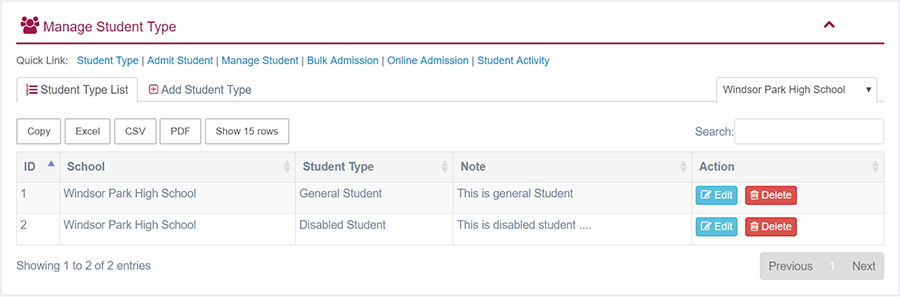
1. Login to المدير Panel.
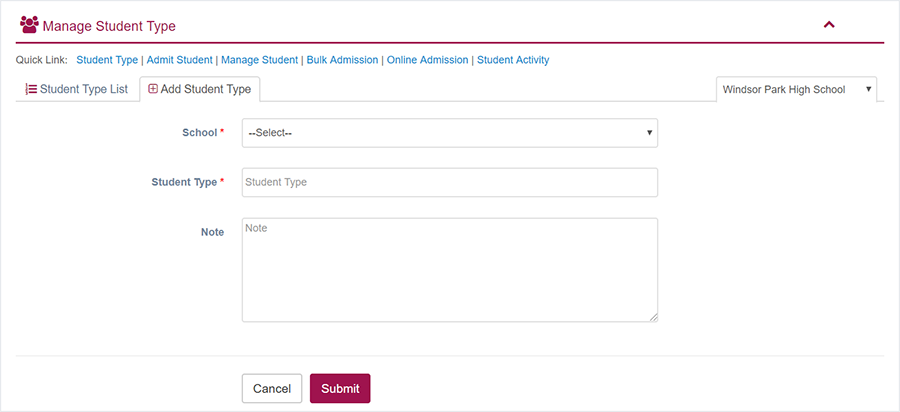
2. Select نوع الطالب sub menu under نوع الطالب main menu from left side bar.
3. To Add/Create new نوع الطالب click Add Student Type  tab.
4. To Edit نوع الطالب Click Edit button in the Student Type list.
5. To Delete نوع الطالب Click Delete button in the Student Type List.
6. You are done with إدارة الطالب feature.
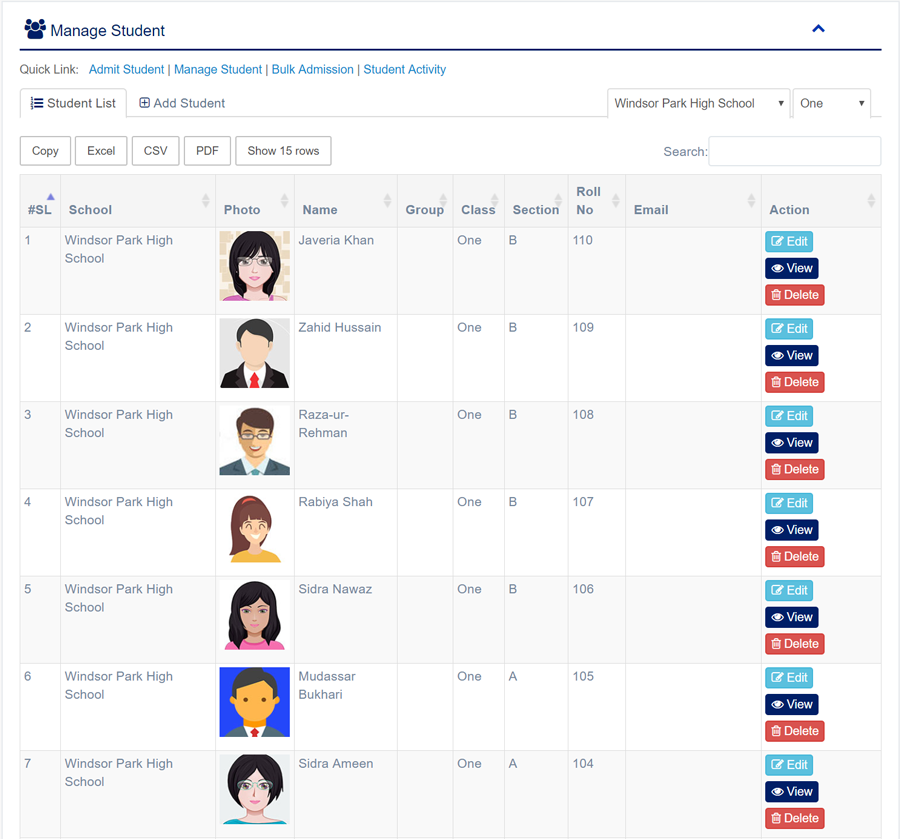
1. Login to المدير Panel.
2. Select Student sub menu under Student main menu from left side bar.
3. To Add/Create new Student click Add Student tab.
4. To Edit Student Click Edit button in the Student list.
5. To Delete Student Click Delete button in the Student List.
6. You are done with إدارة الطالب feature.
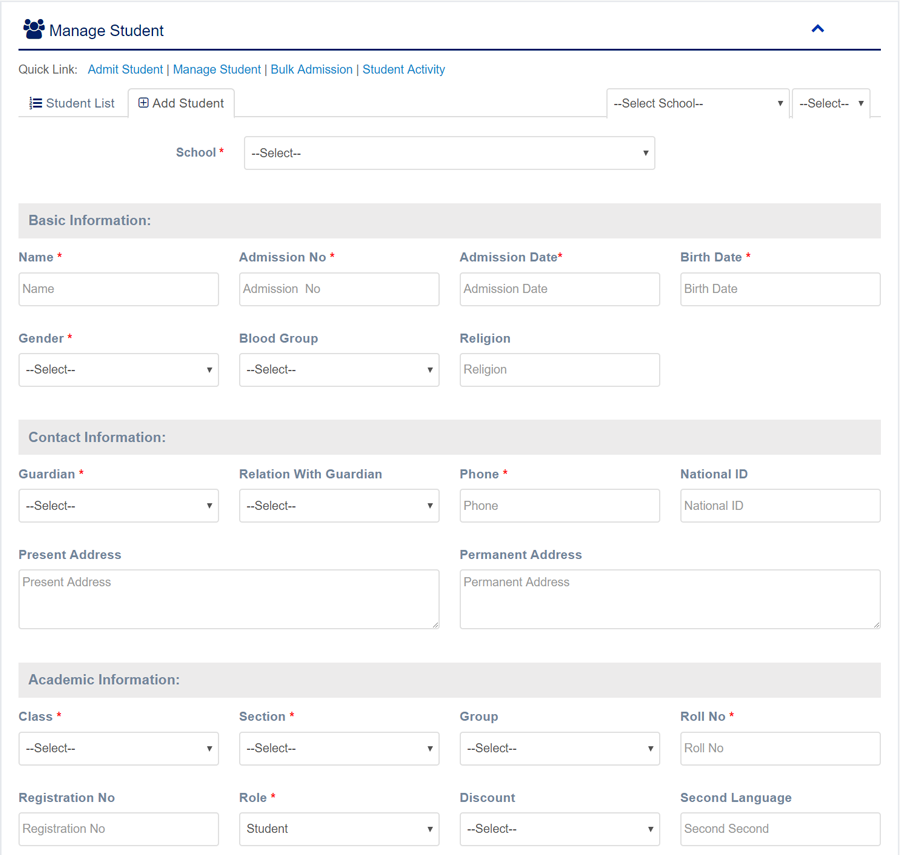
1. Login to المدير Panel.
2. Select قبول الطالب sub menu under Student main menu from left side bar.
3. To Add/Create new Student Please fill up the form and click submit button.
4. You are done with Manage Guardian feature.
1. Login to المدير Panel.
2. Select القبول بالجملة sub menu under Student main menu from left side bar.
3. To Add/Create new القبول بالجملة Please follow the bulk upload process instruction in the Bulk Admission page.
6. You are done with القبول بالجملة feature.

Instruction:
- First select the Academic Year, Class, and Section
- Generate CSV file
- Open the downloaded CSV file and enter student information with a unique username
- Gender: [ male, female ] *
- Academic Group: [ science, arts, commerce ]
- Blood Group: [ a_positive, a_negative, b_positive, b_negative, o_positive, o_negative, ab_positive, ab_negative ]
- Take the Student Type ID from the Student Type list نوع الطالب
- Take the Dsicount ID from here Discount
- Save the edited CSV file
- Upload the CSV file you just edited and submit

1. Login to المدير Panel.
2. Select القبول عبر الإنترنت sub menu under Student main menu from left side bar.
4. To Approve القبول عبر الإنترنت Click Approve button in the Online Admission list.
5. To Delete القبول عبر الإنترنت Click Delete button in the Online Admission List.
6. You are done with Manage Online Admission feature.

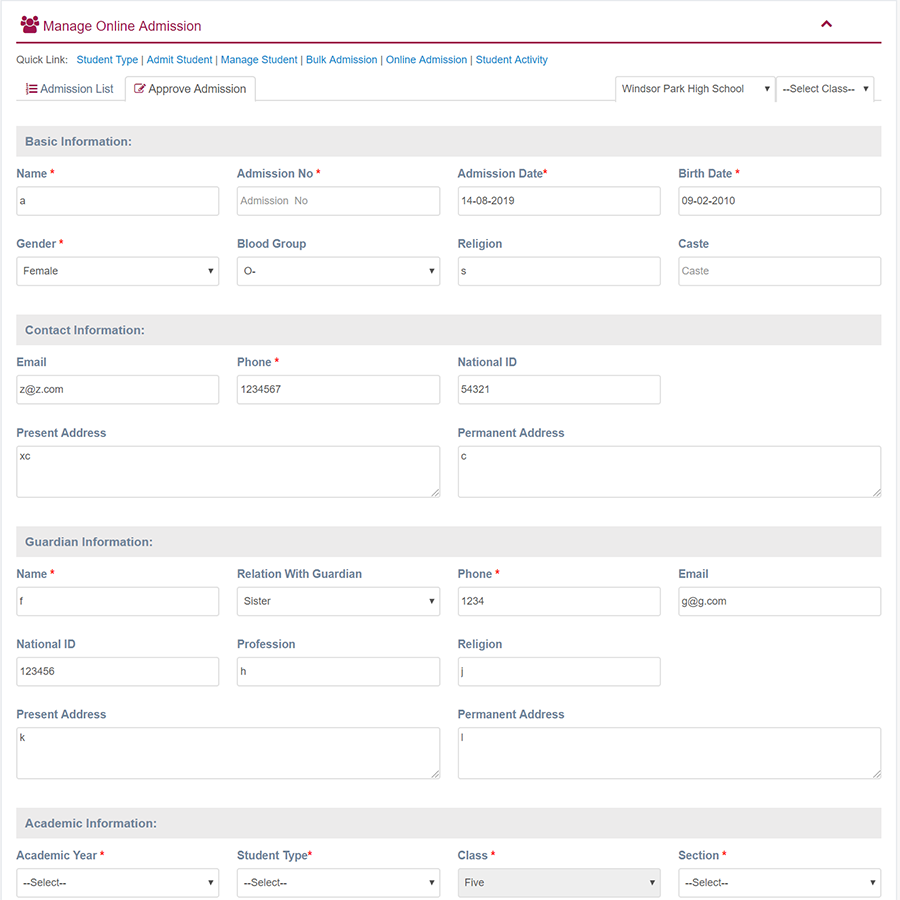
1. Login to المدير Panel.
2. Select سجل النشاط sub menu under Student main menu from left side bar.
3. To Add/Create new سجل النشاط click Add Activity  tab.
4. To Edit Activity Click Edit button in the Activity list.
5. To Delete Student Click Delete button in the Activity List.
6. You are done with Manage Student Activity feature.


1. Login to المدير Panel.
2. Select حضور الطلاب sub menu under الحضور main menu from left side bar.
3. Then choose Class, Section & Date
4. Then click Find  button to get Student list
5. To Manage حضور الطلاب Check for Present All or Late All or Absent All
6. You are done with حضور الطلاب feature.
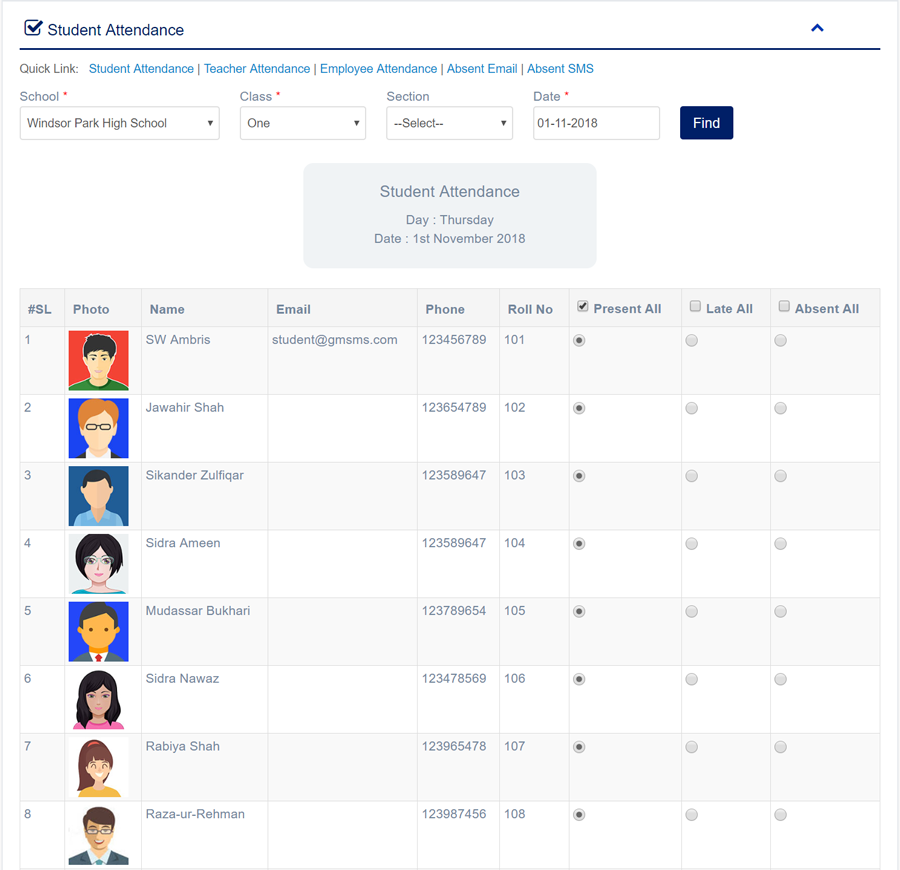
1. Login to المدير Panel.
2. Select حضور المعلمين sub menu under الحضور main menu from left side bar.
3. Then choose Date  and click  Find  button to get Teacher list
4. To Manage حضور المعلمين Check for Present All or Late All or Absent All
5. You are done with حضور المعلمين feature.
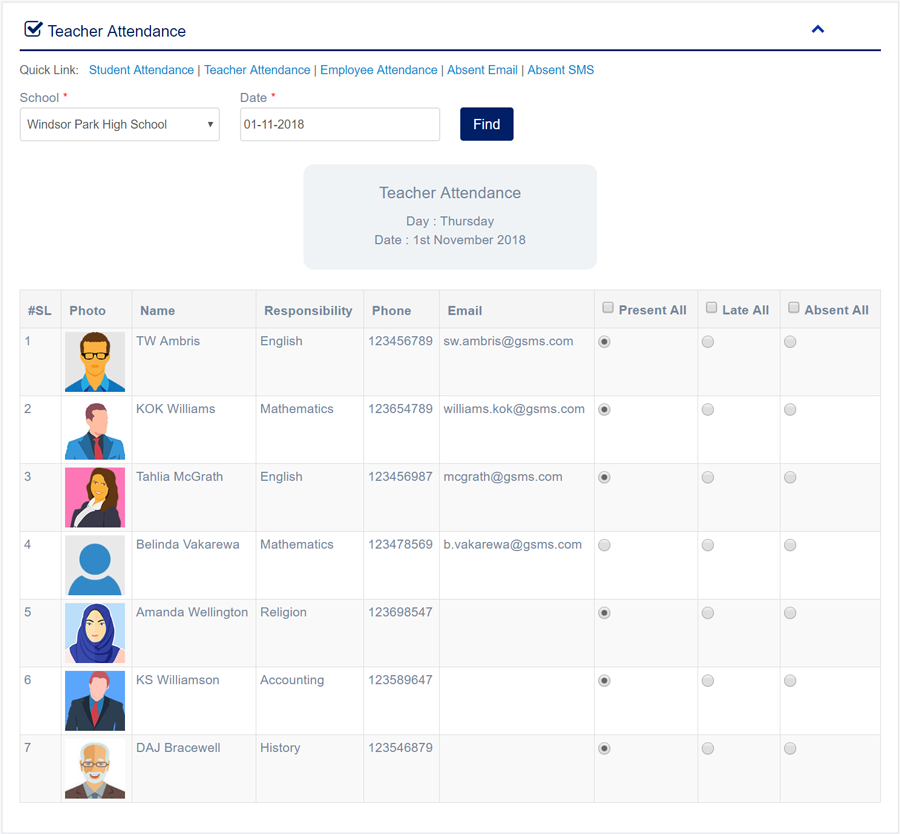
1. Login to المدير Panel.
2. Select حضور الموظفين sub menu under الحضور main menu from left side bar.
3. Then choose Date  and click  Find  button to get Employee list
4. To Manage حضور الموظفين Check for Present All or Late All or Absent All
5. You are done with حضور الموظفين feature.
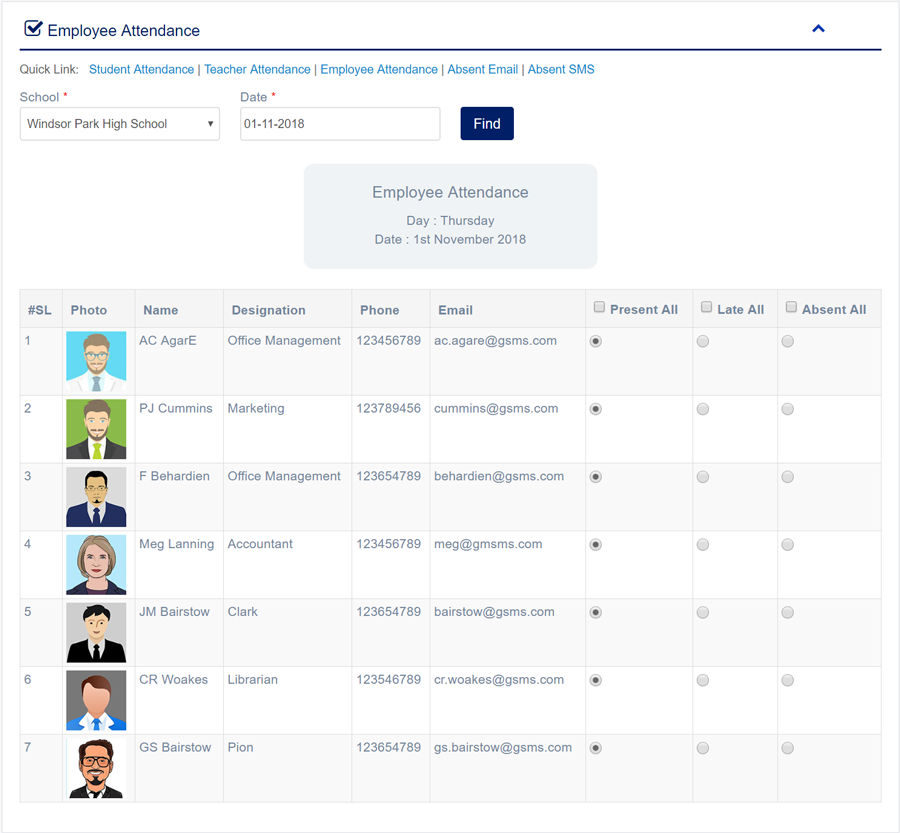
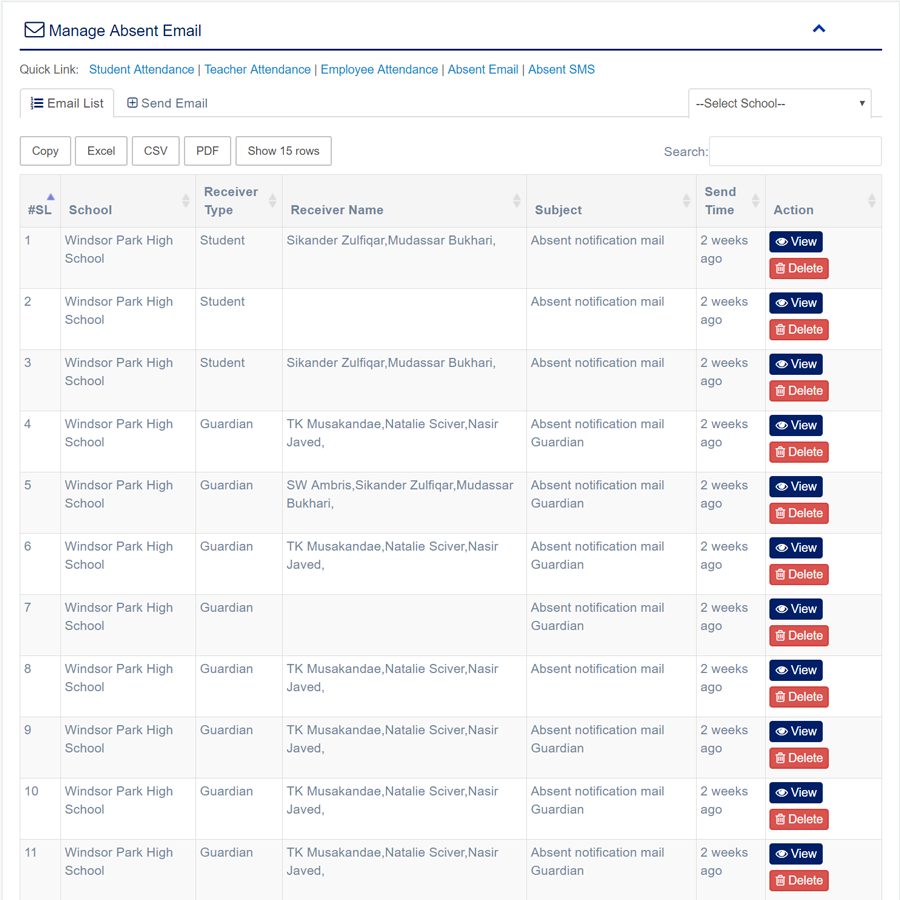
1. Login to المدير Panel.
2. Select ايميل للغائب sub menu under الحضور main menu from left side bar.
3. To Send ايميل للغائب Click Send Email  tab in the page.
4. To Delete ايميل للغائب Click Delete  button in the Absent Email List.
5. You are done with ايميل للغائب feature.

1. Login to المدير Panel.
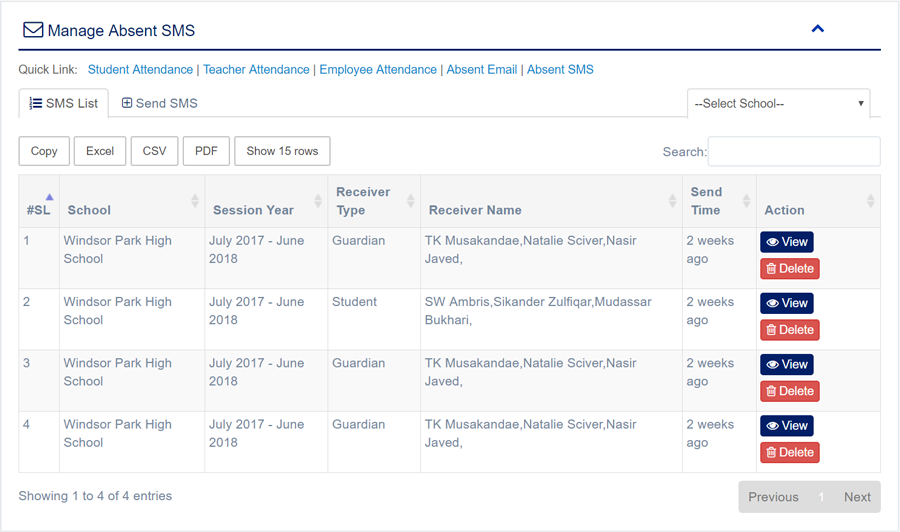
2. Select رسالة للغائب sub menu under الحضور main menu from left side bar.
3. To Send رسالة للغائب Click Send SMS  tab in the page.
4. To Delete رسالة للغائب Click Delete  button in the Absent SMS List.
5. You are done with رسالة للغائب feature.

1. Login to المدير Panel.
2. Select Id Card Setting sub menu under إنشاء البطاقات main menu from left side bar.
3. To Add/Create new Id Card Setting click Add Id Card Setting  tab.
4. To Edit Id Card Setting Click Edit  button in the Id Card Setting list.
5. To Delete Id Card Setting Click Delete  button in the Id Card Setting List.
6. You are done with Manage Id Card Setting feature.

- Card Logo
- Top Background
- ID No Background
- Employee/ Teacher/ Student Profile Photo
- Title Font Size / Title Color
- Signature Background
- Card School Name/ School Name Font Size/ School Name Color
- School Address/ School Address Color
- ID No Font Size/ ID No Color
- Value Font Size/ Value Color
- Bottom Signature/ Signature Color/ Signature Align


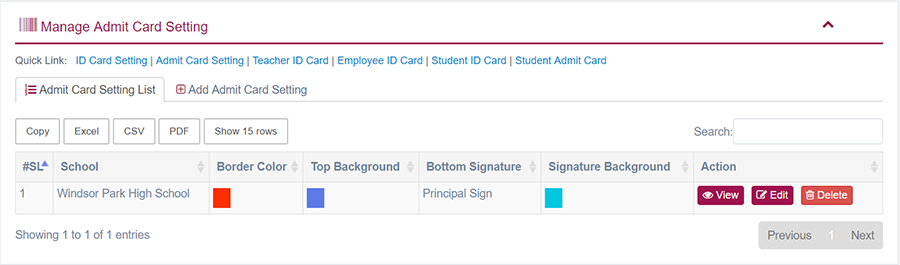
1. Login to المدير Panel.
2. Select إعداد بطاقة الدخول sub menu under إنشاء البطاقات main menu from left side bar.
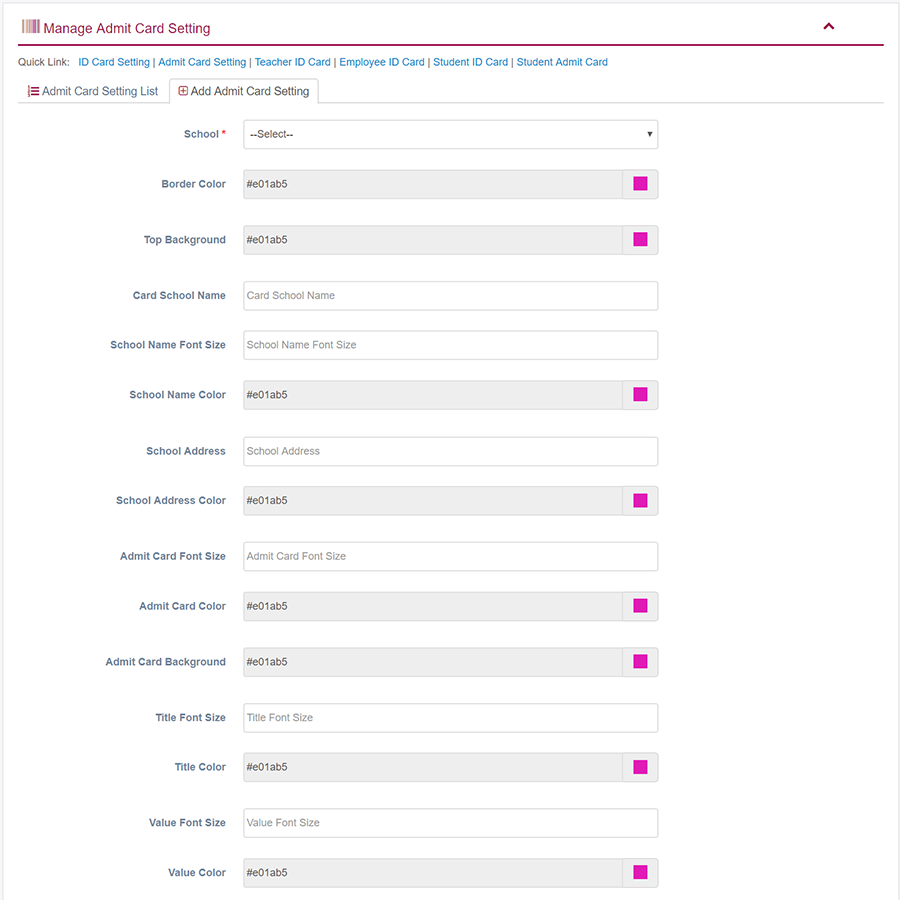
3. To Add/Create new إعداد بطاقة الدخول click Add Admit Card Setting  tab.
4. To Edit إعداد بطاقة الدخول Click Edit  button in the Admit Card Setting list.
5. To Delete إعداد بطاقة الدخول Click Delete  button in the Admit Card Setting List.
6. You are done with Manage Admit Card Setting feature.

- Admit Card Logo
- Top Background
- Admit Card Background
- Card School Name/ School Name Font Size/ School Name Color
- School Address / School Address Color
- Admit Card Font Size/ Admit Card Color
- Exam Font Size/ Exam Color
- Student Profile Photo
- Title Font Size/ Title Color
- Signature Background
- Bottom Signature/ Signature Color/ Signature Align
- Value Font Size/ Value Color
- Subject Font Size/ Subject Color
- Subject Head
1. Login to المدير Panel.
2. Select بطاقة هوية المعلم sub menu under إنشاء البطاقات main menu from left side bar.
3. Then choose Teacher  and click  Find  button to get Teacher ID Card list
4. You are done with generate Teacher ID Card feature.

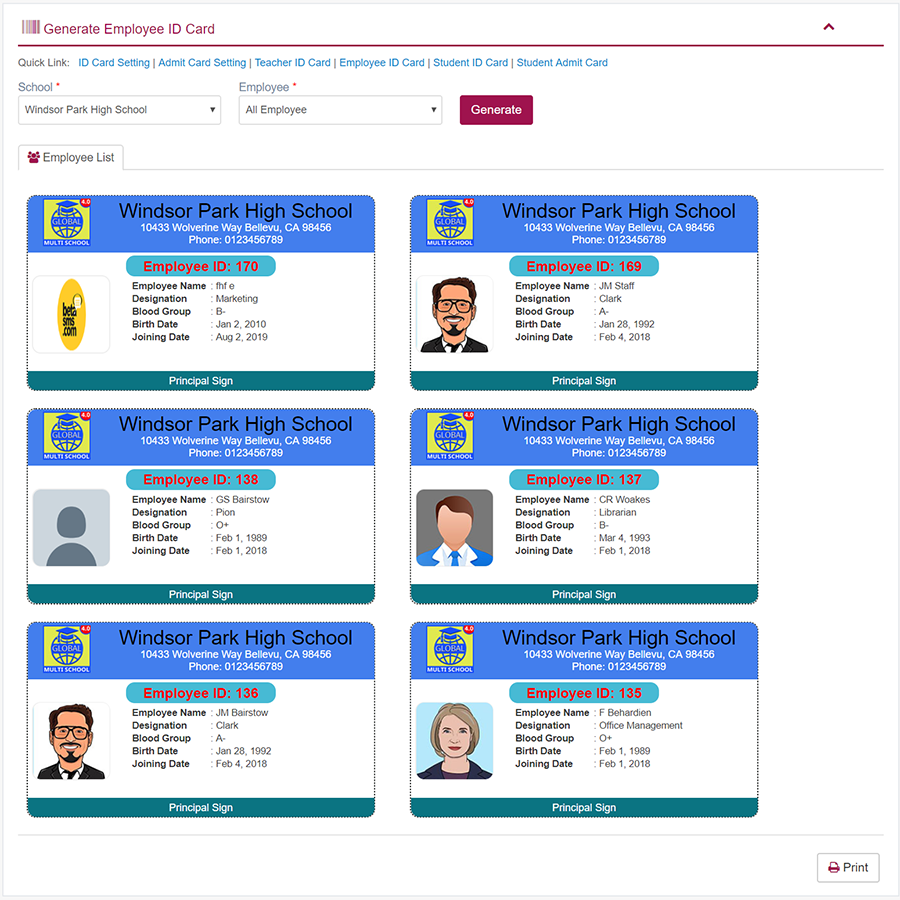
1. Login to المدير Panel.
2. Select بطاقة هوية الموظف sub menu under إنشاء البطاقات main menu from left side bar.
3. Then choose Employee  and click  Find  button to get Employee ID Card list
4. You are done with generate Employee ID Card feature.
1. Login to المدير Panel.
2. Select بطاقة هوية الطالب sub menu under إنشاء البطاقات main menu from left side bar.
3. Then choose Class/Section/Student  and click  Find  button to get Student ID Card list
4. You are done with generate Student ID Card feature.

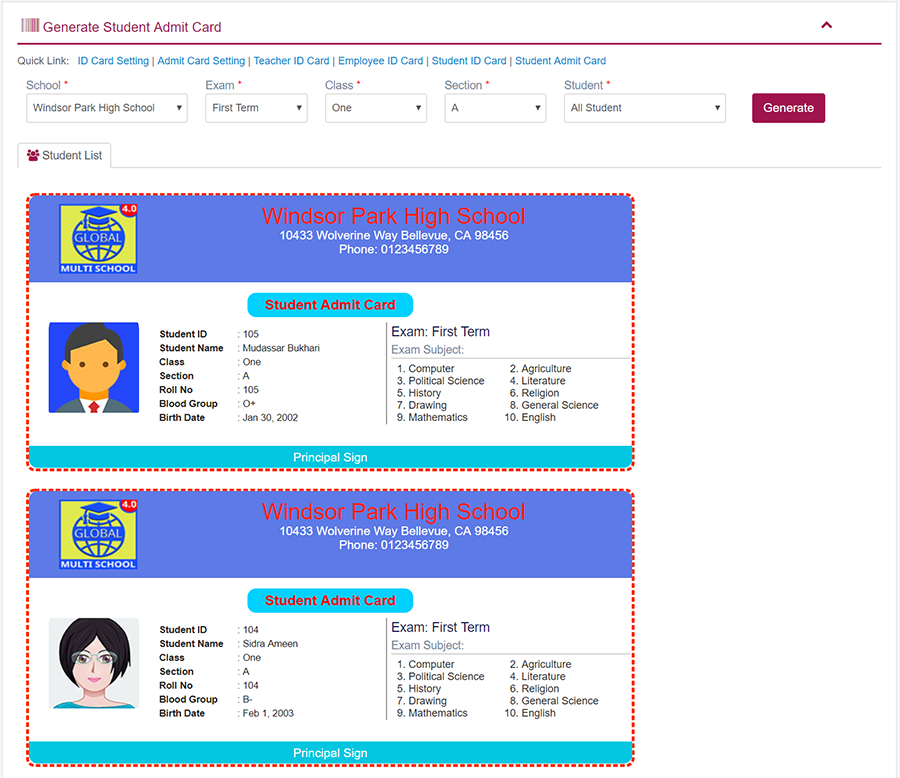
1. Login to المدير Panel.
2. Select بطاقة دخول الطالب sub menu under إنشاء البطاقات main menu from left side bar.
3. Then choose Class/Section/Student   and click  Find  button to get Student Admit Card list
4. You are done with generate Student ID Card feature.
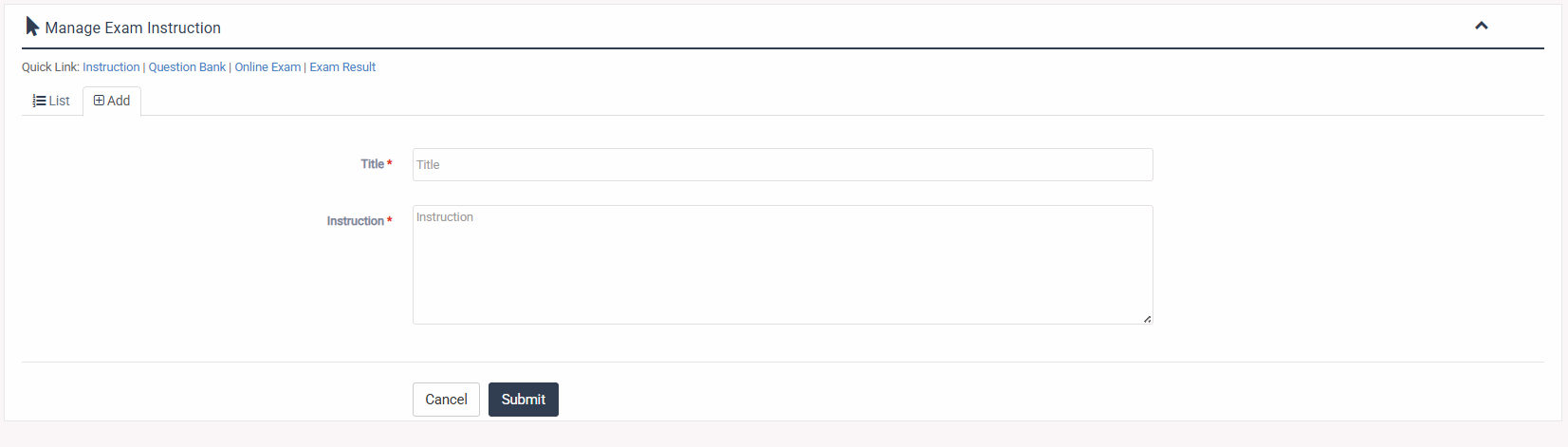
1. Login to المدير Panel.
2. Select Instruction sub menu under الامتحان عبر الإنترنت main menu from left side bar.
3. To Add/Create new Instruction click Add tab.
4. To Edit Instruction Click Edit button in the Instruction list.
5. To Delete Instruction Click Delete button in the Instruction List.
6. You are done with Instruction feature.
1. Login to المدير Panel.
2. Select بنك الأسئلة sub menu under الامتحان عبر الإنترنت main menu from left side bar.
3. To Add/Create new بنك الأسئلة click Add tab.
4. To Edit Question Click Edit button in the بنك الأسئلة list.
5. To Delete Question Click Delete button in the بنك الأسئلة List.
6. To list all Questions Select the Grade and Subject and click on find button.
6. You are done with Manage بنك الأسئلة feature.


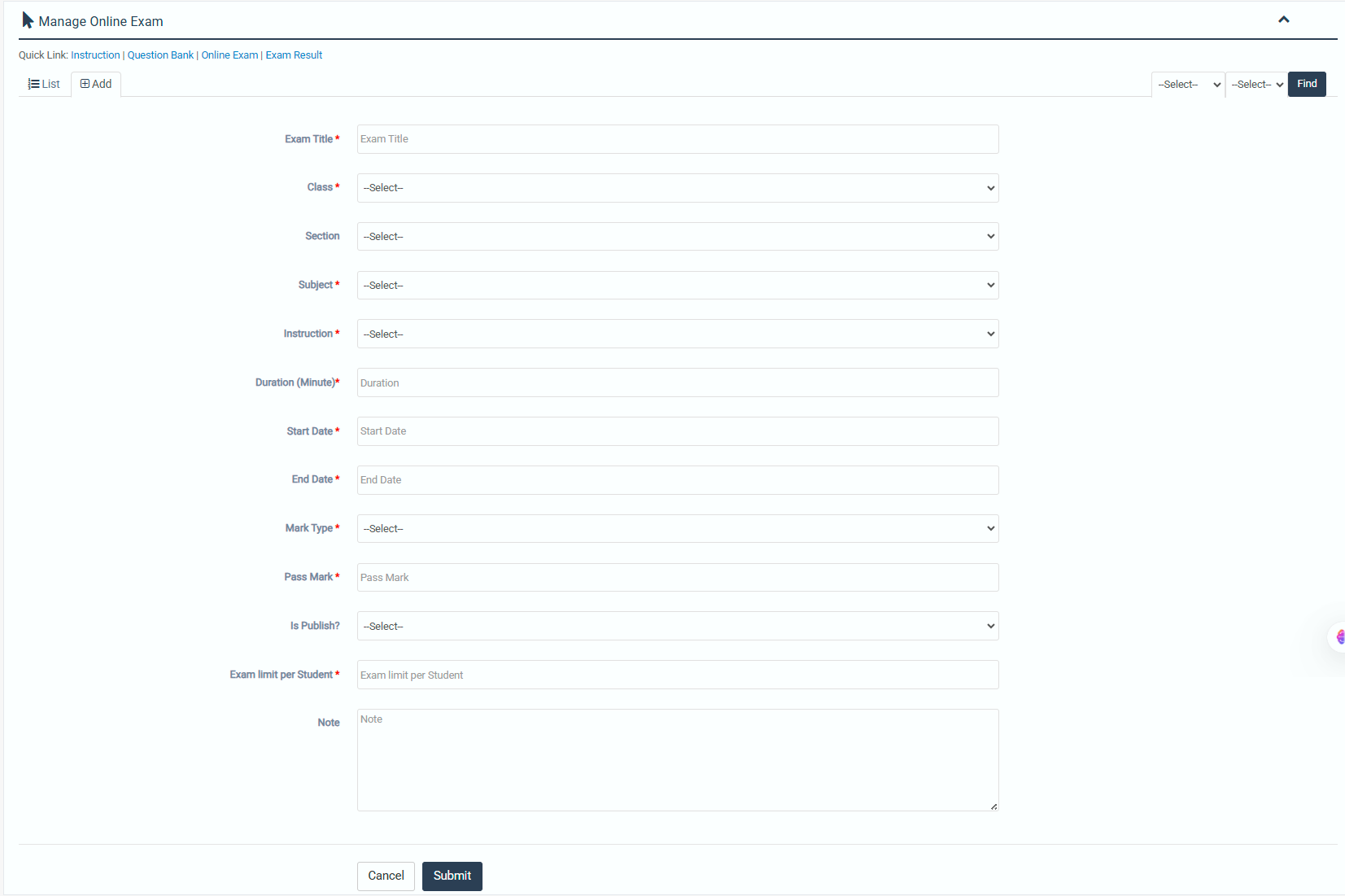
1. Login to المدير Panel.
2. Select الامتحان عبر الإنترنت sub menu under الامتحان عبر الإنترنت main menu from left side bar.
3. To Add/Create new الامتحان عبر الإنترنت click Add tab.
4. To Edit الامتحان عبر الإنترنت Click Edit button in the الامتحان عبر الإنترنت list.
5. To Delete Discount Click Delete button in the الامتحان عبر الإنترنت List.
6. You are done with Manage الامتحان عبر الإنترنت feature.

To add questions to the online exam:
1. Click on the Add Question button.
2. Click on the blue action button and all previously added questions will be listed.

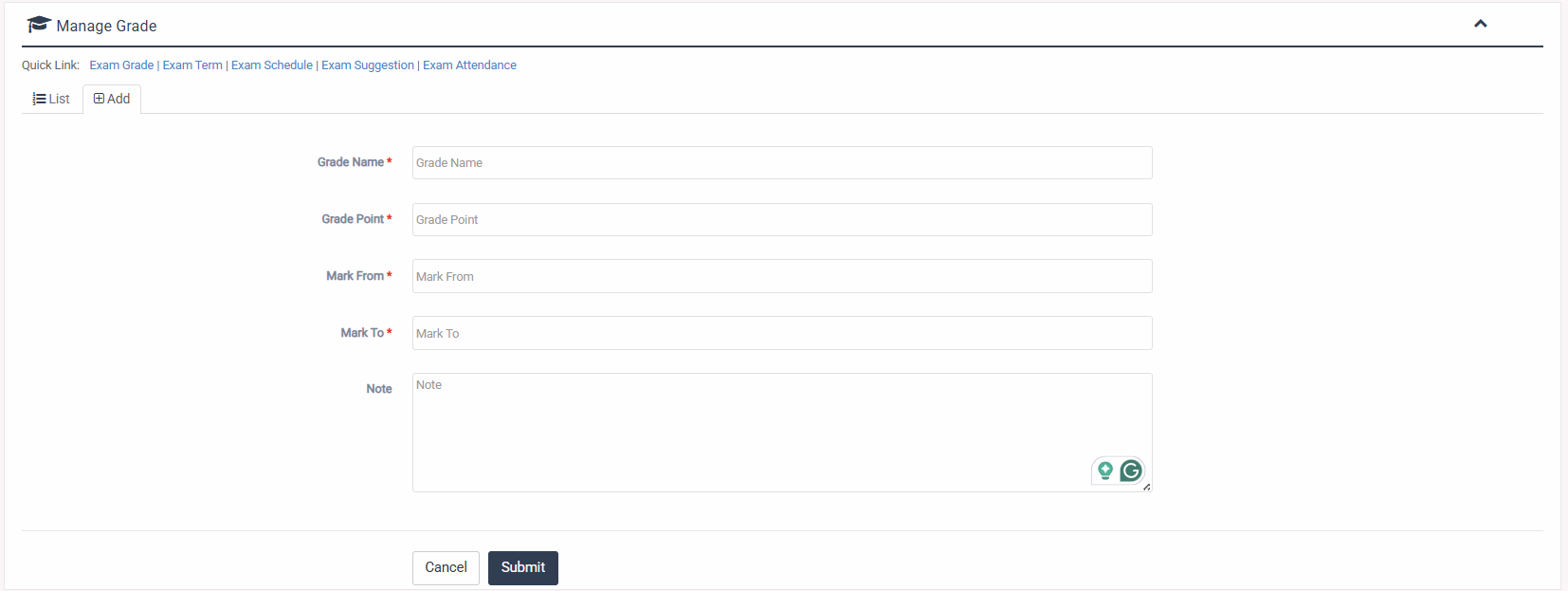
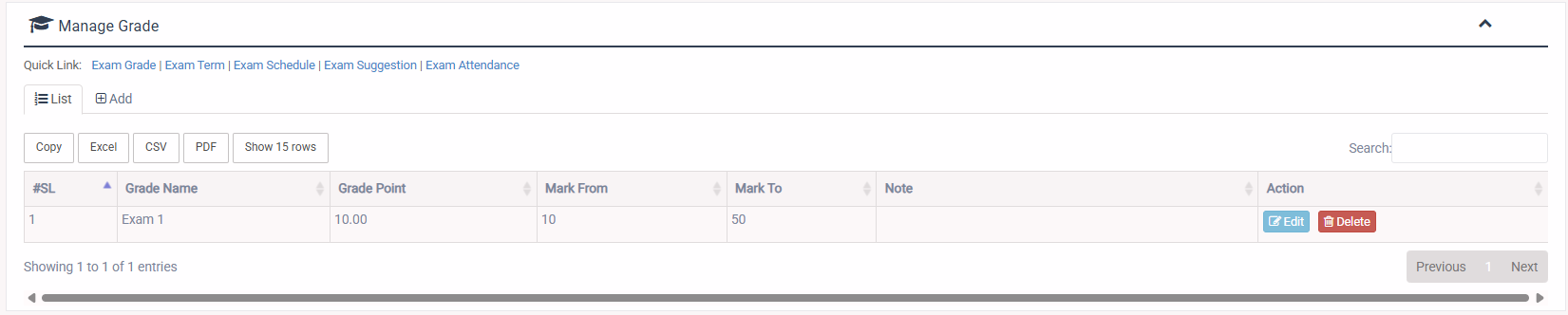
1. Login to المدير Panel.
2. Select درجات الامتحان sub menu under Manage Exam main menu from left side bar.
3. To Add Exam Grade select Add button.
4. To Edit Exam Grade select Edit button.
5. To Delete Exam Grade select Delete button.
6. You are done with درجات الامتحان feature.
1. Login to المدير Panel.
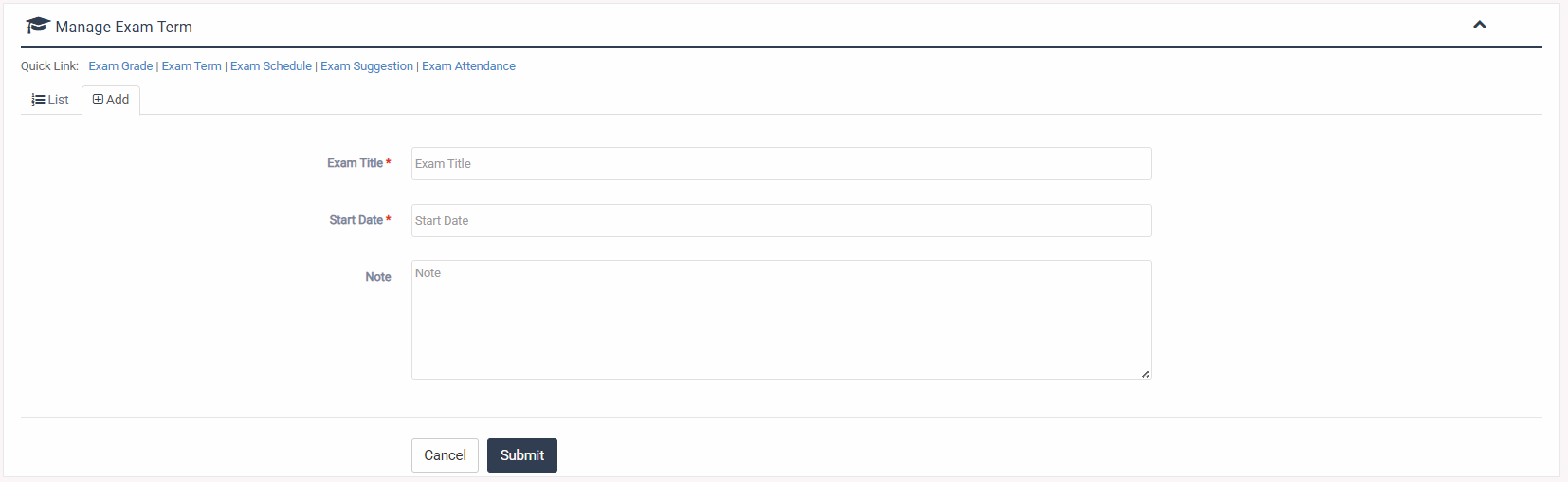
2. Select مصطلح الامتحان sub menu under Manage Exam main menu from left side bar.
3. To Add Exam Term select Add button.
4. To Edit Exam Term select Edit button.
5. To Delete Exam Term select Delete button.
6. You are done with مصطلح الامتحان feature.

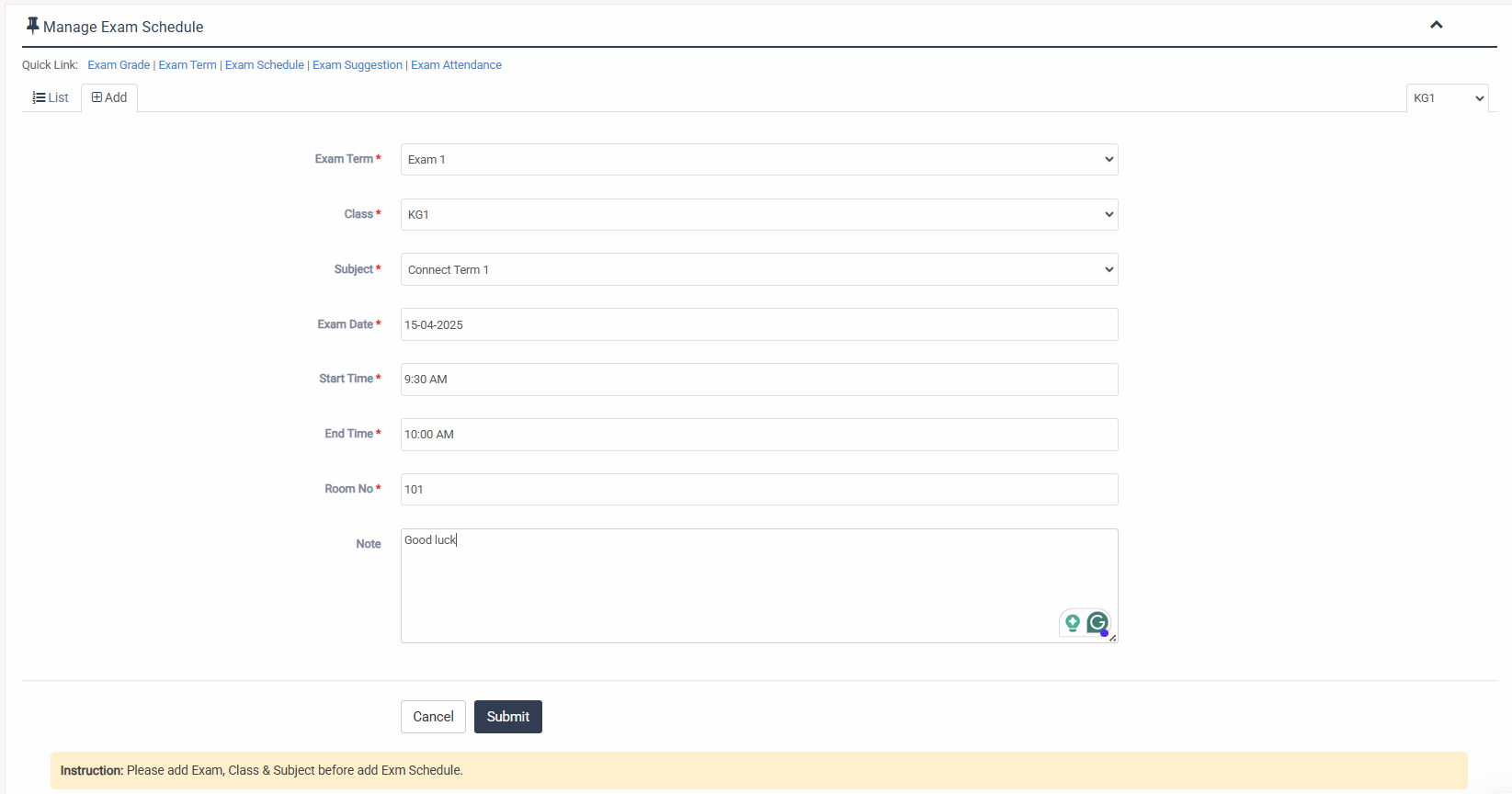
2. Select جدول الامتحانات sub menu under Manage Exam main menu from left side bar.
3. To Add Exam Schedule select Add button.
4. To Edit Exam Schedule select Edit button.
5. To Delete Exam Schedule select Delete button.
6. You are done with جدول الامتحانات feature.

1. Login to المدير Panel.
2. Select Exam Suggestion sub menu under إدارة الامتحانات main menu from left side bar.
3. To Add/Create new الاقتراحات click Add tab.
4. To Edit الاقتراحات Click Edit button in the Exam Grade list.
5. To Delete الاقتراحات Click Delete button in the Exam Grade List.
6. You are done with Manage Suggestion feature.
1. Login to المدير Panel.
2. Select حضور الامتحان main menu from left side bar.
3. Then choose Exam, Class, Section & Subject
4. Then click Find  button to get Student list
5. To Manage حضور الامتحان Check for Attend All
6. You are done with حضور الطلاب feature.

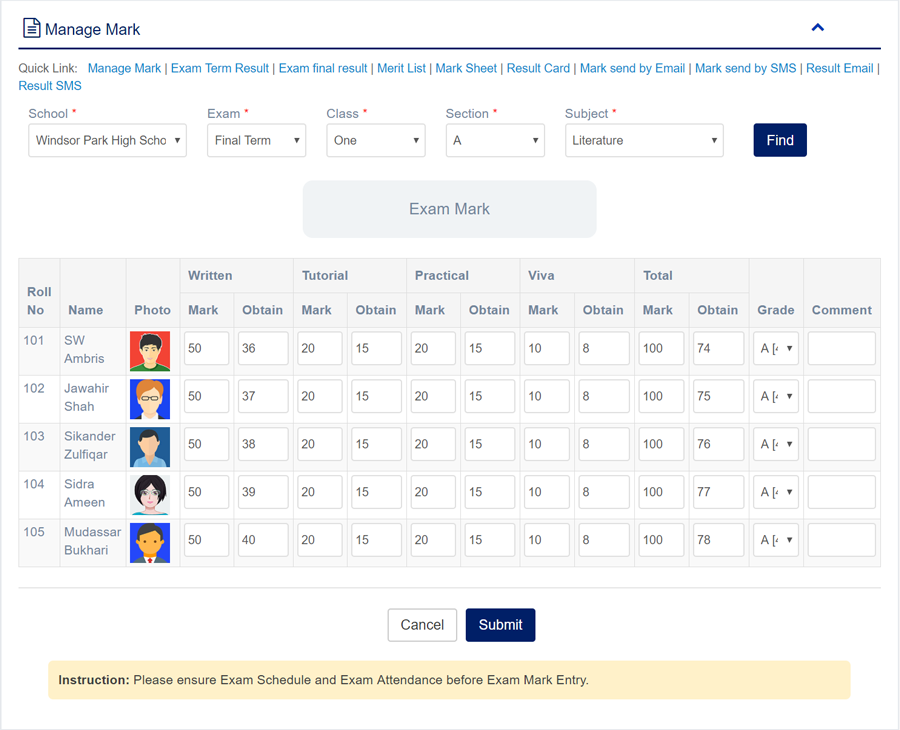
1. Login to المدير Panel.
2. Select إدارة علامة الامتحان sub menu under علامة الامتحان main menu from left side bar.
3. To Manage Mark select Exam, Class, Section & Subject.
4. Then click Find button to get Student list.
5. Fill up the form with correct data/value and click إرسال
6. You are done with إدارة علامة الامتحان feature.
1. Login to المدير Panel.
2. Select نتيجة امتحان الفصل الدراسي sub menu under علامة الامتحان main menu from left side bar.
3. To Manage Exam Term Result select Exam, Class, Section.
4. Then click Find button to get Student list.
5. Fill up the form with correct data/value and click إرسال
6. You are done with نتيجة امتحان الفصل الدراسي feature.

. Login to المدير Panel.
2. Select النتيجة النهائية للامتحان sub menu under علامة الامتحان main menu from left side bar.
3. To Manage Exam Final Result select Class, Section.
4. Then click Find button to get Student list.
5. Fill up the form with correct data/value and click إرسال
6. You are done with النتيجة النهائية للامتحان feature.

1. Login to المدير Panel.
2. Select قائمة المتفوقين في الامتحان sub menu under علامة الامتحان main menu from left side bar.
3. To Manage Exam Merit List select Academic Year, Class, Section.
4. Then click Find button to get Student Merit list.
5. Fill up the form with correct data/value and click إرسال
6. You are done with قائمة المتفوقين في الامتحان feature.

1. Login to المدير Panel.
2. Select ورقة علامات الطالب sub menu under Mark main menu from left side bar.
3. To Manage Mark Sheet select Exam, Class, Section & Student.
4. Then click Find button to get Student Subject list.
5. Fill up the form with correct data/value and click إرسال
6. You are done with ورقة علامات الطالب feature.

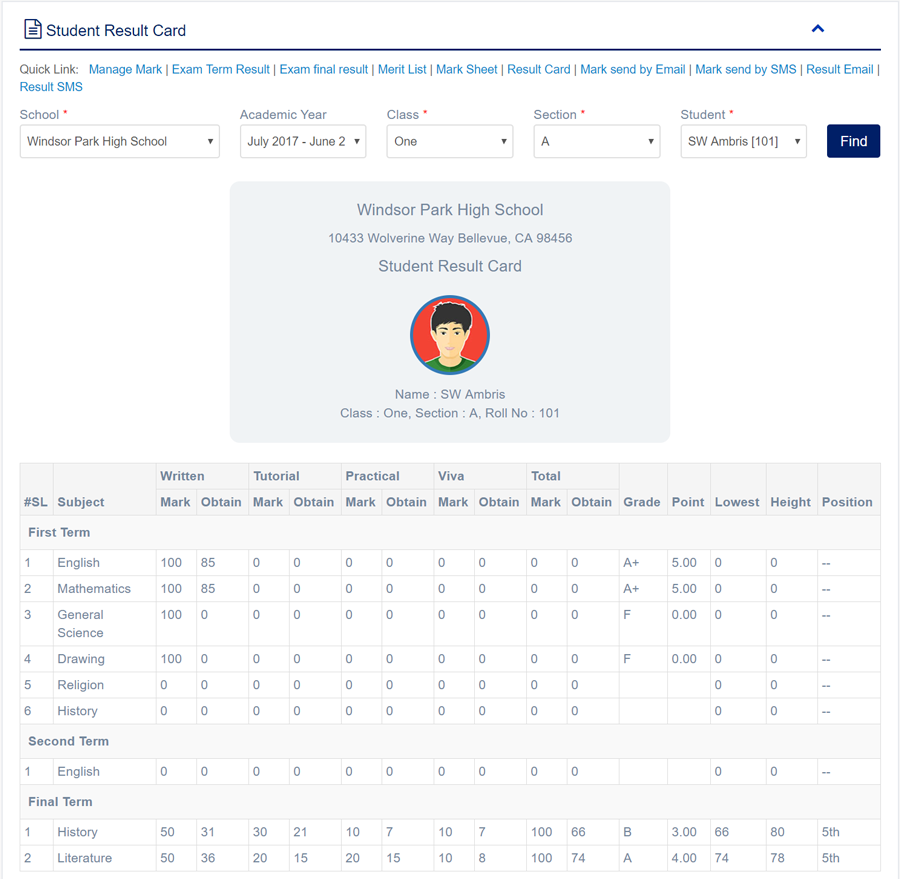
1. Login to المدير Panel.
2. Select بطاقة نتيجة الطالب sub menu under علامة الامتحان main menu from left side bar.
3. To Manage Student Result Card select Academic Year, Exam, Class, Section & Student.
4. Then click Find button to get Student Result Card.
6. You are done with بطاقة نتيجة الطالب feature.
1. Login to المدير Panel.
2. Select إرسال العلامة عبر البريد الإلكتروني sub menu under علامة الامتحان main menu from left side bar.
3. To send Mark with Email click Send Email tab.
4. Then select Exam, Class, Receiver type, Subject and then click Submit button
5. To Delete Email click delete button from Email List
6. You are done with إرسال العلامة عبر البريد الإلكتروني feature.

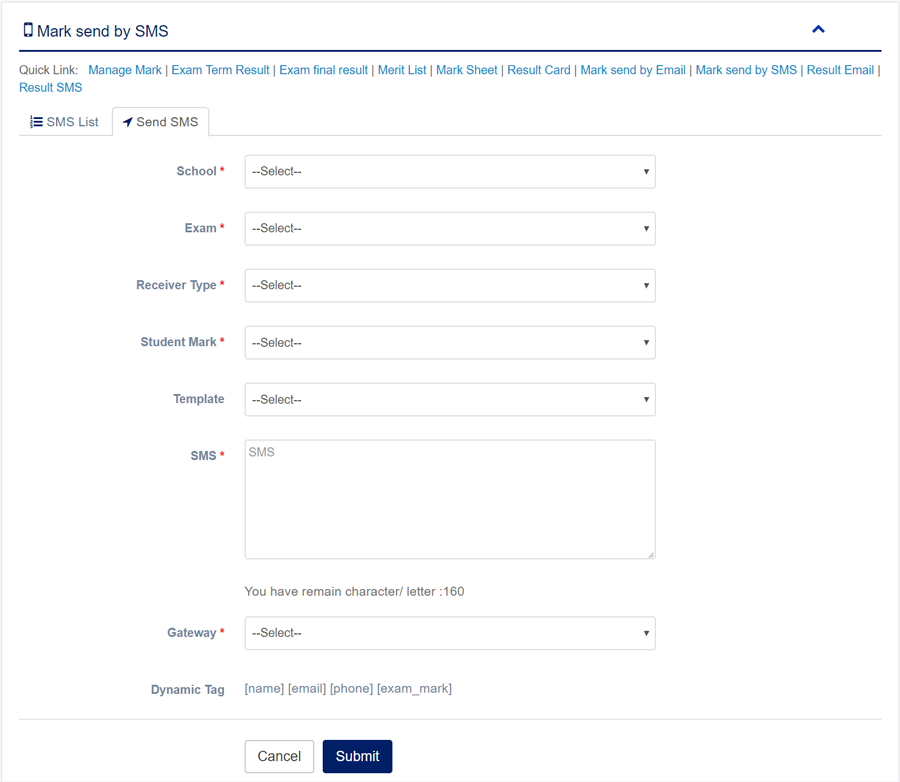
1. Login to المدير Panel.
2. Select أرسال العلامة عبر الرسائل القصيرة sub menu under علامة الامتحان main menu from left side bar.
3. To send Mark with SMS click Send SMS tab.
4. Then select Exam, Class, Receiver type, SMS Gateway and then click Submit button
5. To Delete SMS click delete button from SMS List
6. You are done with أرسال العلامة عبر الرسائل القصيرة feature.

1. Login to المدير Panel.
2. Select إرسال النتيجة عبر البريد الإلكتروني sub menu under علامة الامتحان main menu from left side bar.
3. To send Result with Email click Send Email tab.
5. To Delete Email click delete button from Email List
6. You are done with إرسال النتيجة عبر البريد الإلكتروني feature.


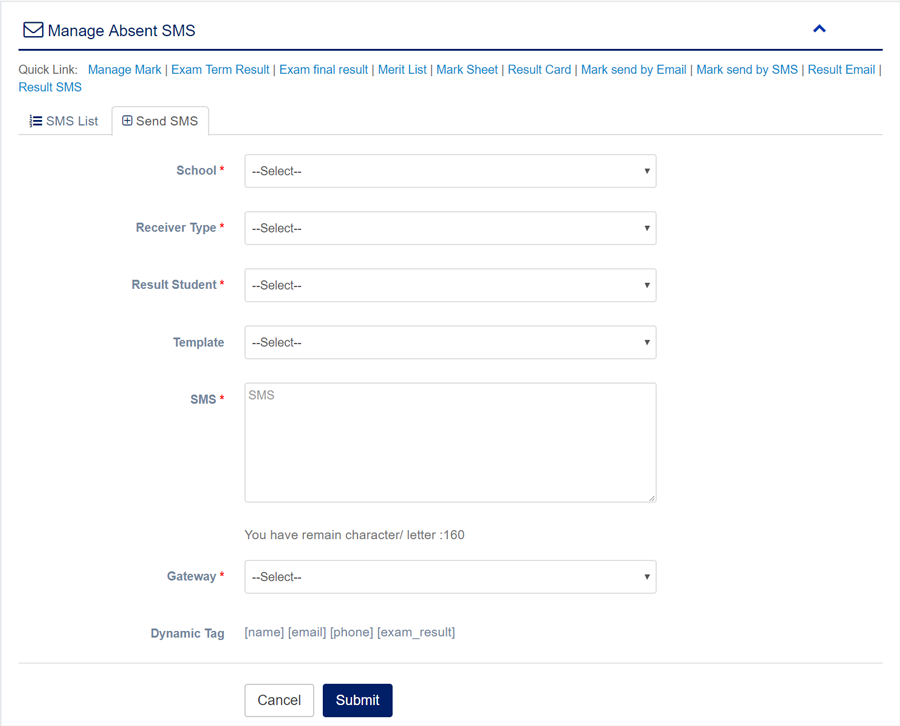
1. Login to المدير Panel.
2. Select إرسال النتيجة عبر الرسائل القصيرة sub menu under علامة الامتحان main menu from left side bar.
3. To send Result with SMS click Send SMS tab.
5. To Delete SMS click delete button from SMS List
6. You are done with إرسال النتيجة عبر الرسائل القصيرة feature.

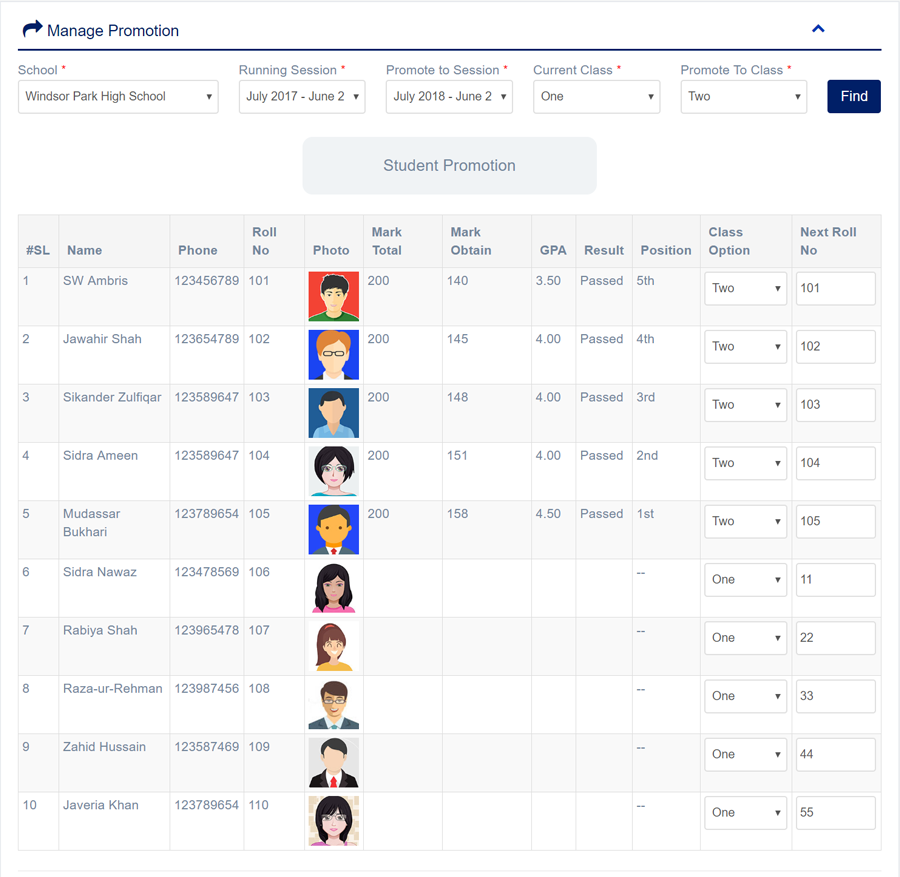
1. Login to المدير Panel.
2. Select التَّرقيات / الترفيع main menu from left side bar.
3. Then choose Running Session, Promote to Session, Current Class, Promote To Class & Exam
4. Then click Find  button to get Student list
5. Then fill up the form carefully as per required and Promote button to promote next class.
6. You are done with التَّرقيات / الترفيع feature.
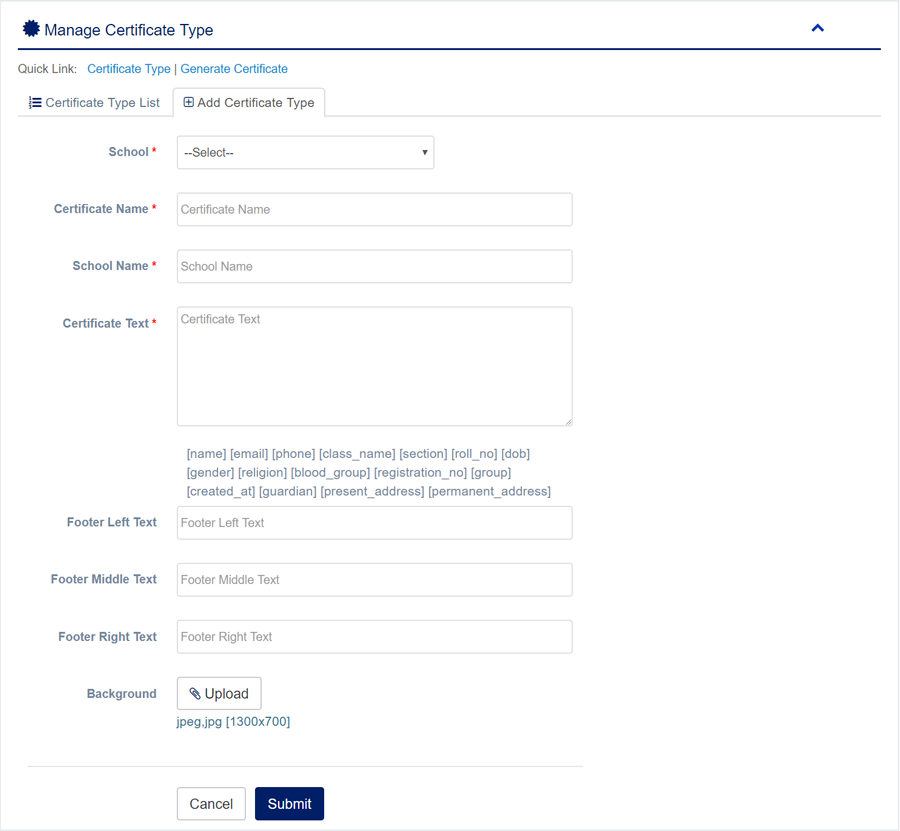
1. Login to المدير Panel.
2. Select نوع الشهادة sub menu under الشهادات main menu from left side bar.
3. To Add/Create new نوع الشهادة click Add Certificate Type tab.
4. To Edit نوع الشهادة Click Edit button in the نوع الشهادة list.
5. To Delete نوع الشهادة Click Delete button in the نوع الشهادة List.
6. You are done with Manage Certificate Type feature.

1. Login to المدير Panel.
2. Select إنشاء شهادة sub menu under الشهادات main menu from left side bar.
3. To إنشاء شهادة select class and certificate type and then click find.
4. Then click Generate  button to Generate student specific Certificate.
6. You are done with إنشاء شهادة feature.


1. Login to المدير Panel.
2. Select Supplier sub menu under المخزون main menu from left side bar.
3. To Add/Create new Supplier click Add tab.
4. To Edit Supplier Click Edit  button in the Supplier list.
5. To Delete Supplier Click Delete  button in the Supplier List.
6. You are done with Manage Supplier feature.

1. Login to المدير Panel.
2. Select Warehouse sub menu under المخزون main menu from left side bar.
3. To Add/Create new Warehouse click Add tab.
4. To Edit Warehouse Click Edit  button in the Warehouse list.
5. To Delete Warehouse Click Delete  button in the Warehouse List.
6. You are done with إدارة المستودعات feature.

1. Login to المدير Panel.
2. Select Category sub menu under المخزون main menu from left side bar.
3. To Add/Create new Category click Add tab.
4. To Edit Category Click Edit  button in the Category list.
5. To Delete Category Click Delete  button in the Category List.
6. You are done with إدارة الفئات feature.

1. Login to المدير Panel.
2. Select Product sub menu under المخزون main menu from left side bar.
3. To Add/Create new Product click Add tab.
4. To Edit Product Click Edit  button in the Product list.
5. To Delete Product Click Delete  button in the Product List.
6. You are done with إدارة المنتجات feature.
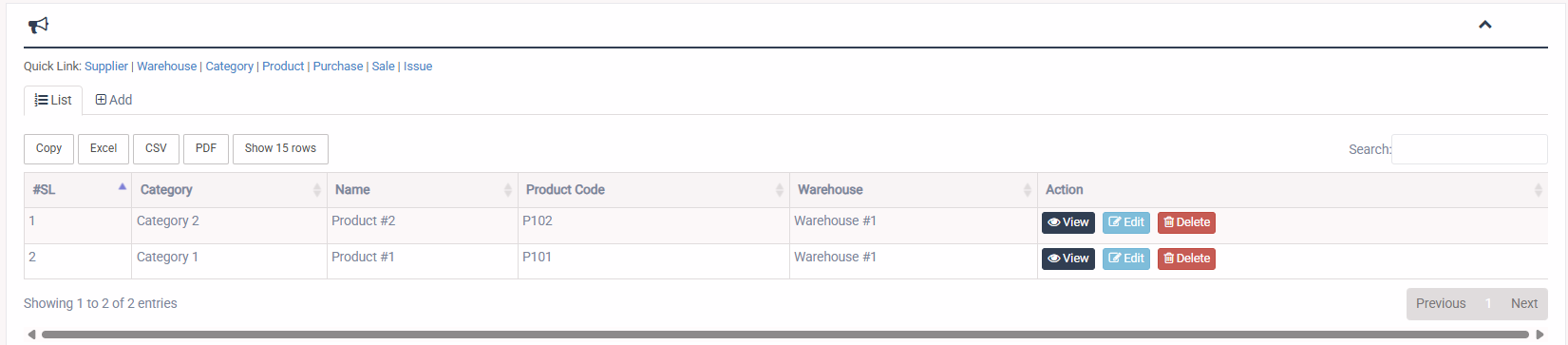
1. Login to المدير Panel.
2. Select Purchase sub menu under المخزون main menu from left side bar.
3. To Add/Create new Purchase click Add tab.
4. To Edit Purchase Click Edit  button in the Purchase list.
5. To Delete Purchase Click Delete  button in the Purchase List.
6. You are done with إدارة المشتريات feature.
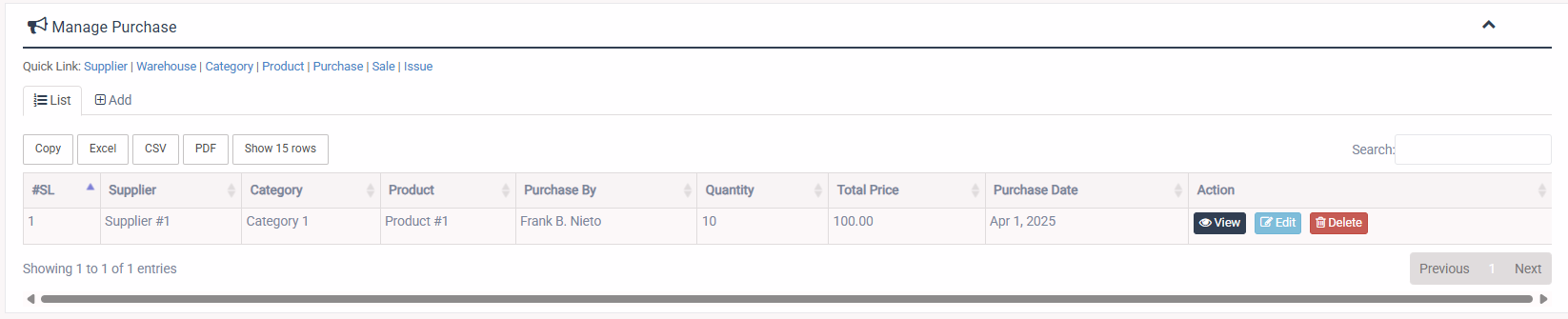
1. Login to المدير Panel.
2. Select Sale sub menu under المخزون main menu from left side bar.
3. To Add/Create new Sale click Add tab.
4. To Edit Sale Click Edit  button in the Sale list.
5. To Delete Sale Click Delete  button in the Sale List.
6. You are done with إدارة المبيعات feature.
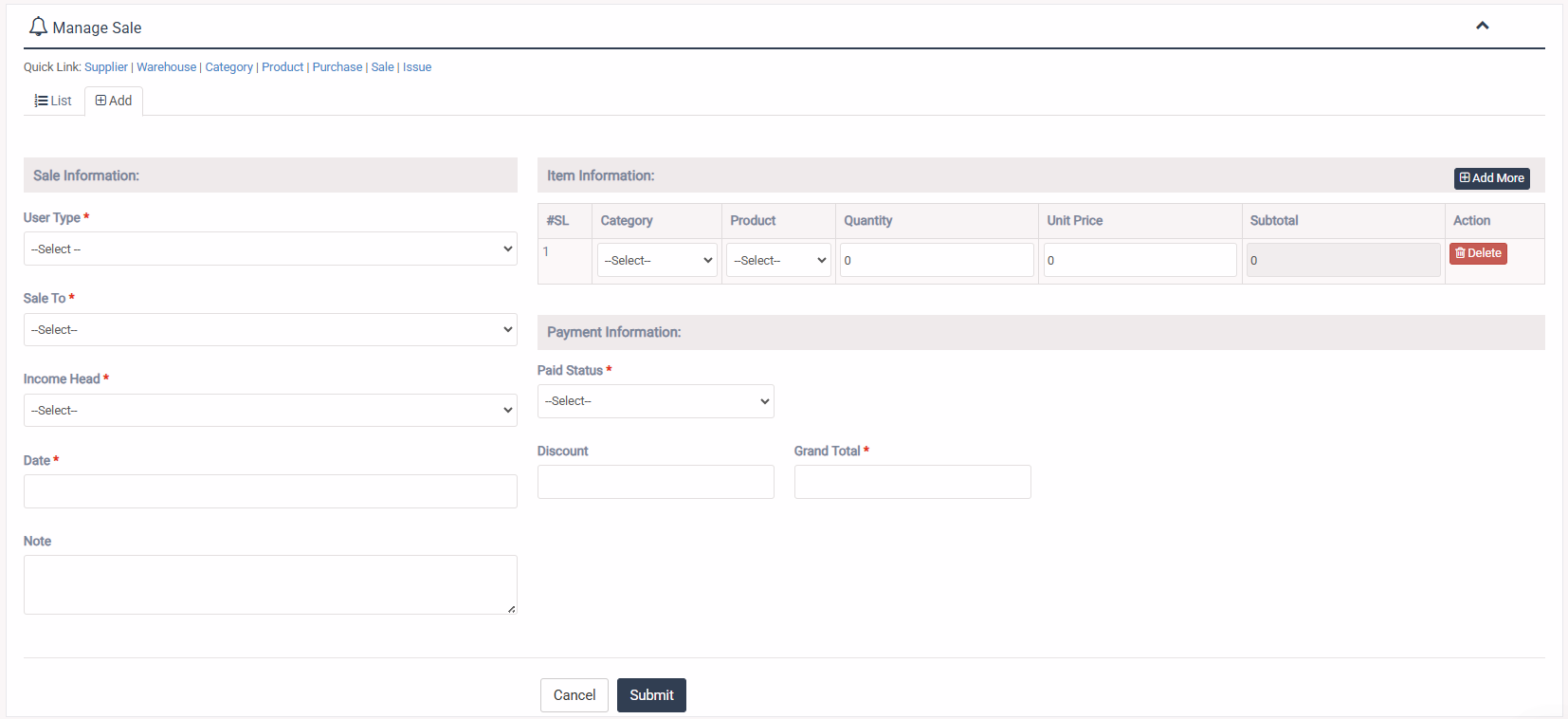
1. Login to المدير Panel.
2. Select Issue sub menu under المخزون main menu from left side bar.
3. To Add/Create new Issue click Add tab.
4. To Edit Issue Click Edit  button in the Issue list.
5. To Delete Issue Click Delete  button in the Issue List.
6. You are done with إدارة الصرف feature.

1. Login to المدير Panel.
2. Select Vendor sub menu under إدارة الأصول main menu from left side bar.
3. To Add/Create new Vendor click Add Book tab.
4. To Edit Vendor Click Edit  button in the Vendor list.
5. To Delete Vendor Click Delete  button in the Vendor List.
6. You are done with إدارة المورد feature.

1. Login to المدير Panel.
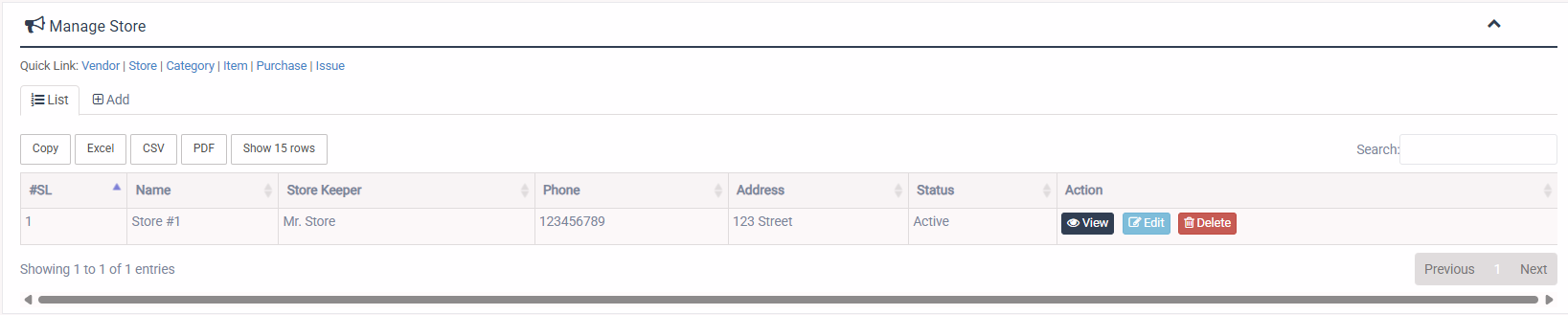
2. Select Store sub menu under إدارة الأصول main menu from left side bar.
3. To Add/Create new Store click Add Book tab.
4. To Edit Store Click Edit  button in the Store list.
5. To Delete Store Click Delete  button in the Store List.
6. You are done with إدارة المخزن feature.
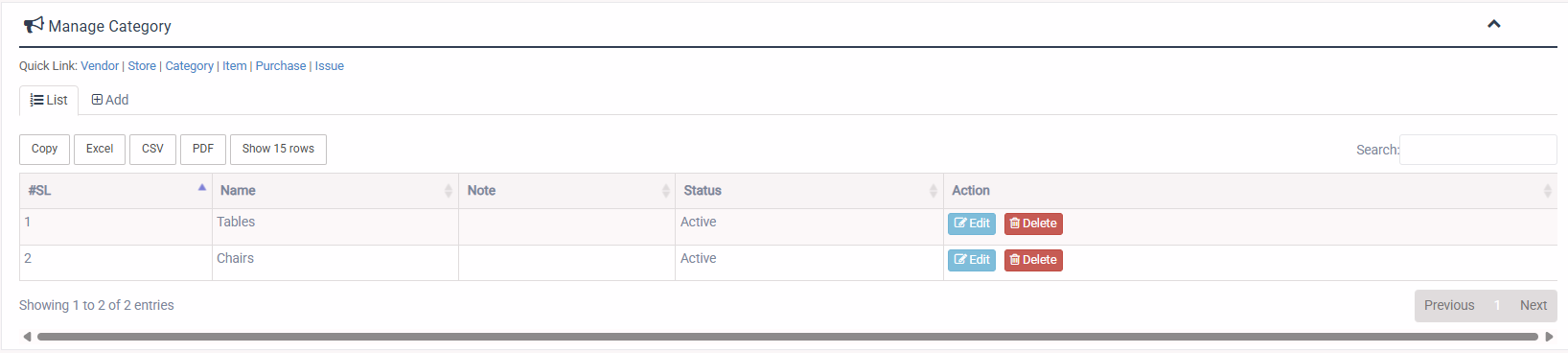
1. Login to المدير Panel.
2. Select Category sub menu under إدارة الأصول main menu from left side bar.
3. To Add/Create new Category click Add Book tab.
4. To Edit Category Click Edit  button in the Category list.
5. To Delete Category Click Delete  button in the Category List.
6. You are done with إدارة الفئات feature.
1. Login to المدير Panel.
2. Select Item sub menu under إدارة الأصول main menu from left side bar.
3. To Add/Create new Item click Add Book tab.
4. To Edit Item Click Edit  button in the Item list.
5. To Delete Item Click Delete  button in the Item List.
6. You are done with إدارة الصنف feature.

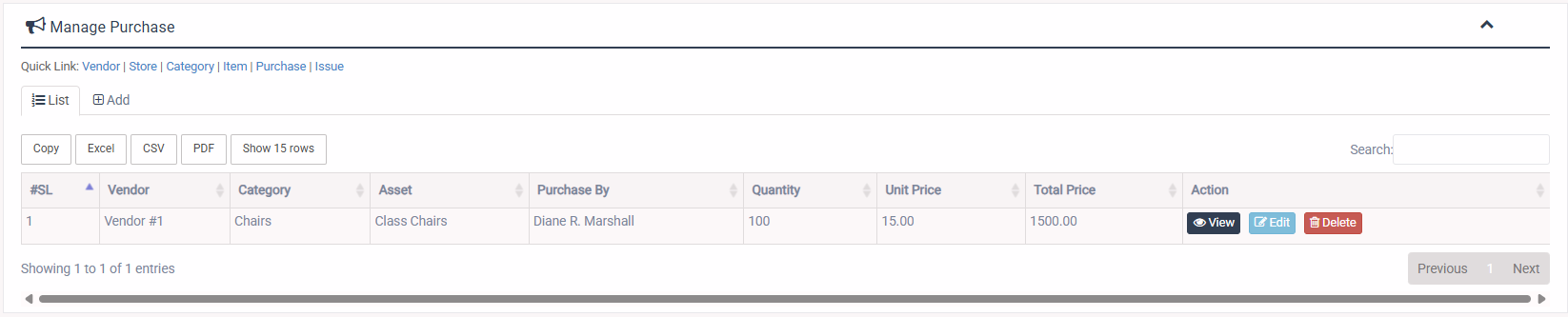
1. Login to المدير Panel.
2. Select Purchase sub menu under إدارة الأصول main menu from left side bar.
3. To Add/Create new Purchase click Add Book tab.
4. To Edit Purchase Click Edit  button in the Purchase list.
5. To Delete Purchase Click Delete  button in the Purchase List.
6. You are done with Manage Purchase feature.
1. Login to المدير Panel.
2. Select Issue sub menu under إدارة الأصول main menu from left side bar.
3. To Add/Create new Issue click Add Book tab.
4. To Edit Issue Click Edit  button in the Issue list.
5. To Delete Issue Click Delete  button in the Issue List.
6. You are done with إدارة الصرف feature.

1. Login to المدير Panel.
2. Select Book sub menu under المكتبة main menu from left side bar.
3. To Add/Create new Book click Add Book tab.
4. To Edit Book Click Edit  button in the Book list.
5. To Delete Book Click Delete  button in the Book List.
6. You are done with إدارة الكتب feature.


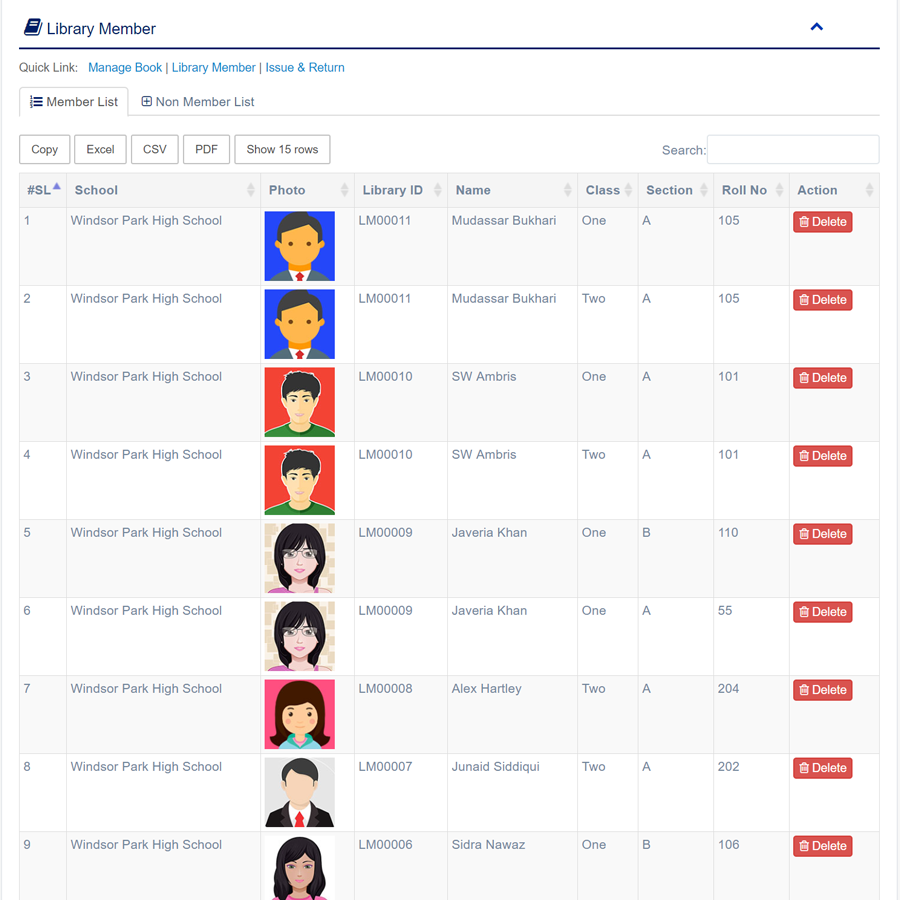
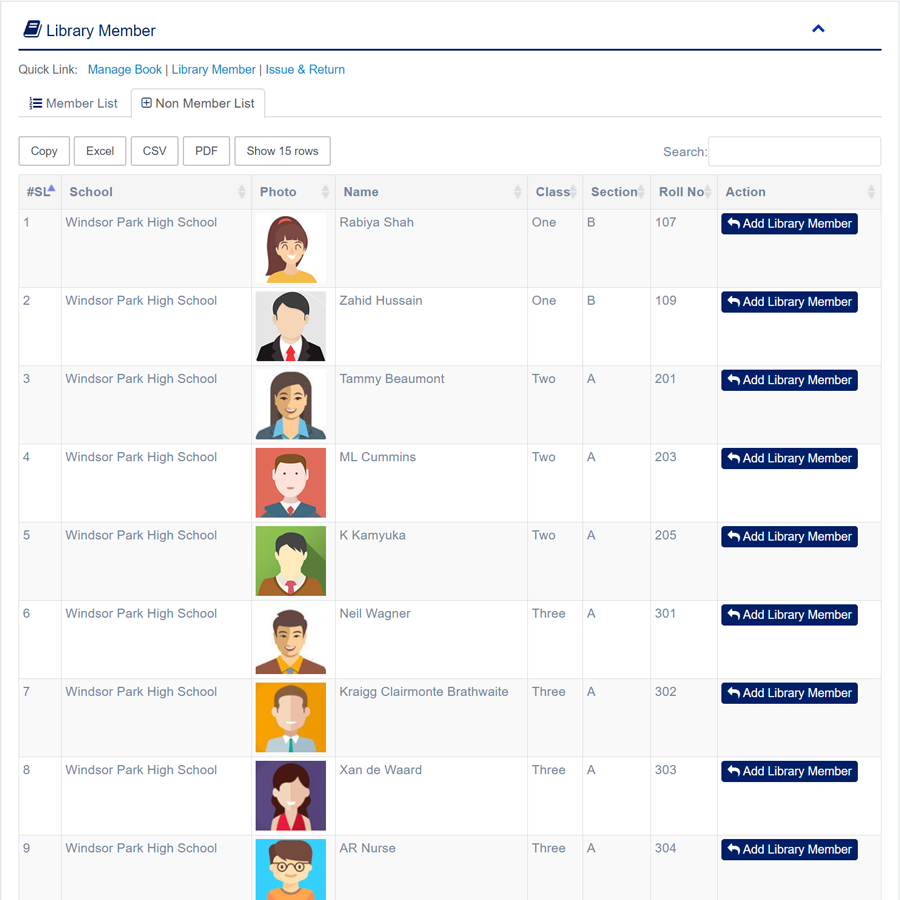
1. Login to المدير Panel.
2. Select عضو المكتبة sub menu under المكتبة main menu from left side bar.
3. To Add new عضو المكتبة click Non Member List tab.
4. Then click Add Library Member button to get add عضو المكتبة.
5. To Delete عضو المكتبة click delete button from Member List tab.
6. You are done with عضو المكتبة feature.
1. Login to المدير Panel.
2. Select الإصدار والإرجاع sub menu under المكتبة main menu from left side bar.
3. To Issue new Book click New Issue tab.
4. To Return Book Click Return This  button in the Issue List List.
6. You are done with Manage Issue & Return feature.


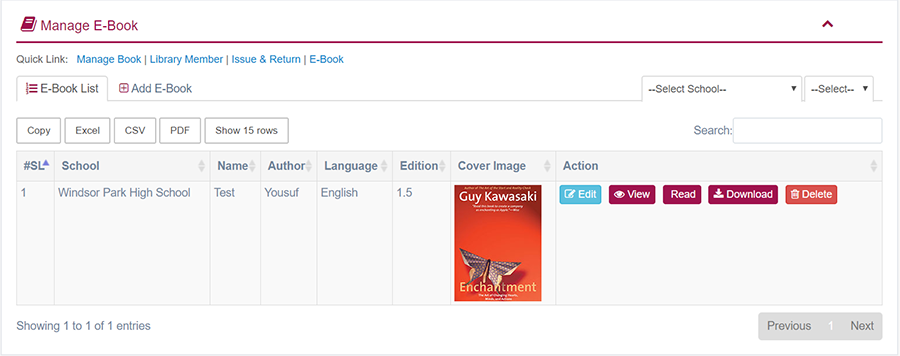
1. Login to المدير Panel.
2. Select الكتب الإلكترونية sub menu under المكتبة main menu from left side bar.
3. To Add new الكتب الإلكترونية click Add E-Book tab.
4. To Edit الكتب الإلكترونية Click Edit  button in the الكتب الإلكترونية  List.
6. You are done with Manage E-Book feature.

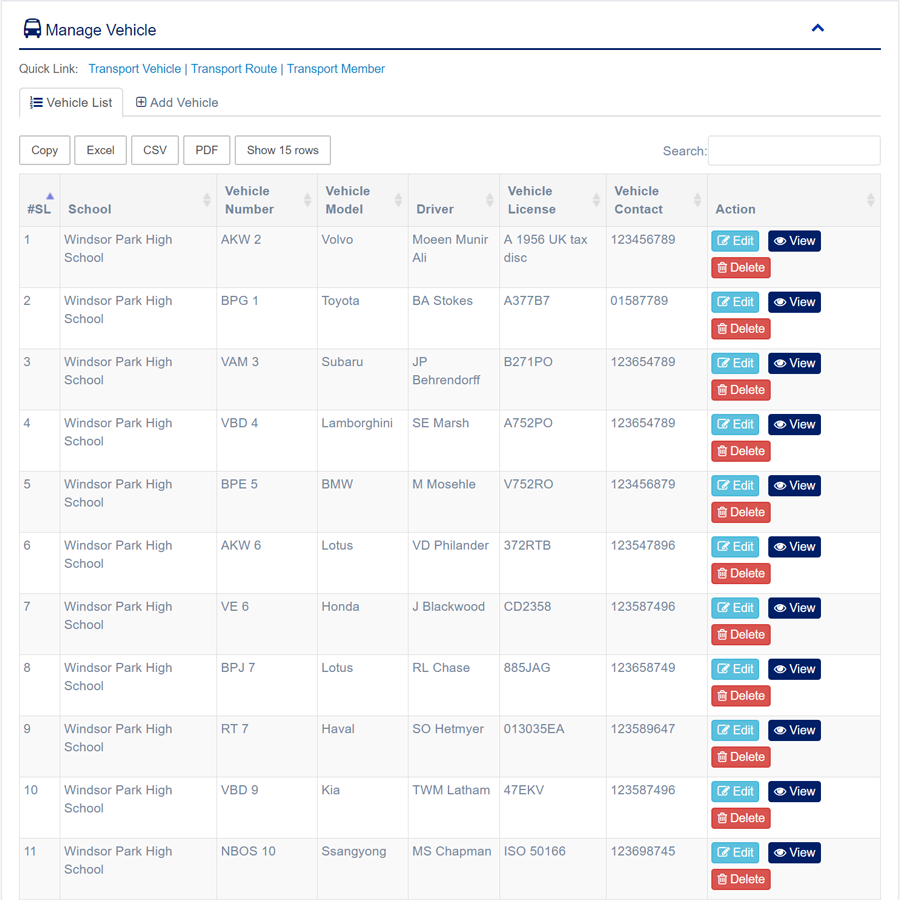
1. Login to المدير Panel.
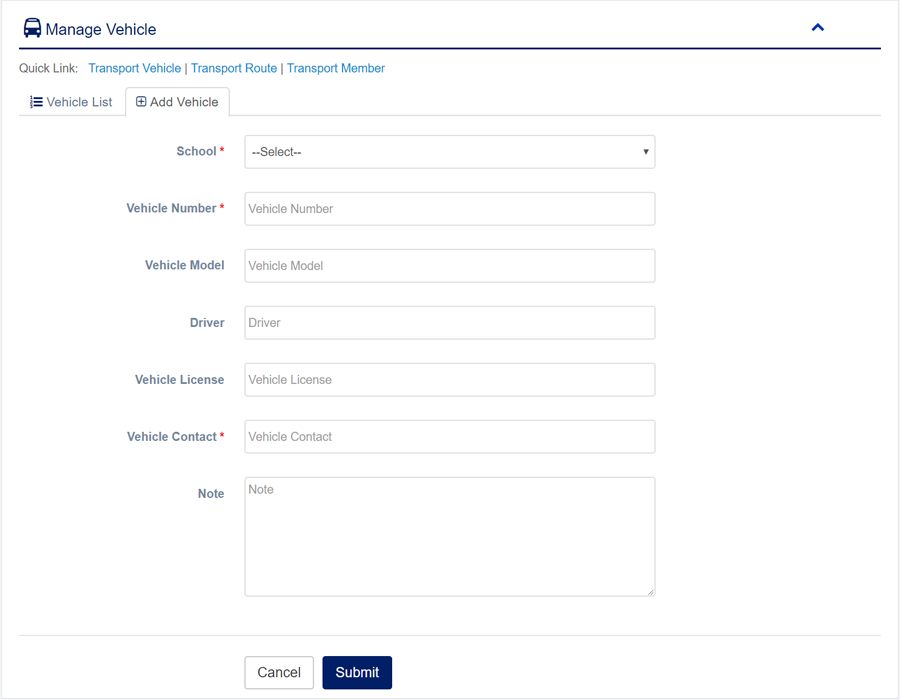
2. Select إدارة المركبات sub menu under المواصلات main menu from left side bar.
3. To Add/Create new Vehicle click Add Vehicle tab.
4. To Edit Vehicle Click Edit  button in the Vehicle list.
5. To Delete Vehicle Click Delete  button in the Vehicle List.
6. You are done with إدارة المركبات feature.
1. Login to المدير Panel.
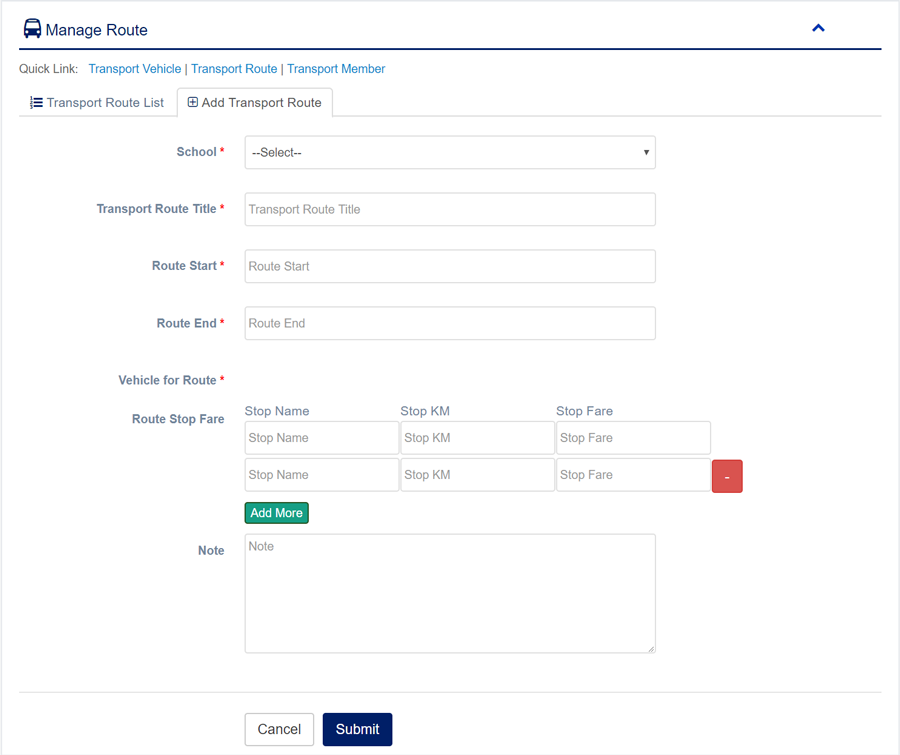
2. Select مسار النقل sub menu under المواصلات main menu from left side bar.
3. To Add/Create new مسار النقل click Add Transport Route tab.
4. To Edit مسار النقل Click Edit  button in the مسار النقل list.
5. To Delete مسار النقل Click Delete  button in the مسار النقل List.
6. You are done with Manage Transport Route feature.

1. Login to المدير Panel.
2. Select عضو النقل sub menu under عضو النقل main menu from left side bar.
3. To add Transport Member go Non Transport Member tab select route and Stop then add to Transport.
4. You are done with عضو النقل feature.


1. Login to المدير Panel.
2. Select إدارة النُزُل sub menu under النُزُل main menu from left side bar.
3. To Add/Create new النُزُل click Add Hostel tab.
4. To Edit النُزُل Click Edit  button in the النُزُل list.
5. To Delete النُزُل Click Delete  button in the النُزُل List.
6. You are done with إدارة النُزُل feature.


1. Login to المدير Panel.
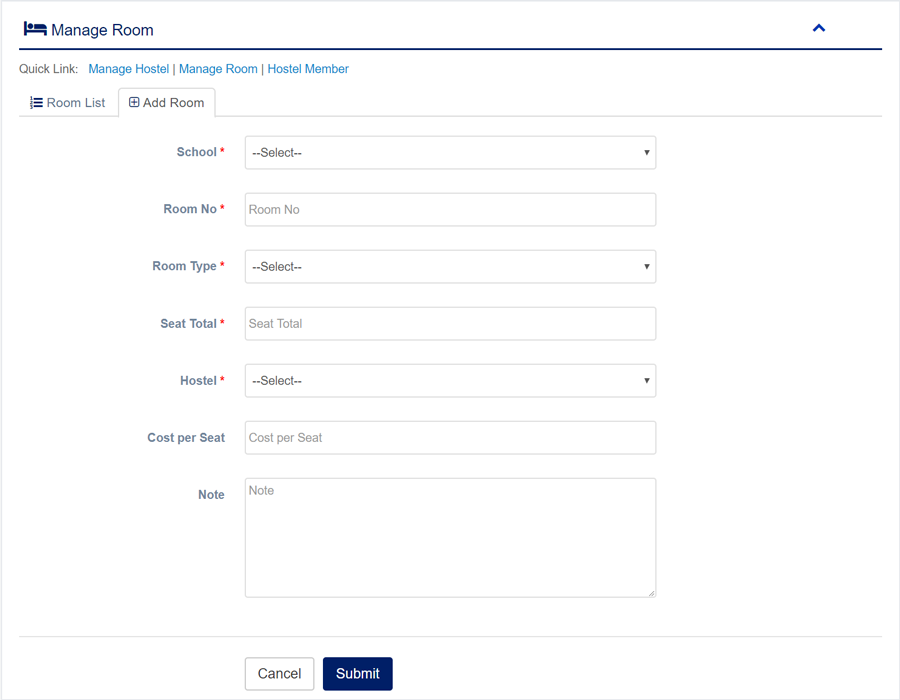
2. Select إدارة الغرف sub menu under المواصلات main menu from left side bar.
3. To Add/Create new Room click Add Room tab.
4. To Edit Room Click Edit  button in the Room list.
5. To Delete Room Click Delete  button in the Room List.
6. You are done with إدارة الغرف feature.

1. Login to المدير Panel.
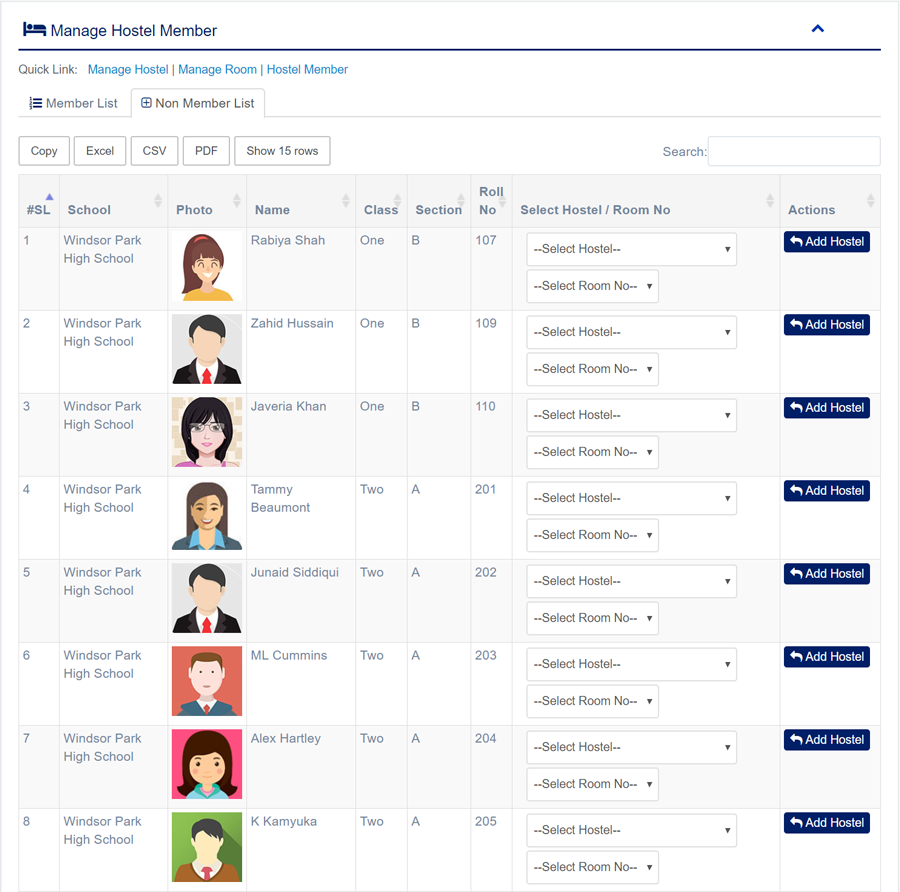
2. Select عضو النُزُل sub menu under النُزُل main menu from left side bar.
3. To Add new عضو النُزُل click Non Member List tab.
4. Then click Add Hostel button to get add عضو النُزُل.
5. To Delete عضو النُزُل click delete button from Member List tab.
6. You are done with عضو النُزُل feature.

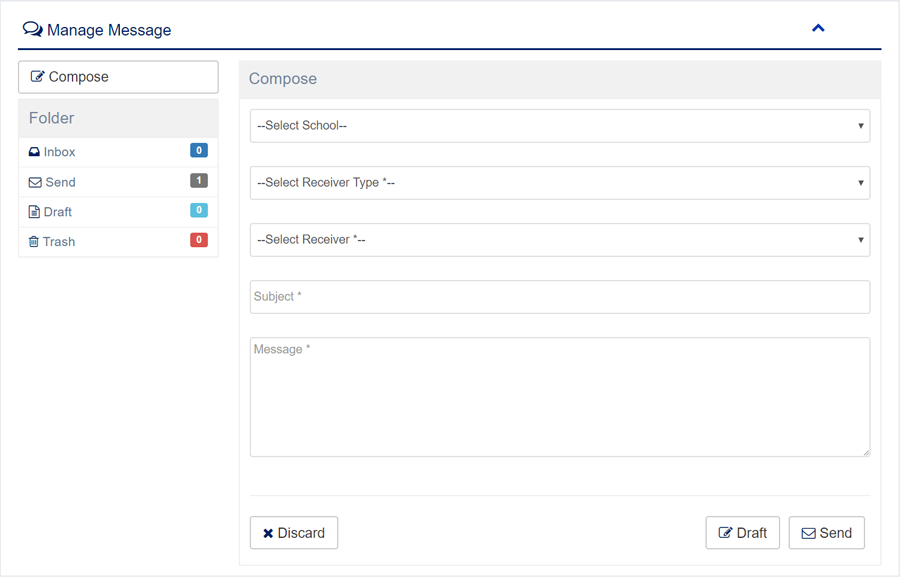
1. Login to المدير Panel.
2. Select الرسائل main menu from left side bar.
3. Click Compose button to write new message.
3. Click Inbox button to see incoming message.
3. Click Send button to see outgoing message.
3. Click Draft button to see Drafts message.
3. Click Trash button to see Trashed message.
6. You are done with الرسائل feature.


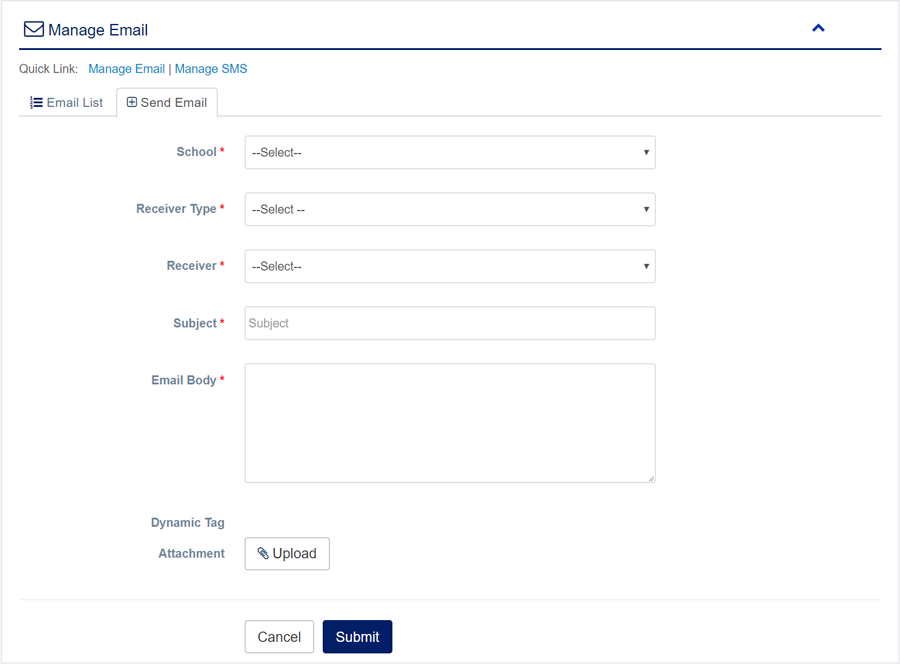
1. Login to المدير Panel.
2. Select البريد الإلكتروني sub menu under البريد والرسائل القصيرة main menu from left side bar.
3. To send new البريد الإلكتروني click Send Email tab.
4. To View البريد الإلكتروني Click View  button in the البريد الإلكتروني list.
5. To Delete البريد الإلكتروني Click Delete  button in the البريد الإلكتروني List.
6. You are done with Manage Email feature.

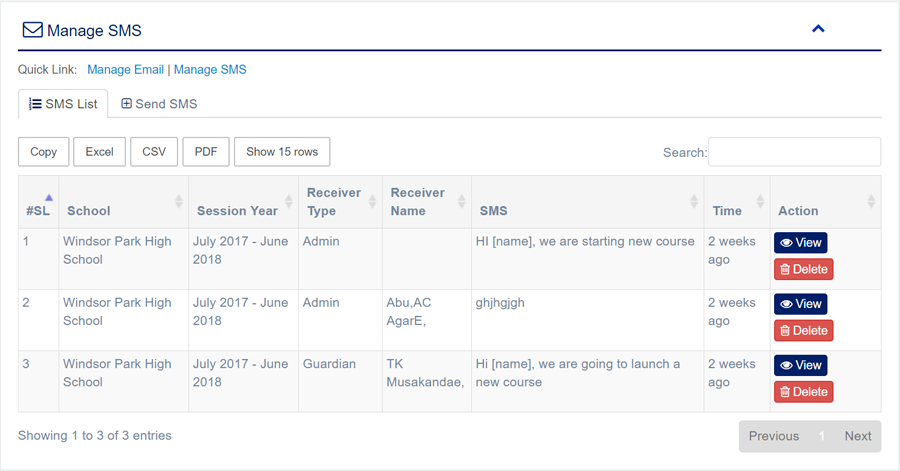
1. Login to المدير Panel.
2. Select SMS sub menu under البريد والرسائل القصيرة main menu from left side bar.
3. To send new SMS click Send SMS tab.
4. To Delete SMS Click Delete button in the SMS List.
5. You are done with Manage SMS feature.

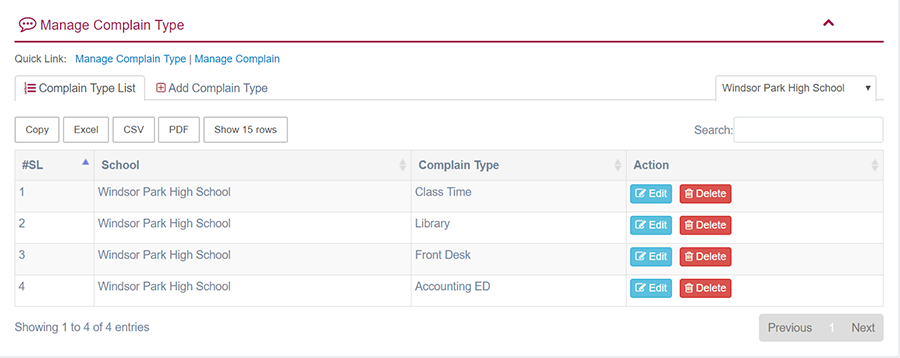
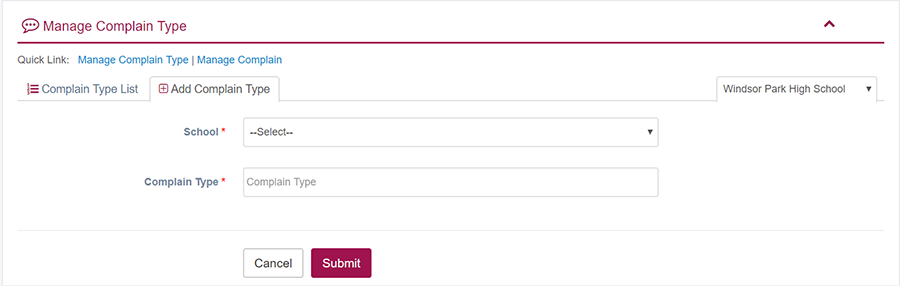
1. Login to المدير Panel.
2. Select Complain Type sub menu under الشكاوي main menu from left side bar.
3. To Add/Create new Complain Type click Add Complain Type tab.
4. To Edit Complain Type Click Edit  button in the Notice list.
5. To Delete Complain Type Click Delete  button in the Complain Type List.
6. You are done with إدارة نوع الشكوى feature.
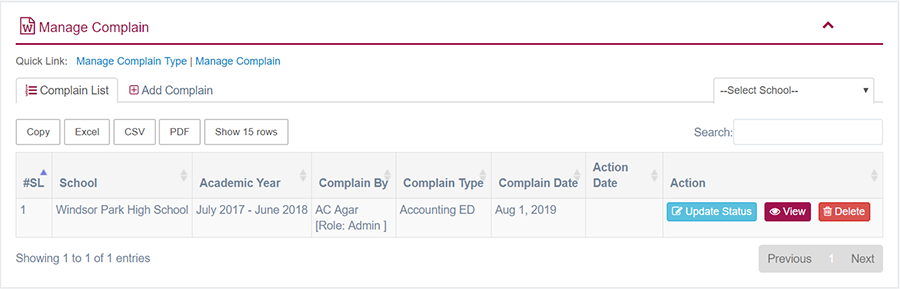
1. Login to المدير Panel.
2. Select الشكاوي sub menu under الشكاوي main menu from left side bar.
3. To Add/Create new الشكاوي click Add Complain tab.
4. To View الشكاوي Click View  button in the الشكاوي list.
5. To Edit الشكاوي Click Edit  button in the الشكاوي list.
6. To Delete الشكاوي Click Delete  button in the الشكاوي List.
7. You are done with إدارة الشكوى feature.

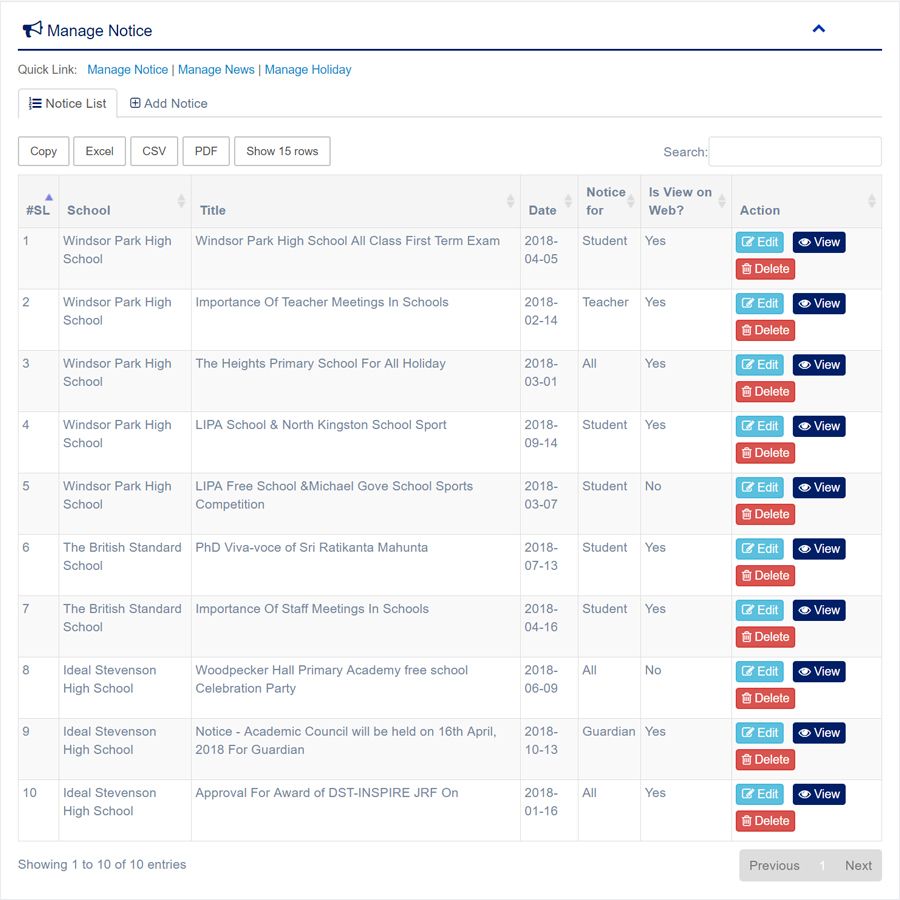
1. Login to المدير Panel.
2. Select Notice sub menu under الإعلانات main menu from left side bar.
3. To Add/Create new Notice click Add Notice tab.
4. To View Notice Click View  button in the Notice list.
5. To Edit Notice Click Edit  button in the Notice list.
6. To Delete Notice Click Delete  button in the Notice List.
7. You are done with إدارة الإشعارات feature.

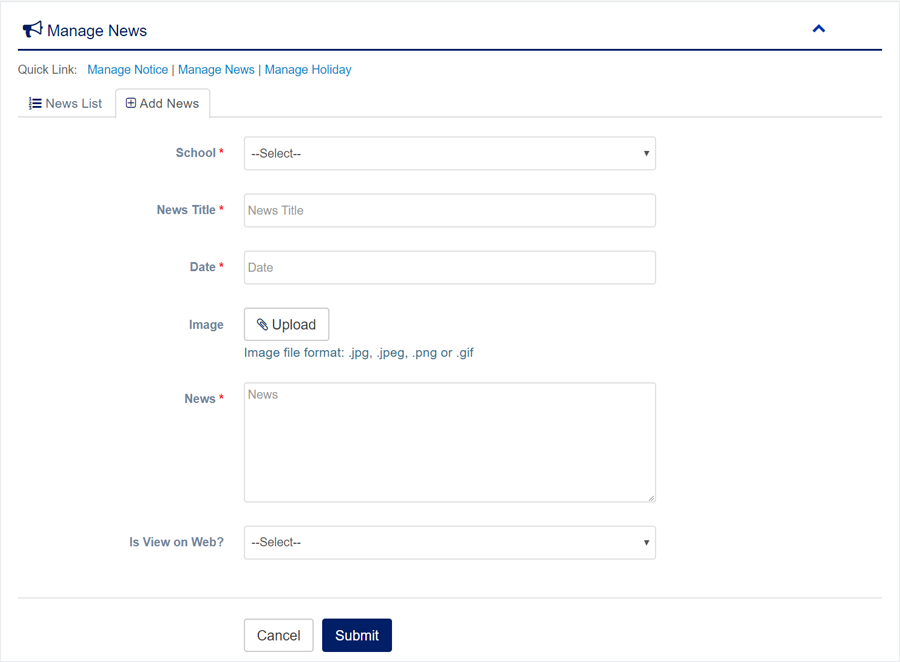
1. Login to المدير Panel.
2. Select News sub menu under الإعلانات main menu from left side bar.
3. To Add/Create new News click Add News tab.
4. To View News Click View  button in the News list.
5. To Edit News Click Edit  button in the News list.
6. To Delete News Click Delete  button in the News List.
7. You are done with إدارة الأخبار feature.

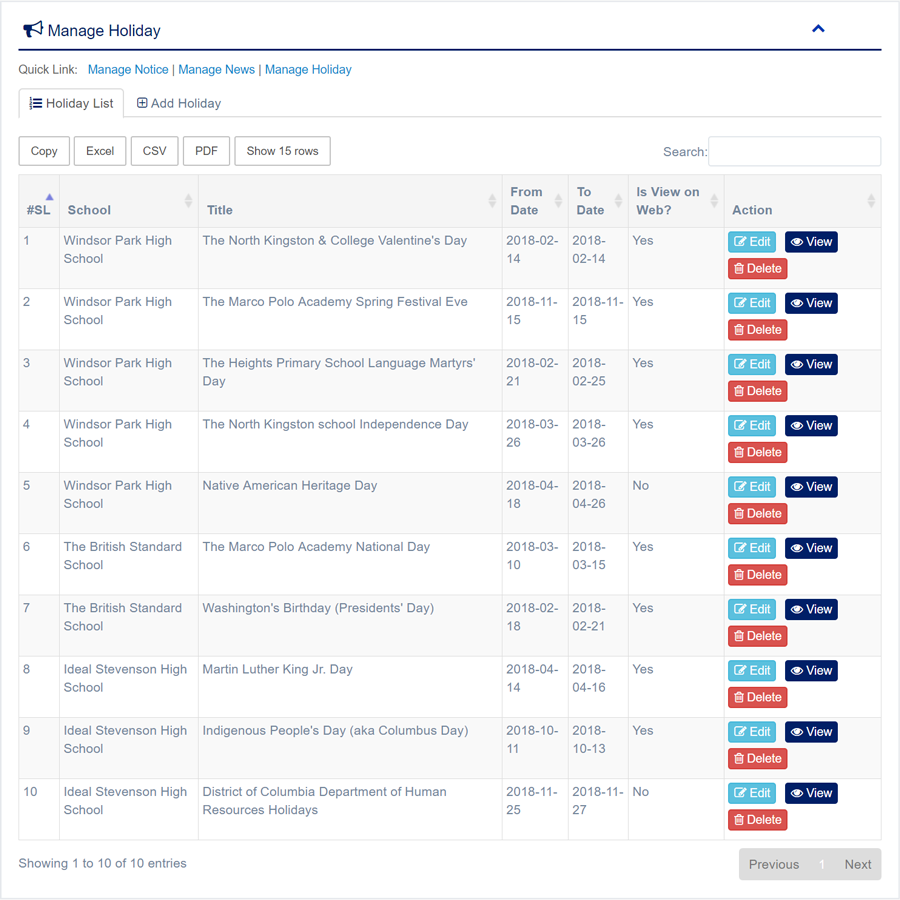
1. Login to المدير Panel.
2. Select Holiday sub menu under الإعلانات main menu from left side bar.
3. To Add/Create new Holiday click Add Holiday tab.
4. To View Holiday Click View  button in the Holiday list.
5. To Edit Holiday Click Edit  button in the Holiday list.
6. To Delete Holiday Click Delete  button in the Holiday List.
7. You are done with إدارة العطلات feature.

1. Login to المدير Panel.
2. Select الفعاليات main menu from left side bar.
3. To Add/Create new الفعاليات click Add Event tab.
4. To View الفعاليات Click View  button in the الفعاليات list.
5. To Edit الفعاليات Click Edit  button in the الفعاليات list.
6. To Delete الفعاليات Click Delete  button in the الفعاليات List.
7. You are done with إدارة الفعاليات feature.


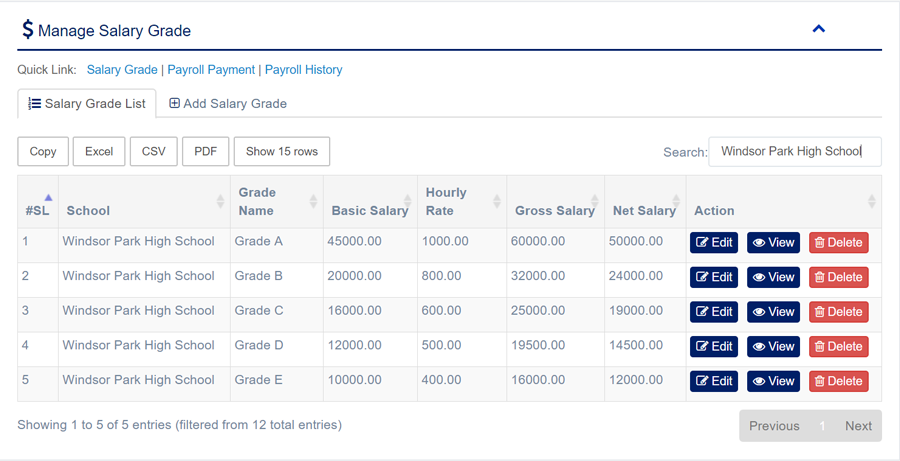
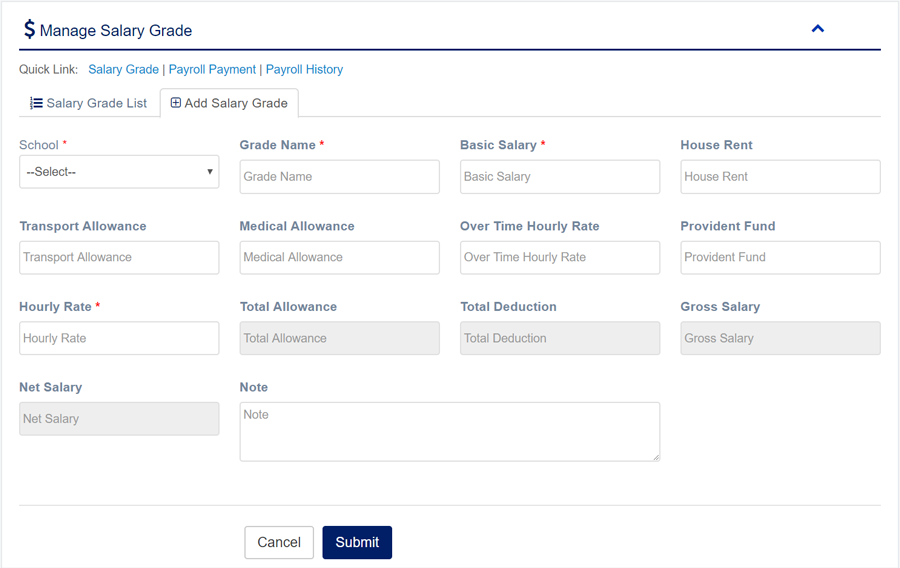
1. Login to المدير Panel.
2. Select Salary Grade sub menu under الرواتب main menu from left side bar.
3. To Add/Create new Salary Grade click Add Salary Grade tab.
4. To Edit Salary Grade Click Edit button in the Salary Grade list.
5. To Delete Salary Grade Click Delete button in the Salary Grade List.
6. You are done with إدارة سلم الرواتب feature.
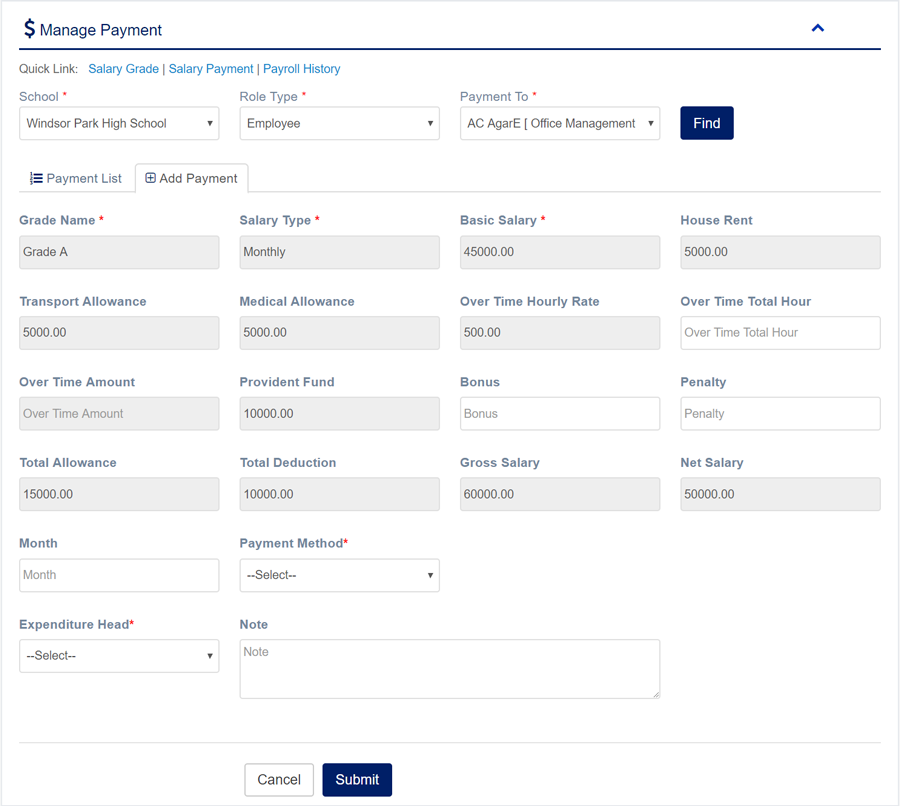
1. Login to المدير Panel.
2. Select تسديد الرواتب sub menu under الرواتب main menu from left side bar.
3. To تسديد الرواتب select Role Type and payment to and then click find.
4. Then Input Month/Bonus/Hour/Penalty etc submit Salary Payment for Employee or Teacher.
6. You are done with تسديد الرواتب feature.

1. Login to المدير Panel.
2. Select سجل الرواتب sub menu under الرواتب main menu from left side bar.
3. To see سجل الرواتب select Role Type and payment to and then click find.
6. You are done with سجل الرواتب feature.

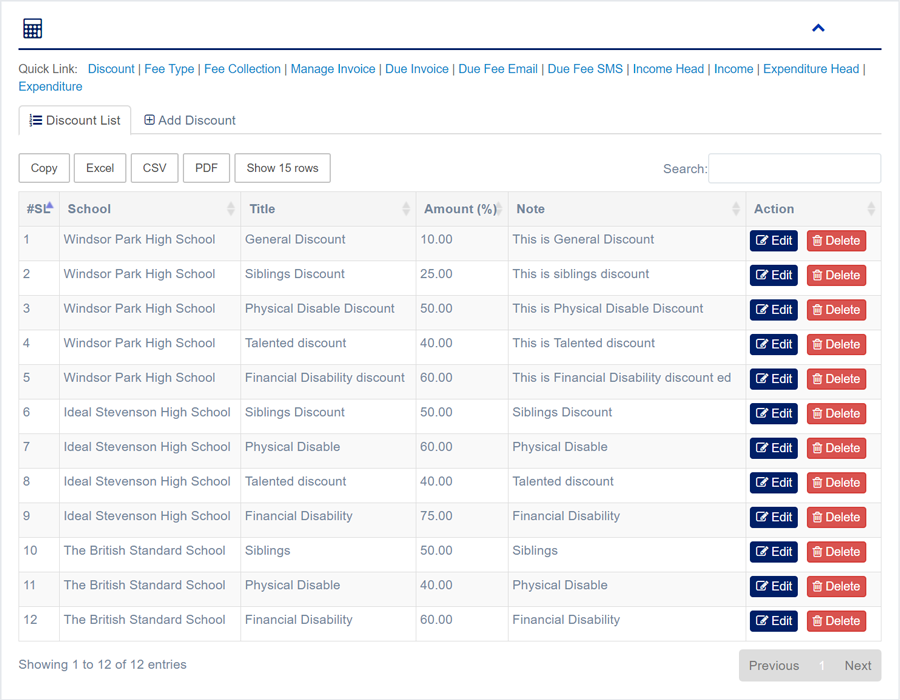
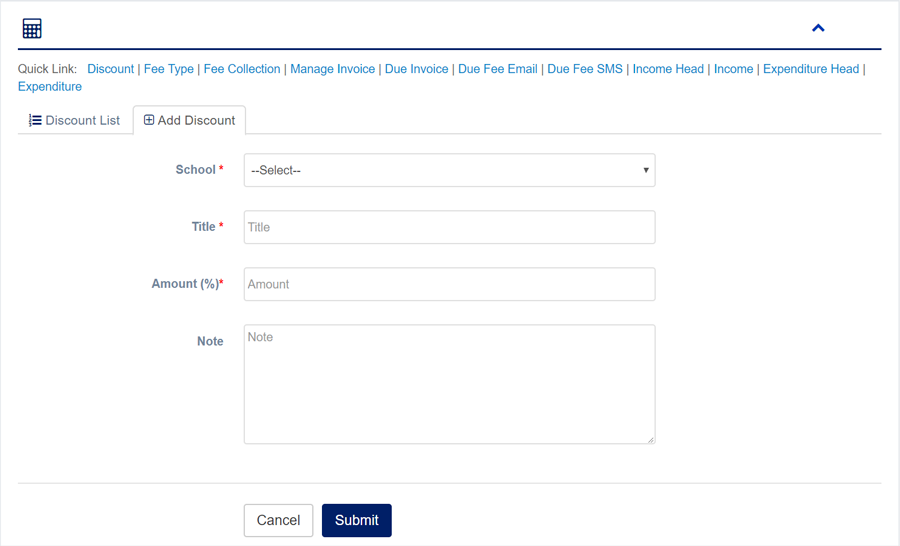
1. Login to المدير Panel.
2. Select Discount sub menu under المحاسبة main menu from left side bar.
3. To Add/Create new Discount click Add Discount tab.
4. To Edit Discount Click Edit  button in the Discount list.
5. To Delete Discount Click Delete  button in the Discount List.
6. You are done with إدارة الخصم feature.
1. Login to المدير Panel.
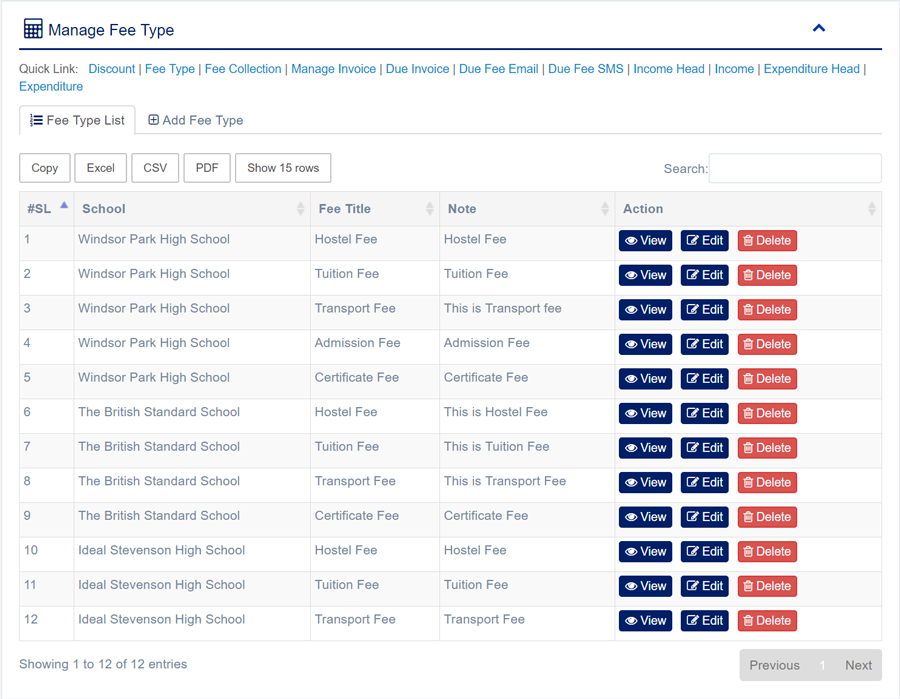
2. Select Fee Type sub menu under المحاسبة main menu from left side bar.
3. To Add/Create new Fee Type click Add Fee Type tab.
4. To Edit Fee Type Click Edit  button in the Fee Type list.
5. To Delete Fee Type Click Delete  button in the Fee Type List.
6. You are done with إدارة فئات الرسوم feature.

1. Login to المدير Panel.
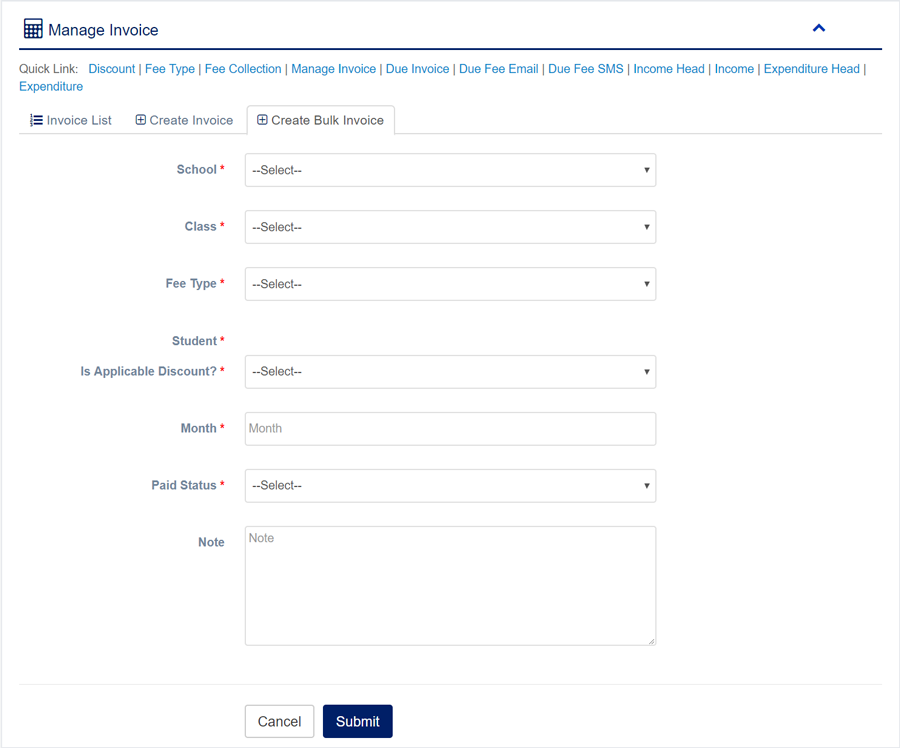
2. Select Fee Collection/ Invoice sub menu under المحاسبة main menu from left side bar.
3. To Create new Invoice click Create Invoice tab.
4. To Create Bulk Invoice click Create Bulk Invoice tab.
5. To View Invoice Click View  button in the Invoice list.
6. To Edit Invoice Click Edit  button in the Invoice list.
7. To Delete Invoice Click Delete  button in the Invoice List.
8. You are done with إدارة تحصيل الرسوم / الفواتير feature.



1. Login to المدير Panel.
2. Select Due Invoice sub menu under المحاسبة main menu from left side bar.
3. To View Due Invoice Click View button in the Due Invoice list.
4. To Payment Due Invoice Click Payment button in the Due Invoice List.
5. You are done with Manage Due Invoice feature.

1. Login to المدير Panel.
2. Select Due Fee Email sub menu under المحاسبة main menu from left side bar.
3. To View Due Fee Email Click View button in the Due Fee Email list.
4. To Delete Due Fee Email Click Delete button in the Due Fee Email List.
5. You are done with إدارة بريد الرسوم المستحقة feature.

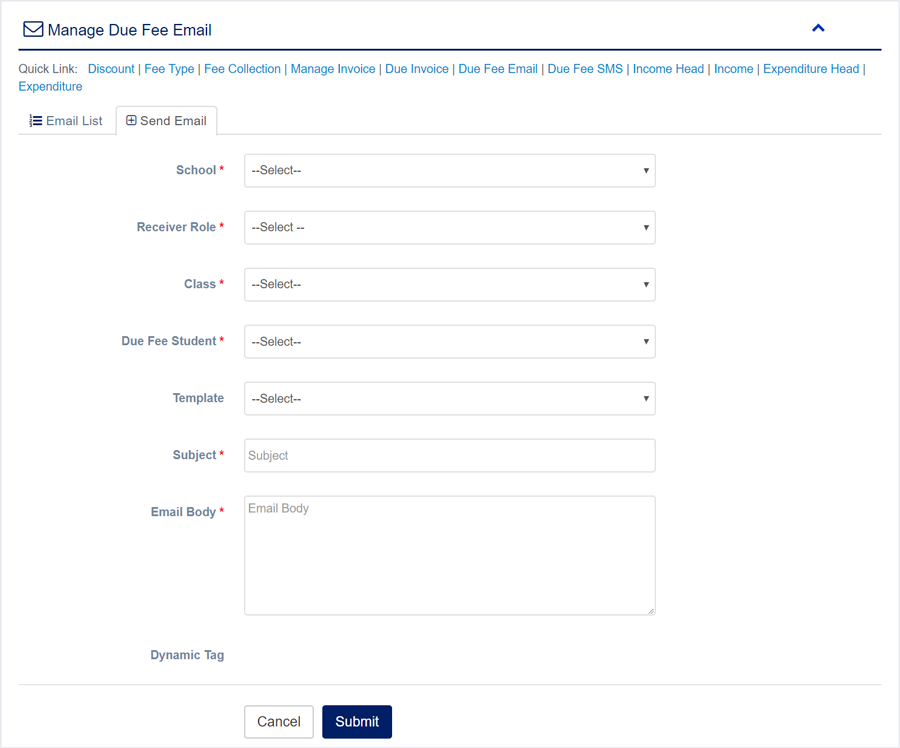
1. Login to المدير Panel.
2. Select Due Fee SMS sub menu under المحاسبة main menu from left side bar.
3. To View Due Fee SMS Click View button in the Due Fee SMS list.
4. To Delete Due Fee SMS Click Delete button in the Due Fee SMS List.
5. You are done with إدارة رسالة الرسوم المستحقة feature.


1. Login to المدير Panel.
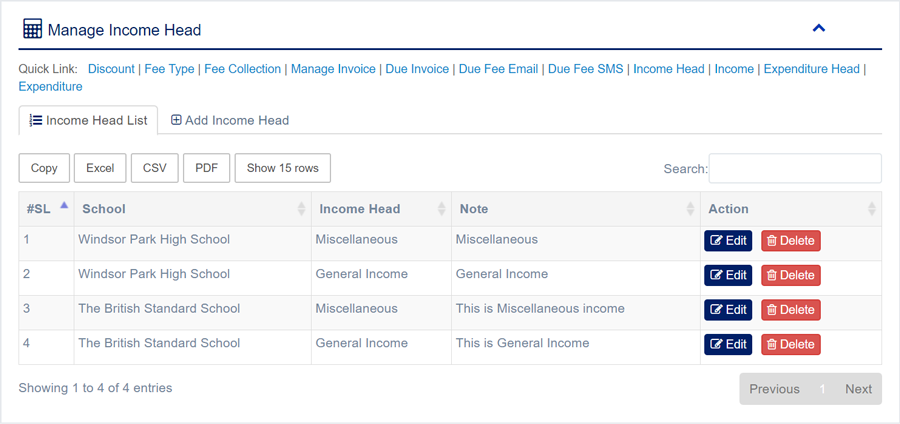
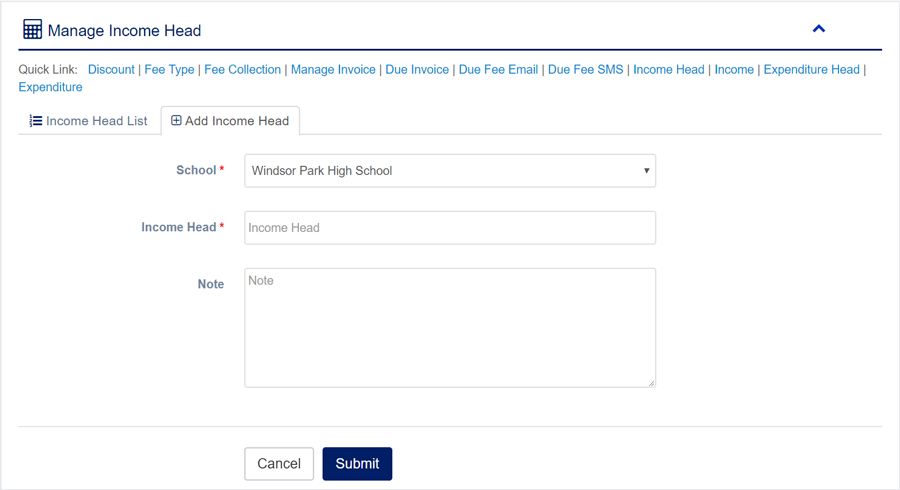
2. Select Income Head sub menu under المحاسبة main menu from left side bar.
3. To Add/Create new Income Head click Add Income Head tab.
4. To Edit Income Head Click Edit  button in the Income Head list.
5. To Delete Income Head Click Delete  button in the Income Head List.
6. You are done with إدارة بند الإيرادات feature.
1. Login to المدير Panel.
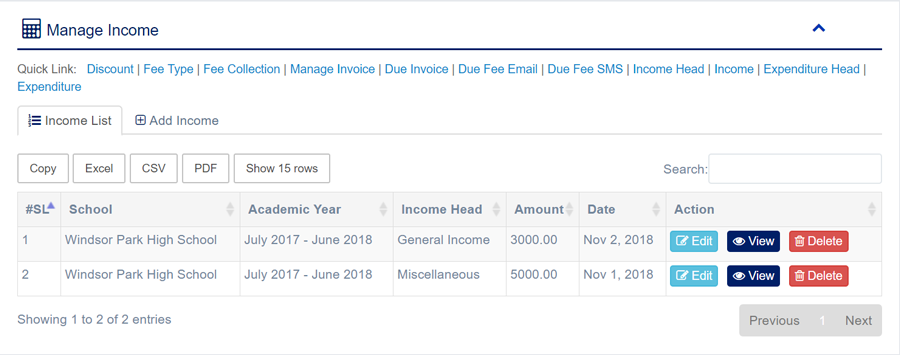
2. Select Income sub menu under المحاسبة main menu from left side bar.
3. To Add/Create new Income click Add Income tab.
4. To View Income Click View  button in the Income list.
5. To Edit Income Click Edit  button in the Income list.
6. To Delete Income Click Delete  button in the Income List.
7. You are done with إدارة الدخل feature.

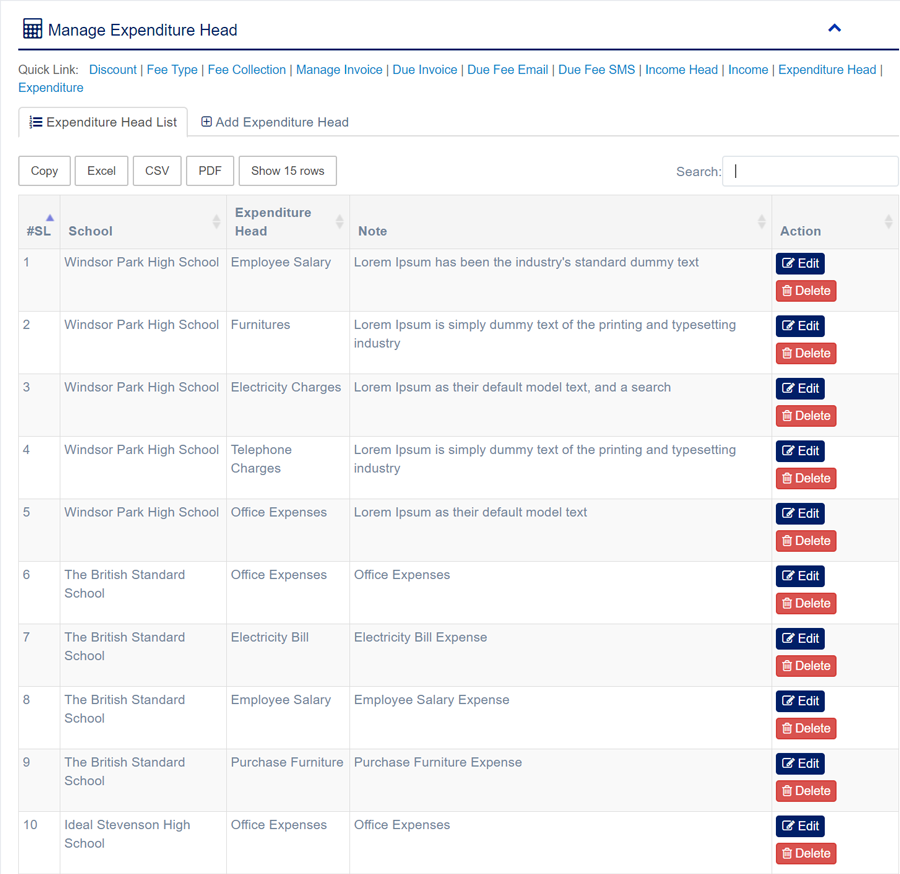
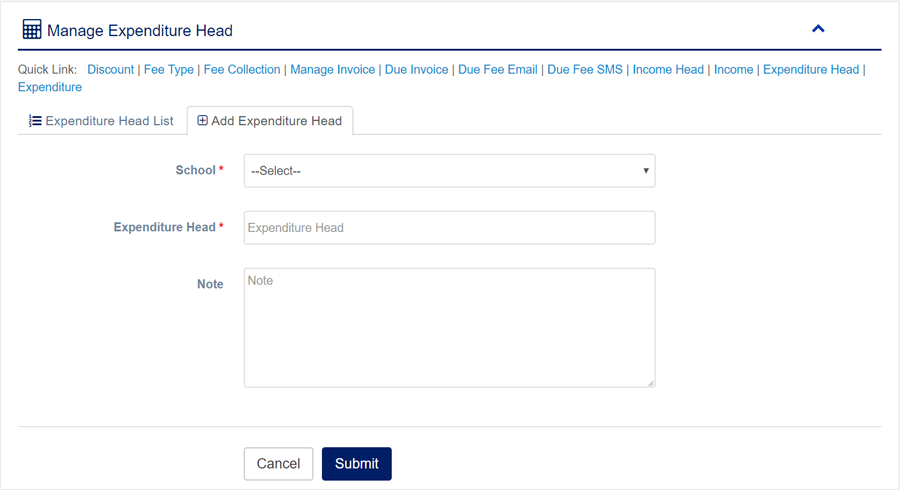
1. Login to المدير Panel.
2. Select Expenditure Head sub menu under المحاسبة main menu from left side bar.
3. To Add/Create new Expenditure Head click Add Expenditure Head tab.
4. To Edit Expenditure Head Click Edit  button in the Expenditure Head list.
5. To Delete Expenditure Head Click Delete  button in the Expenditure Head List.
6. You are done with إدارة بند المصروفات feature.
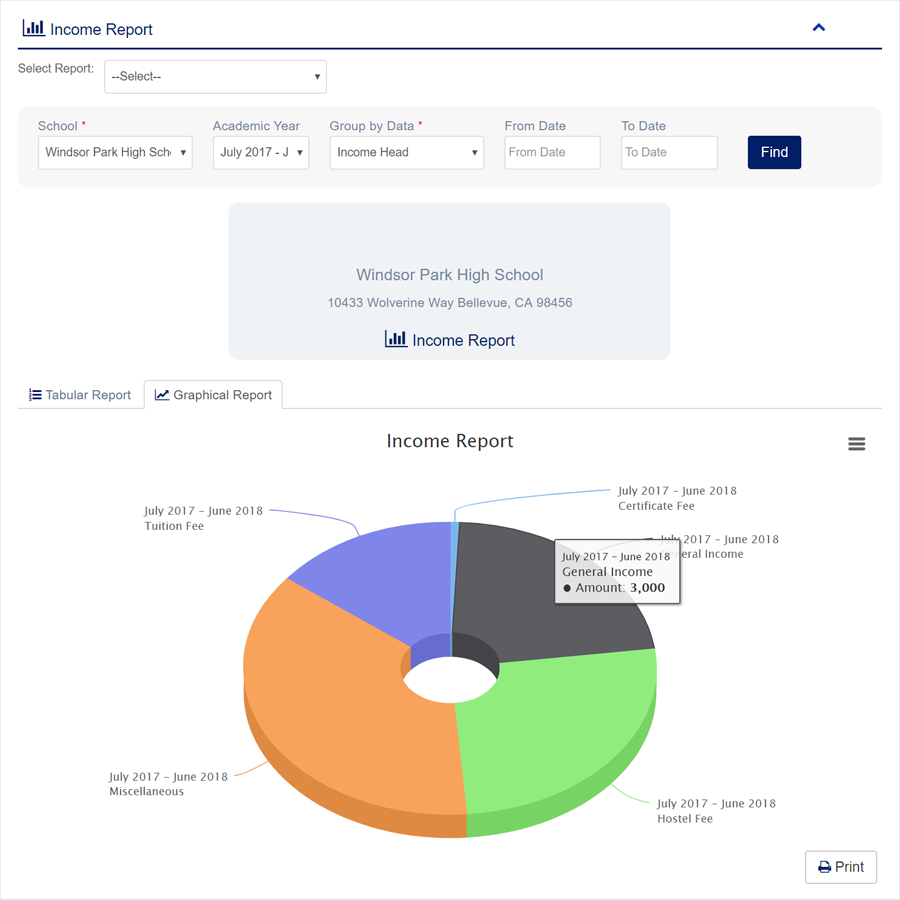
1. Login to المدير Panel.
2. Select Expenditure sub menu under المحاسبة main menu from left side bar.
3. To Add/Create new Expenditure click Add Expenditure tab.
4. To View Expenditure Click View  button in the Expenditure list.
5. To Edit Expenditure Click Edit  button in the Expenditure list.
6. To Delete Expenditure Click Delete  button in the Expenditure List.
7. You are done with إدارة المصروفات feature.

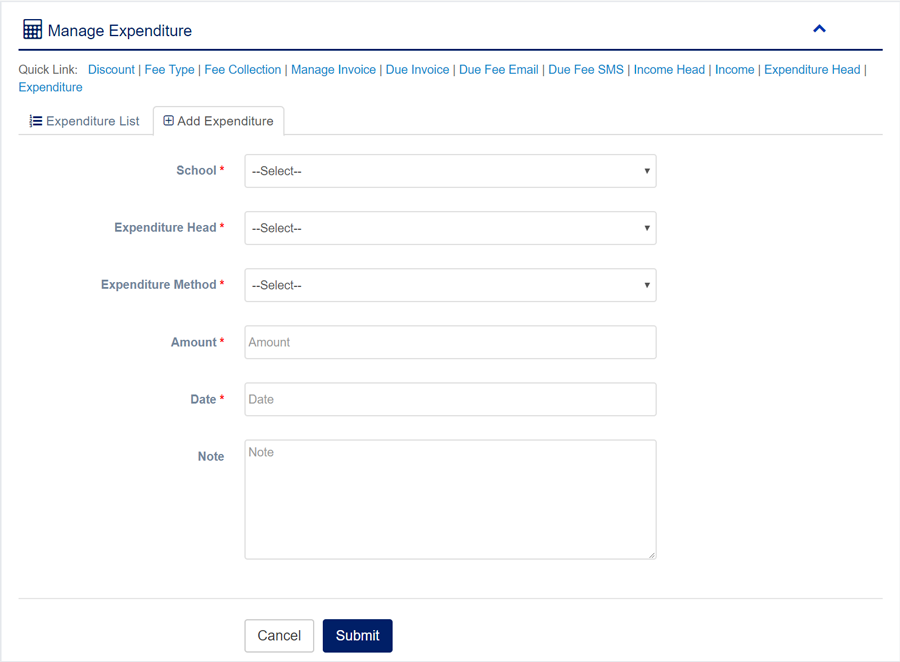
1. Login to المدير Panel.
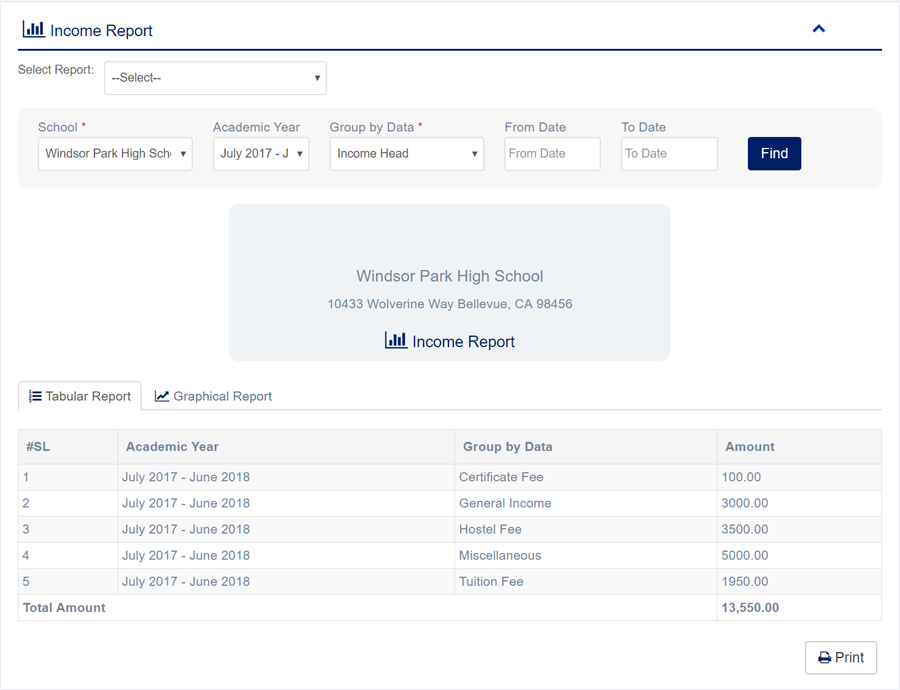
2. Select Income Report sub menu under Report main menu from left side bar.
3. To View Income Report choose Academic Year, Group by Data, From Date & To Date.
4. Then click Find button and you will see Graphical Report.
4. To view Tabular Data click Tabular Report
6. You are done with تقرير الدخل feature.
1. Login to المدير Panel.
2. Select Expenditure Report sub menu under Report main menu from left side bar.
3. To View Expenditure Report choose Academic Year, Group by Data, From Date & To Date.
4. Then click Find button and you will see Graphical Report.
4. To view Tabular Data click Tabular Report
6. You are done with تقرير المصروفات feature.


1. Login to المدير Panel.
2. Select Invoice Report sub menu under Report main menu from left side bar.
3. To View Invoice Report choose Academic Year, Group by Data, From Date & To Date.
4. Then click Find button and you will see Graphical Report.
4. To view Tabular Data click Tabular Report
6. You are done with تقرير الفواتير feature.


1. Login to المدير Panel.
2. Select تقرير الرسوم المستحقة sub menu under Report main menu from left side bar.
3. To View تقرير الرسوم المستحقة choose Academic Year, Class, Student and click find Button.
4. You are done with Manage Due Fee Report feature.

1. Login to المدير Panel.
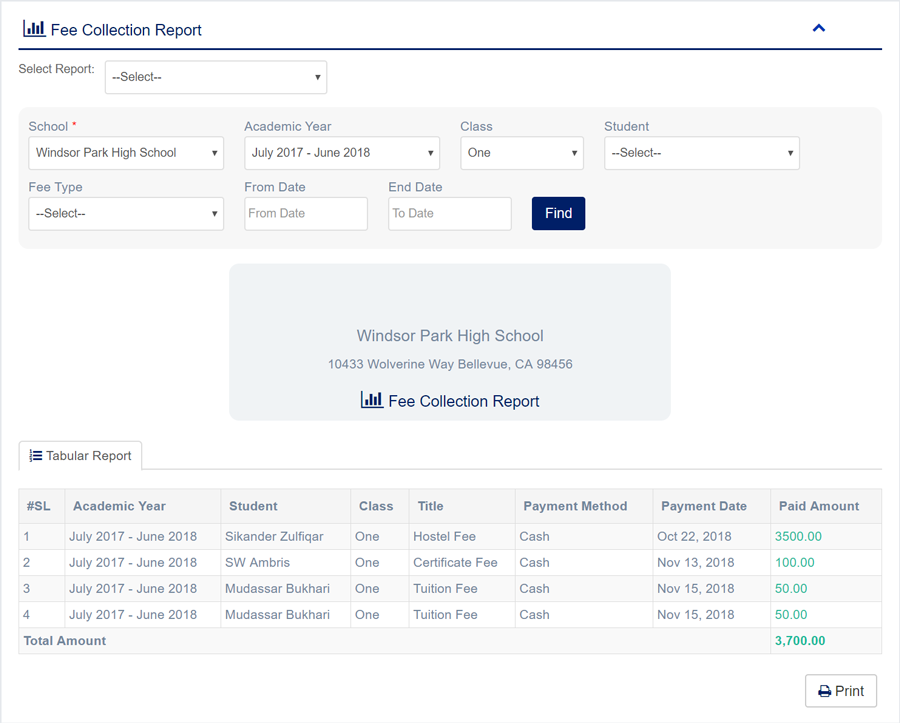
2. Select كشف تحصيل المستحقات sub menu under Report main menu from left side bar.
3. To View كشف تحصيل المستحقات choose Academic Year, Class, Student, Fee Type, From Date and To date and click find Button.
4. You are done with Manage Fee Collection Report feature.
1. Login to المدير Panel.
2. Select Balance Report sub menu under Report main menu from left side bar.
3. To View Balance Report choose Academic Year, Group by Data, From Date & To Date.
4. Then click Find button and you will see Graphical Report.
4. To view Tabular Data click Tabular Report
6. You are done with Manage Balance Report feature.


1. Login to المدير Panel.
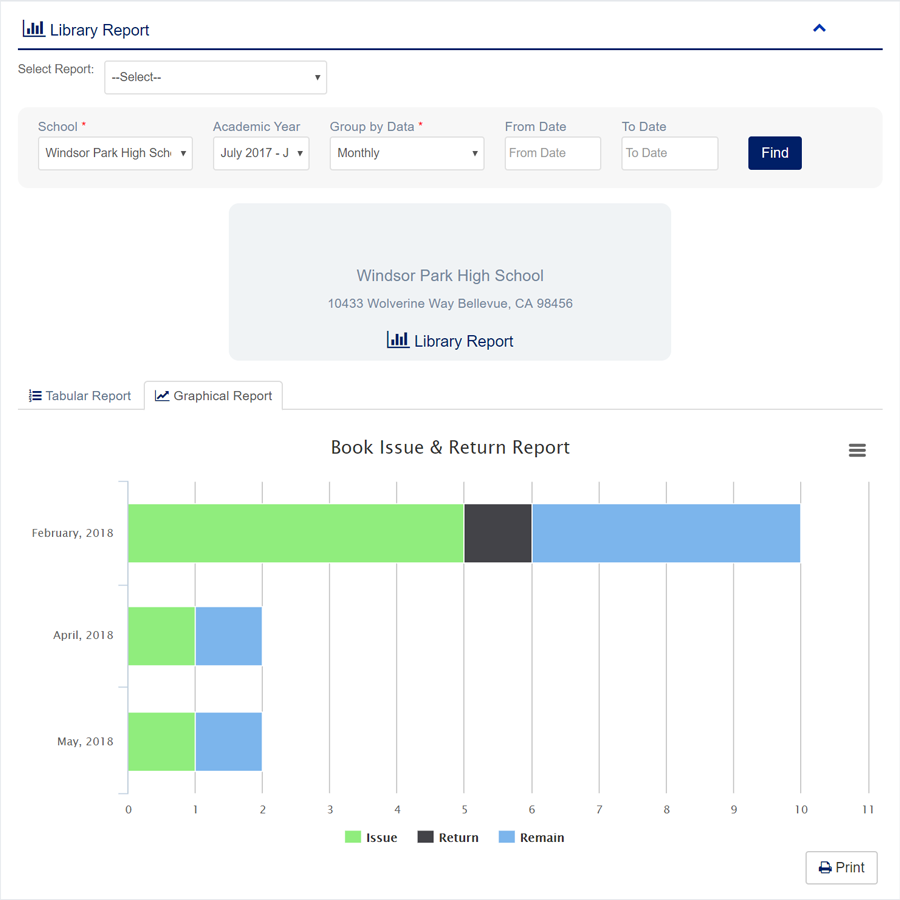
2. Select تقرير المكتبة sub menu under Report main menu from left side bar.
3. To View تقرير المكتبة choose Academic Year, Group by Data, From Date & To Date.
4. Then click Find button and you will see Graphical Report.
4. To view Tabular Data click Tabular Report
6. You are done with Manage Library Report feature.

1. Login to المدير Panel.
2. Select تقرير حضور الطلاب sub menu under Report main menu from left side bar.
3. To View تقرير حضور الطلاب choose Academic Year, Class, Section, Month.
4. Then click Find button and you will see حضور الطلاب.
6. You are done with تقرير حضور الطلاب feature.

1. Login to المدير Panel.
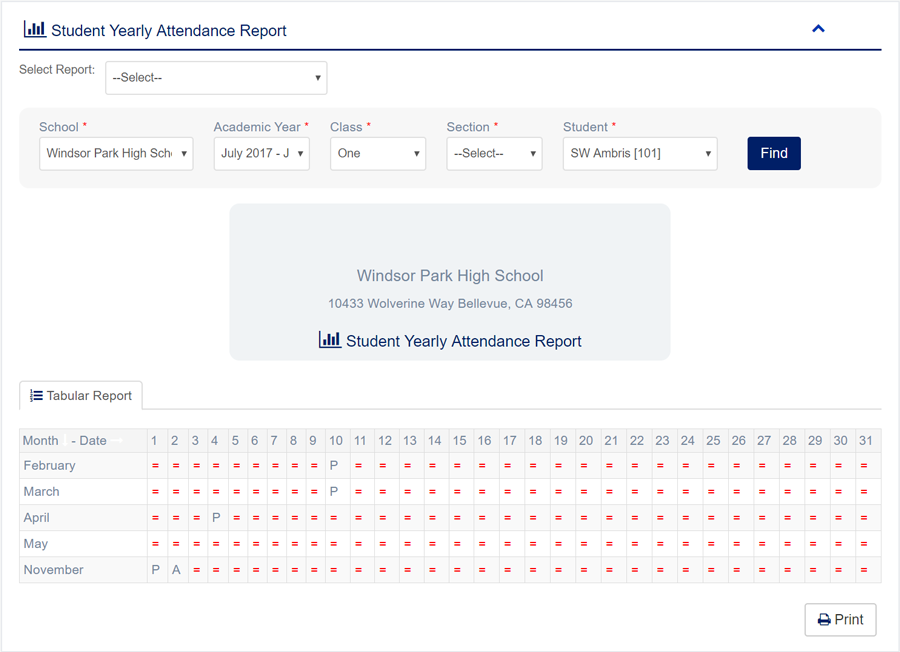
2. Select تقرير حضور الطلاب السنوي sub menu under Report main menu from left side bar.
3. To View تقرير حضور الطلاب السنوي choose Academic Year, Class,Section, Student.
4. Then click Find button and you will see تقرير حضور الطلاب السنوي.
5. You are done with تقرير حضور الطلاب السنوي feature.
1. Login to المدير Panel.
2. Select تقرير حضور المعلمين sub menu under Report main menu from left side bar.
3. To View تقرير حضور المعلمين choose Academic Year, Month.
4. Then click Find button and you will see تقرير حضور المعلمين.
5. You are done with تقرير حضور المعلمين feature.

1. Login to المدير Panel.
2. Select تقرير حضور المعلمين السنوي sub menu under Report main menu from left side bar.
3. To View تقرير حضور المعلمين السنوي choose Academic Year, Teacher.
4. Then click Find button and you will see تقرير حضور المعلمين السنوي.
5. You are done with تقرير حضور المعلمين السنوي feature.

1. Login to المدير Panel.
2. Select تقرير حضور الموظفين sub menu under Report main menu from left side bar.
3. To View تقرير حضور الموظفين choose Academic Year, Month.
4. Then click Find button and you will see تقرير حضور الموظفين.
6. You are done with تقرير حضور الموظفين feature.

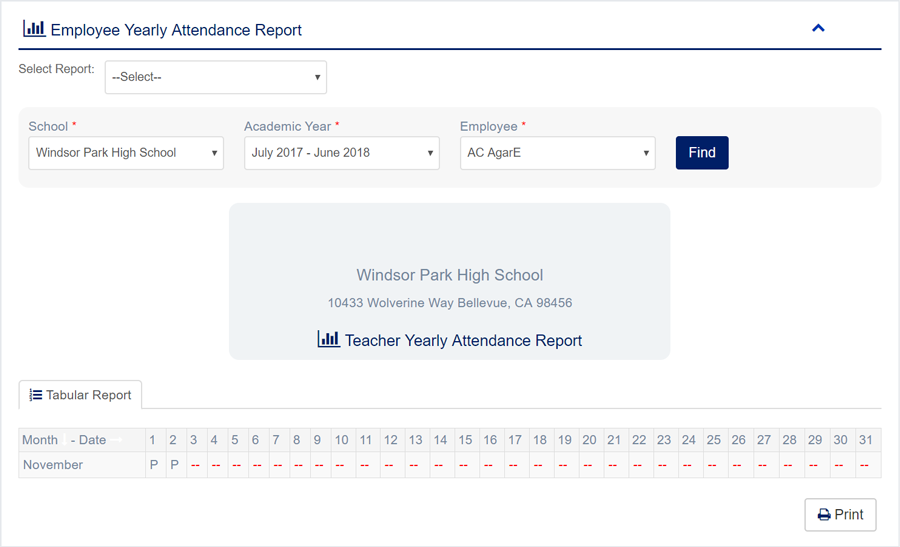
1. Login to المدير Panel.
2. Select تقرير حضور الموظفين السنوي sub menu under Report main menu from left side bar.
3. To View تقرير حضور الموظفين السنوي choose Academic Year, Employee.
4. Then click Find button and you will see تقرير حضور الموظفين السنوي.
6. You are done with تقرير حضور الموظفين السنوي feature.
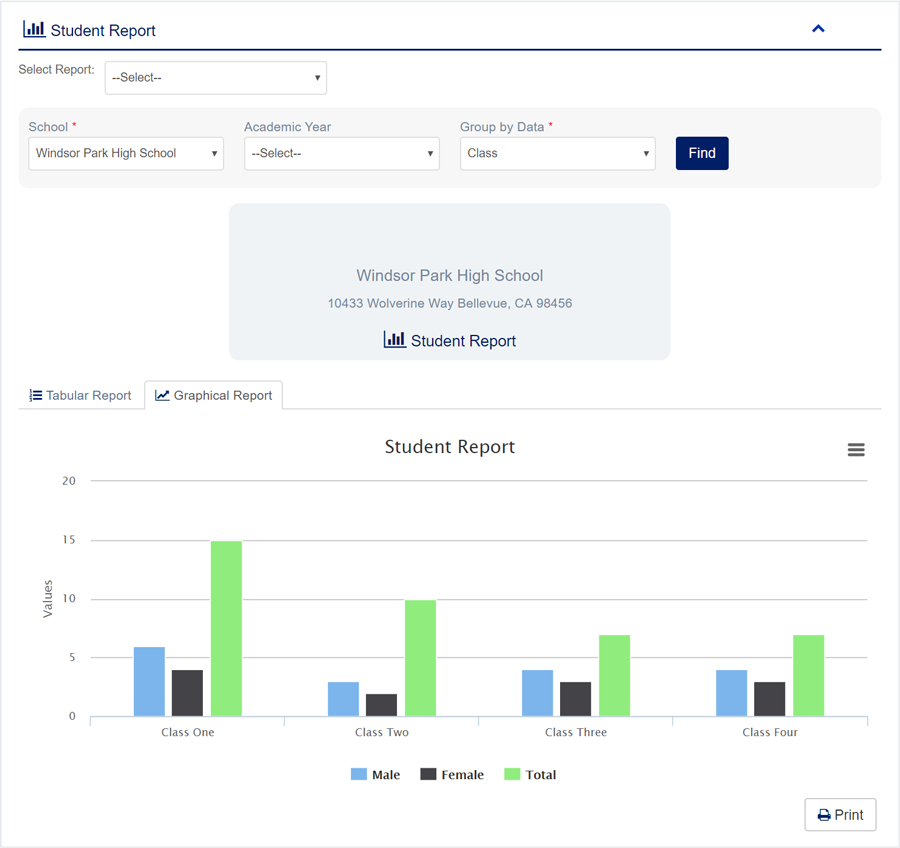
1. Login to المدير Panel.
2. Select تقرير الطلاب sub menu under Report main menu from left side bar.
3. To View تقرير الطلاب choose Academic Year, Group by Data.
4. Then click Find button and you will see Graphical Report.
4. To view Tabular Data click Tabular Report
6. You are done with تقرير الطلاب feature.

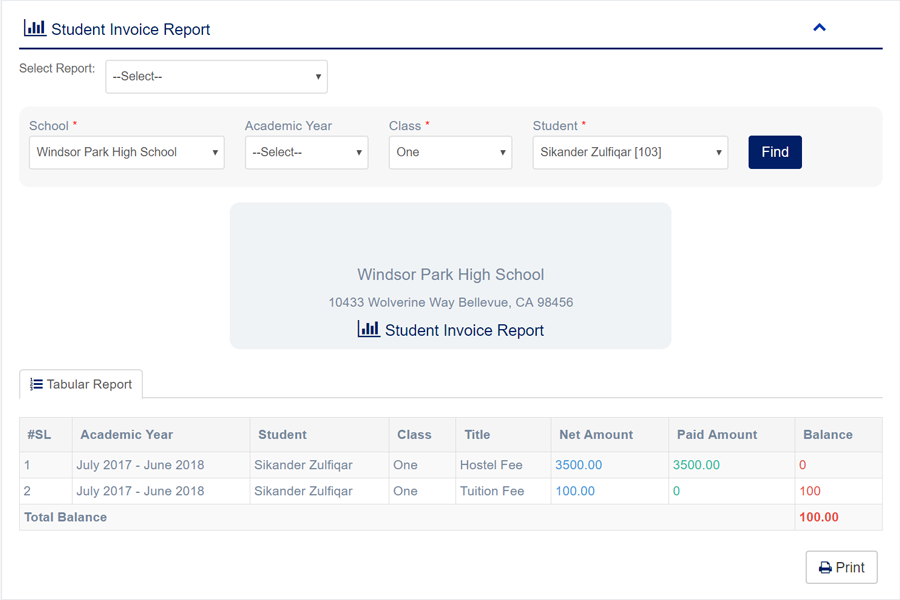
1. Login to المدير Panel.
2. Select تقرير فاتورة الطالب sub menu under Report main menu from left side bar.
3. To View تقرير فاتورة الطالب choose Academic Year, Class, Student.
4. Then click Find button and you will see تقرير فاتورة الطالب.
6. You are done with تقرير فاتورة الطالب feature.
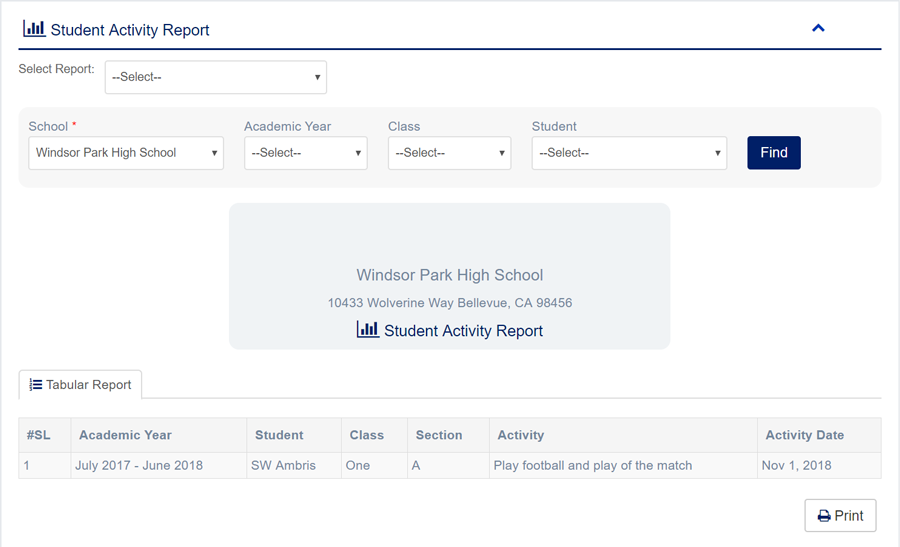
1. Login to المدير Panel.
2. Select تقرير نشاط الطالب sub menu under Report main menu from left side bar.
3. To View تقرير نشاط الطالب choose Academic Year, Class, Student.
4. Then click Find button and you will see تقرير نشاط الطالب.
6. You are done with تقرير نشاط الطالب feature.
1. Login to المدير Panel.
2. Select تقرير الرواتب sub menu under Report main menu from left side bar.
3. To View تقرير الرواتب choose Academic Year, Class, Student.
4. Then click Find button and you will see تقرير نشاط الطالب.
6. You are done with تقرير نشاط الطالب feature.


1. Login to المدير Panel.
2. Select تقرير المعاملات اليومية sub menu under Report main menu from left side bar.
3. To View تقرير المعاملات اليومية choose Academic Year, From Date, To Date.
4. Then click Find button and you will see تقرير المعاملات اليومية.
6. You are done with تقرير المعاملات اليومية feature.
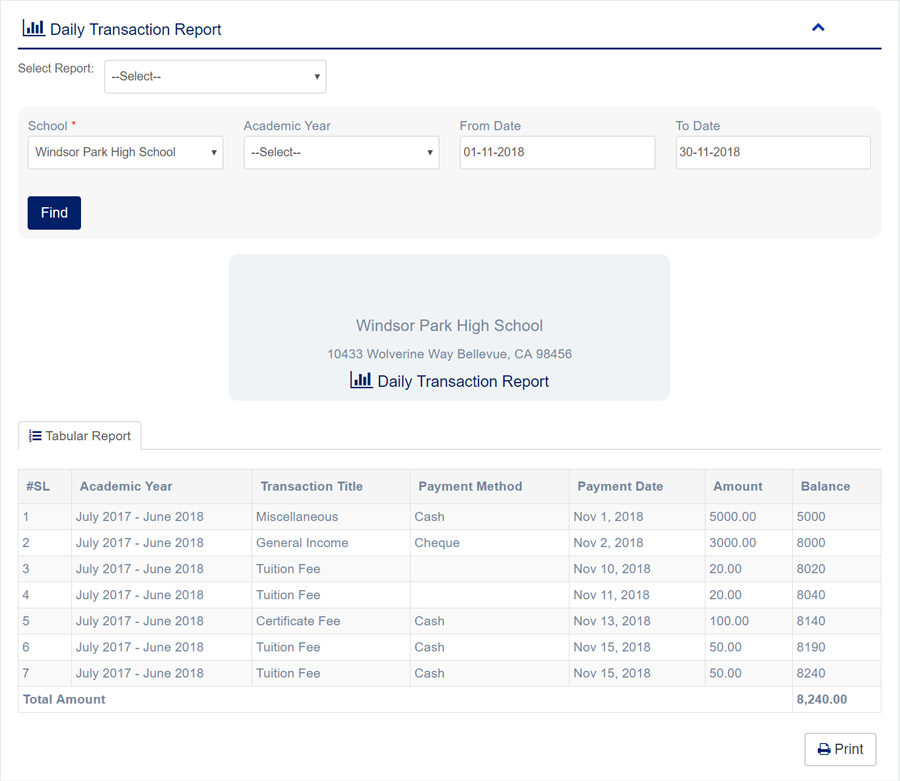
1. Login to المدير Panel.
2. Select تقرير الكشف اليومي sub menu under Report main menu from left side bar.
3. To View تقرير الكشف اليومي choose From Date, To Date.
4. Then click Find button and you will see تقرير الكشف اليومي.
6. You are done with تقرير الكشف اليومي feature.

1. Login to المدير Panel.
2. Select >Exam Result Report sub menu under Report main menu from left side bar.
3. To View تقرير نتائج الامتحان choose Academic Year, Class, Section.
4. Then click Find button and you will see >Exam Result Report.
6. You are done with >Exam Result Report feature.

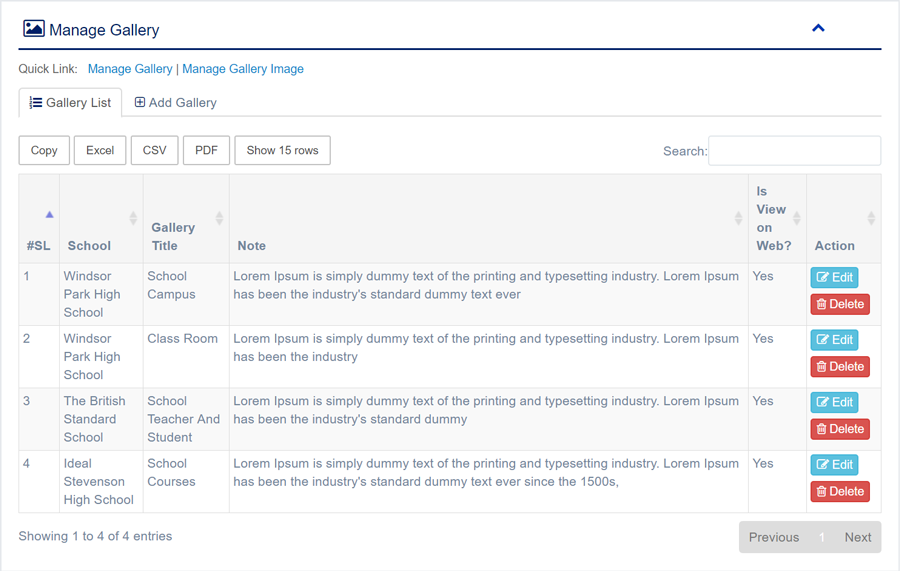
1. Login to المدير Panel.
2. Select إدارة المعرض sub menu under معرض الصور main menu from left side bar.
3. To Add/Create new Gallery click Add Gallery tab.
4. To Edit Gallery Click Edit button in the Gallery list.
5. To Delete Gallery Click Delete button in the Gallery List.
6. You are done with إدارة المعرض feature.

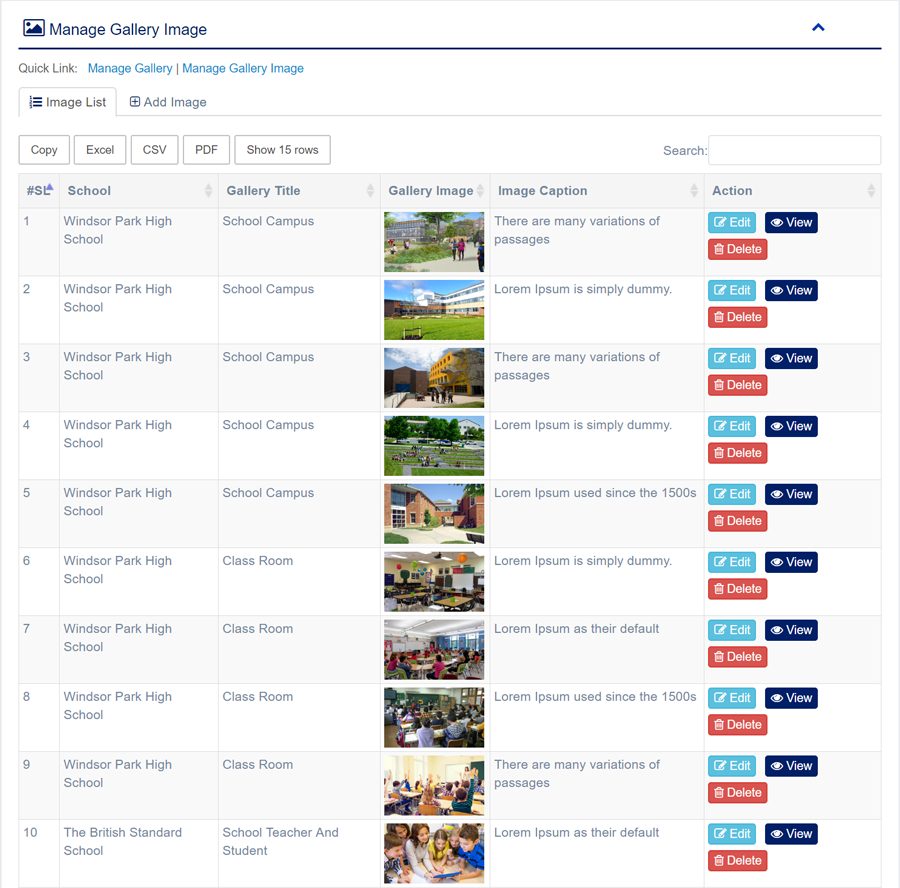
1. Login to المدير Panel.
2. Select Manage Gallery Image sub menu under معرض الصور main menu from left side bar.
3. To Add/Create new صورة المعرض click Add Gallery Image tab.
4. To Edit صورة المعرض Click Edit button in the صورة المعرض list.
5. To Delete صورة المعرض Click Delete button in the صورة المعرض List.
6. You are done with Manage Gallery Image feature.

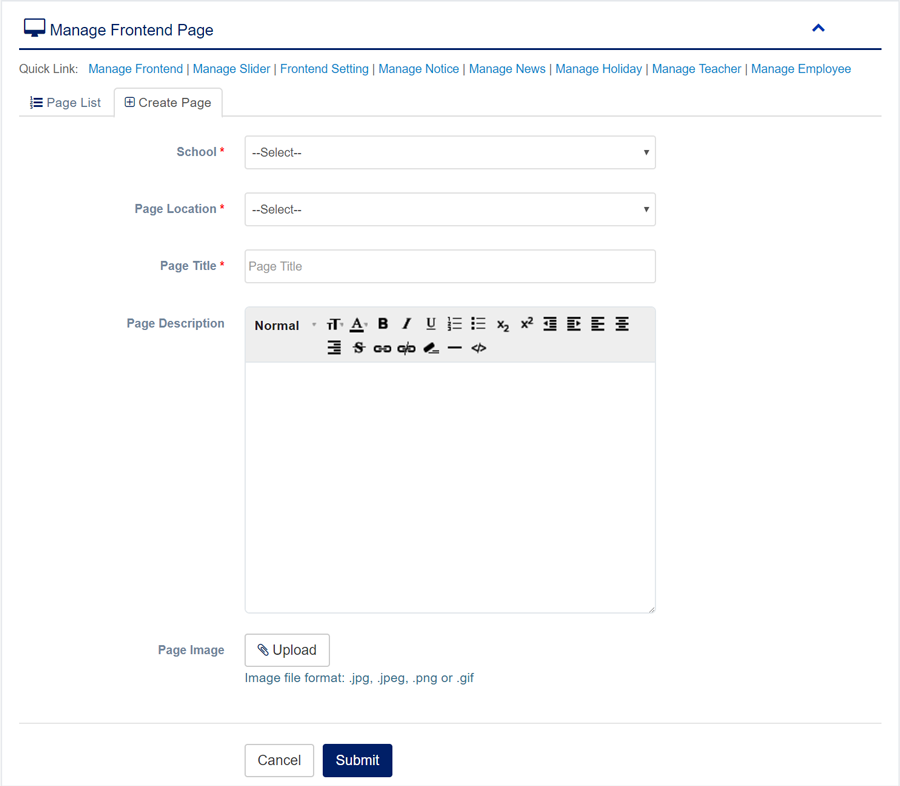
1. Login to المدير Panel.
2. Select Manage Frontend sub menu under Frontend main menu from left side bar.
4. To Edit Frontend Pages Click Edit button in the Frontend Page list.
5. To View Frontend Page Click View button in the Frontend Page List.
6. You are done with إدارة صفحات الواجهة الأمامية feature.

1. Login to المدير Panel.
2. Select Manage Slider sub menu under Frontend main menu from left side bar.
3. To Add/Create new Slider click Add Slider tab.
4. To Edit Slider Image Click Edit button in the Slider Image list.
5. To Delete Slider Image Click Delete button in the Slider Image List.
6. You are done with Manage Slider Image feature.
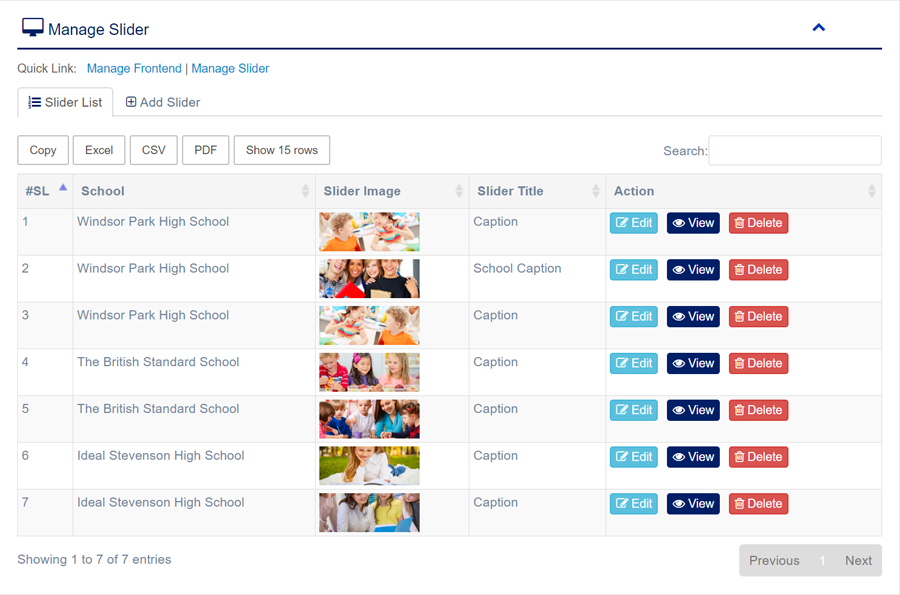
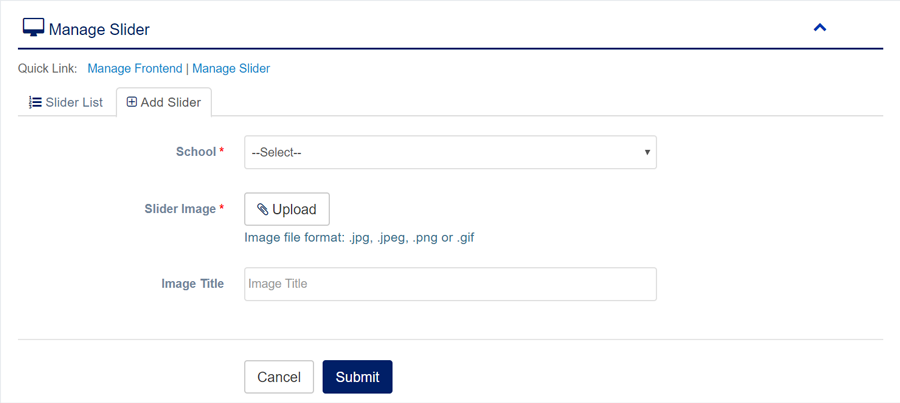
1. Login to المدير Panel.
2. Select My Profile sub menu under الملف الشخصي main menu from left side bar.
3. To Update الملف الشخصي click Update Tab and click Update Button at the bottom.
4. You are done with إدارة ملفي الشخصي feature.

1. Login to المدير Panel.
2. Select إعادة تعيين كلمة المرور sub menu under الملف الشخصي main menu from left side bar.
3. To Reset Password  input your new password in the fields and click إرسال Button.
4. You are done with إعادة تعيين كلمة المرور feature.
1. Login to المدير Panel.
2. Click تسجيل الخروج sub menu under الملف الشخصي main menu from left side bar.
3. You are done with تسجيل الخروج feature.
The following steps will help you to integrate ZOOM in the Software:-
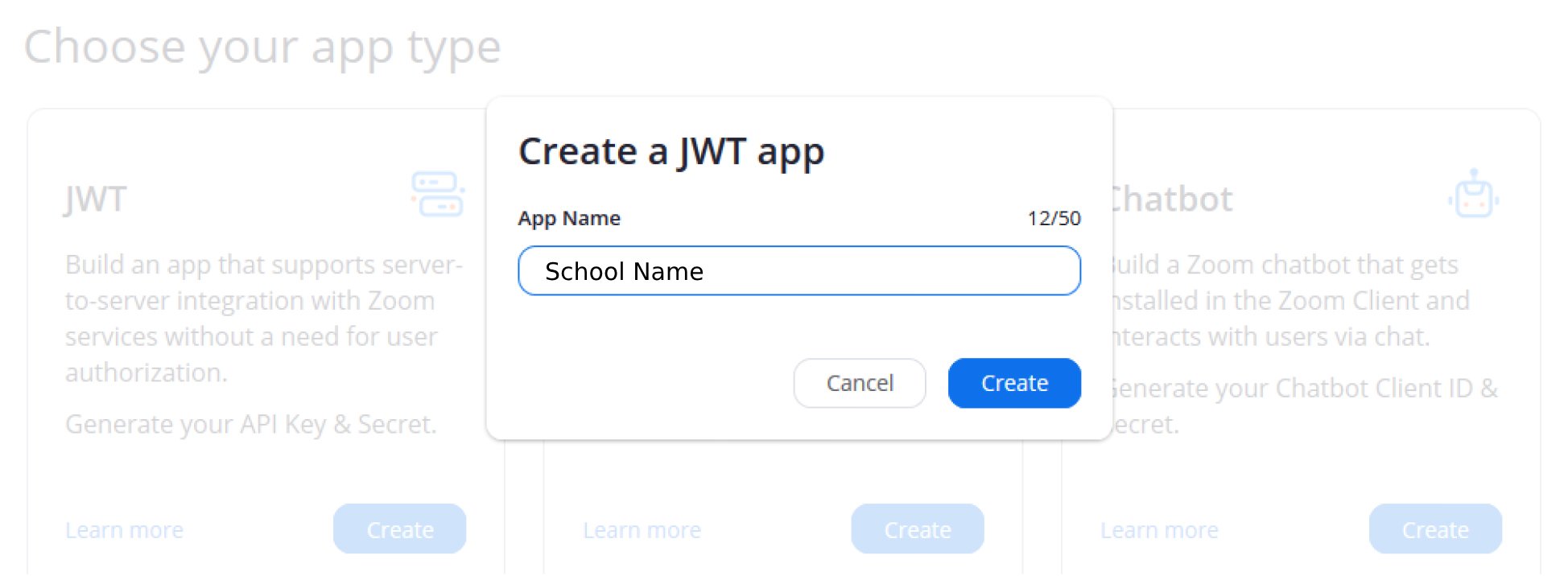
1. First, Please Sign up or sign in here, Zoom Marketplace Portal. Also, please follow the signup process and complete the steps in the screenshots below.


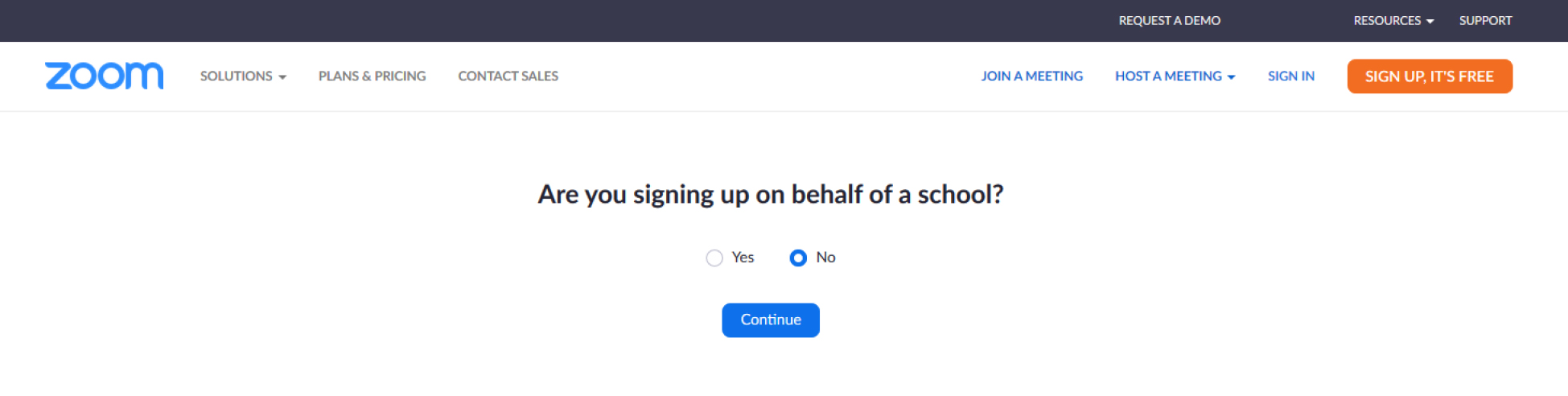
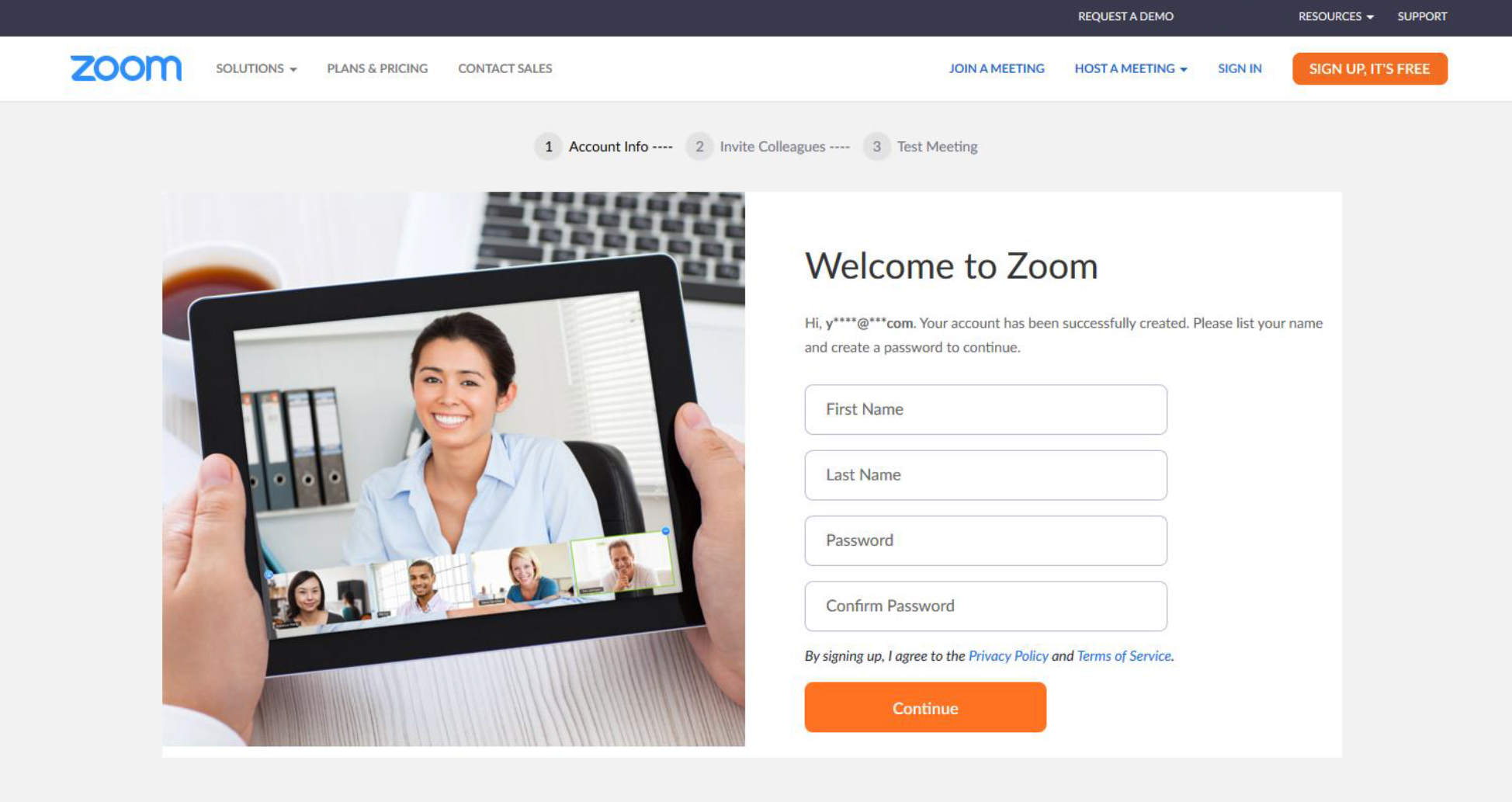




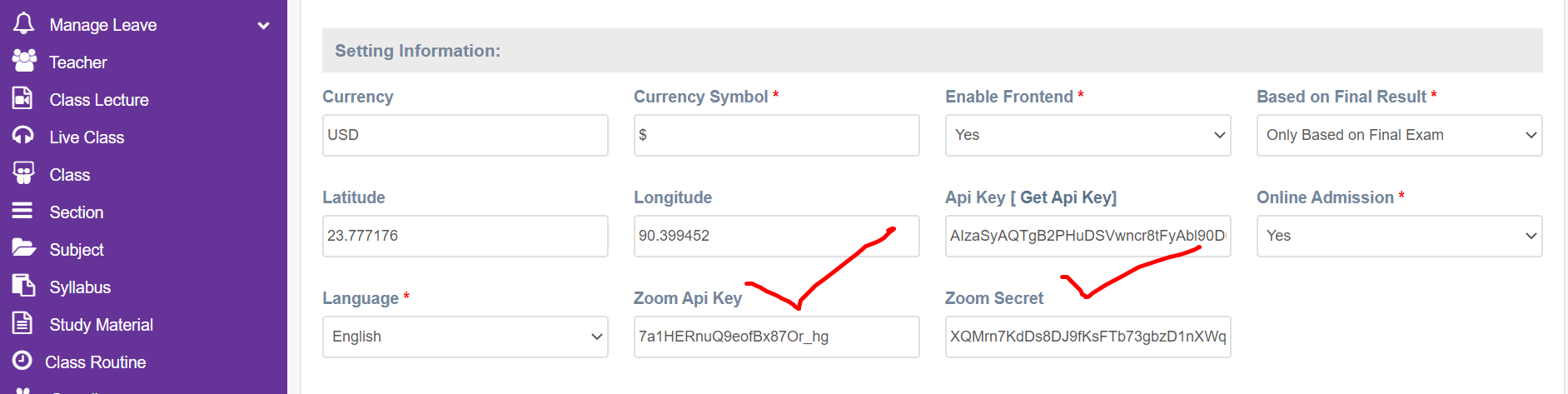
 02. After completing the Zoom account sign-up up collect the ZOOM Api Key and Api Secret and save them in the Software. The School Admin has to save under Left Menu-> Settings ->School Settings. Please see the following screenshot.
 03. Now you have to create a meeting in your ZOOM account with a set date, time, and other settings as per your needs. From here, you will get the Meeting ID and Meeting Password. The following screenshots will help you to do this.

 04. Now you have to configure the live class in the Software and create a live class schedule as per your ZOOM meeting configuration. Please fill up all fields to create a live class schedule with all required fields. Most importantly, please enter the ZOOM Meeting ID and password correctly; otherwise meeting will fail. The following screenshots will help you to do this.
 05. Now, Teachers and Students will be able to communicate in Live Class using the ZOOM Feature. The following screenshot will help you to do this.